
Smart services can be used together with the VCA Deep Learning feature. In this case, you should note that you are using the latest NVIDIA drivers, and not the ones that come with the CUDA Toolkit package. More information can be found here.
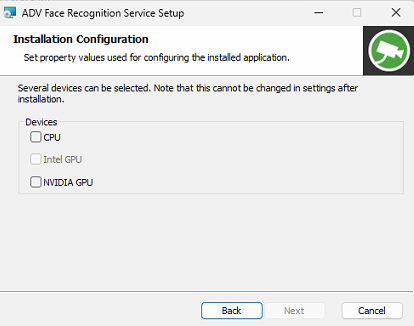
NVIDIA libraries (CUDA cuDNN, TensorRT) are not included in the FR installer. The installer will detect the presence of the NVIDIA library installers from the ‘NVIDIA’ subfolder and install the libraries automatically if they are found.
Requirements
-
Administrator rights
-
List Management Service installed
-
Face Recognition license on the VMS Management Server
-
RTSP license feature on the VMS Management Server and the VMS Server
Installation
-
Download the latest version from Extranet.
-
Unzip the files e.g. to the C:\temp folder.
-
Start the installation by double-clicking the installation file.
-
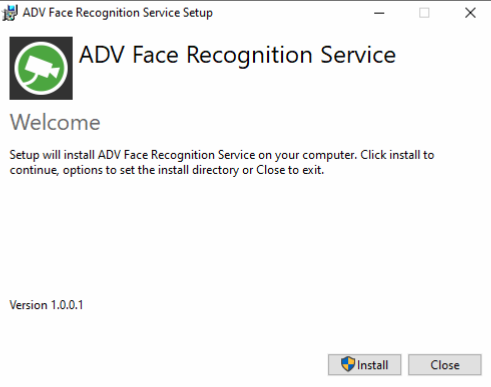
Click Install to continue.
-
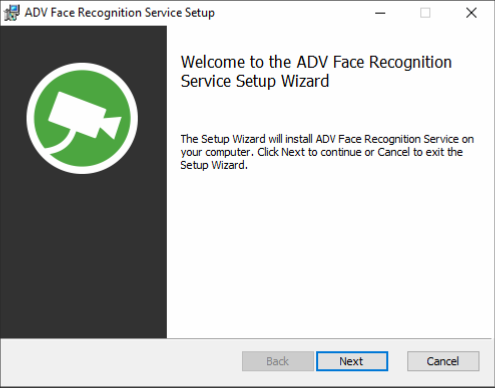
Click Next to continue.
-
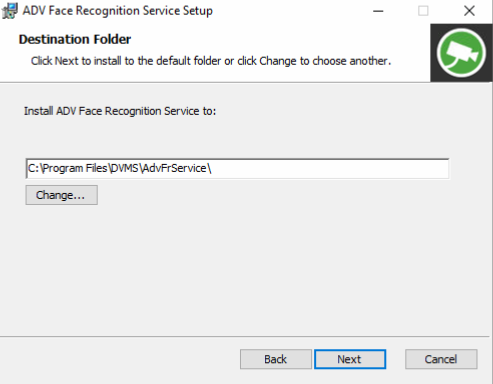
Change the installation location if needed and click Next to continue.
-
Change ports and addresses if needed.
-
If you e.g. install the Face Recognition service on a machine other than the VMS main server, you need to change the main server address to the correct one.
-
The same applies to the Event queue address. Replace this address with the server address where List Management Service is installed.
-
-
Click Next to continue.
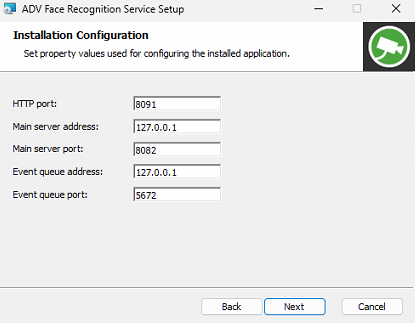
The HTTP port where the FR service is hosted is by default 8091. Change the port in case the default port is reserved for some other use.
The main server uses port 8082 by default. Set the main server address and port to allow the FR service to connect to the correct main server.
Event queue uses port 5672 by default. The event queue is installed with the LM service installation, where the used event queue port is set. Set the event queue address to the machine where the LM service is installed.
-
Select devices and click Next
-
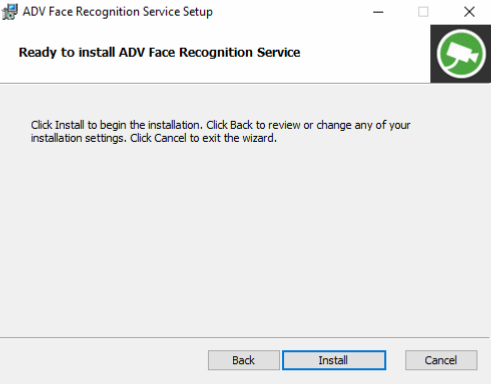
Click Install to continue and wait.
-
Installation will take some time until it is finished.
-
Model creation can take up to 30 minutes. This depends on how powerful the graphics card in use is.
-
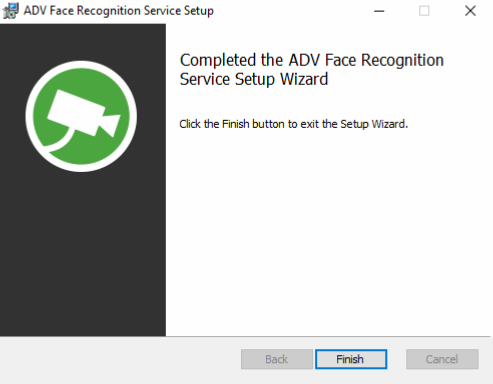
Click Finish to continue.
-
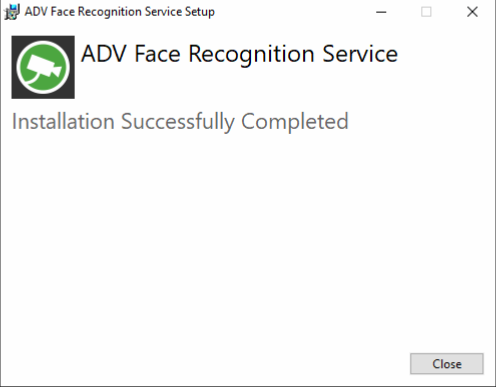
Click Close to close the installation.
-
Now the Face Recognition Service is installed on the server and is ready to use.
-
Face Recognition Service sends details to the VMS Main server. You can configure the service via System Manager.
-