
Since it is also possible to use a different stream for ThruCast than the recording stream, this should be considered when planning the network capacity.
For example, users can choose to view live images with ThruCast at a higher framerate (for example, 25 fps) and always record at a lower framerate (for example, eight fps).
This reduces the storage and network requirements considerably.
Impact of ThruCast on Image Delay
Since the ThruCast stream does not travel to the VMS Server and back, the delay from the camera to the client is slightly smaller, but the difference to the stream received from the server is not large, only some milliseconds.
The difference in the two-stream modes is complicated to observe in real life.
Features Not Supported in ThruCast Streaming
ThruCast does not support PTZ control or Audio
Also, currently, ThruCast supports only live images. Playback (recorded images) is currently always received from the server.
Licenses
ThruCast requires the VMS license to have the ThruCast feature and the ThruCast client driver identifiers used.
These ThruCast driver licenses, and the ThruCast feature, are always enabled in the Mirasys V9 product version.
Multiple Viewers
Since each ThruCast-viewer opens an individual new stream from the camera to the client, users should trial how many streams can reliably be opened from the cameras they are using. In practice, 3-5 streams typically work ok.
Installing Client Drivers
Before using ThruCast, the necessary client drivers need to be installed with the System Manager application if they have not been installed with the original system installation.
The client driver packages are available in the whole setup package from Mirasys. They are named with the “.sdi” filename extension.
These drivers are installed on the System Manager application’s first page, “Install client driver.”
The new drivers can be added by pressing the “Install new client driver” button and choosing the SDI packages.
After this, click the “OK” button.
After installing the drivers, they still need to be downloaded to the viewing Spotter clients. This is done when Spotter is restarted from the desktop.
After Spotter has downloaded the new drivers, the system is ready for ThruCast use.
Please note that only those cameras which’ client driver was installed will appear as ThruCast enabled.
Configuring multi-streaming
ThruCast can use any stream from the camera, the Recording, Live viewing or Remote streams.
The multi-streaming is enabled and configured typically in System Manager – cameras.
In the Spotter client settings – streaming – multi-streaming, the user can choose which one of the streams is used for viewing. The same setting is used for standard and ThruCast viewing.
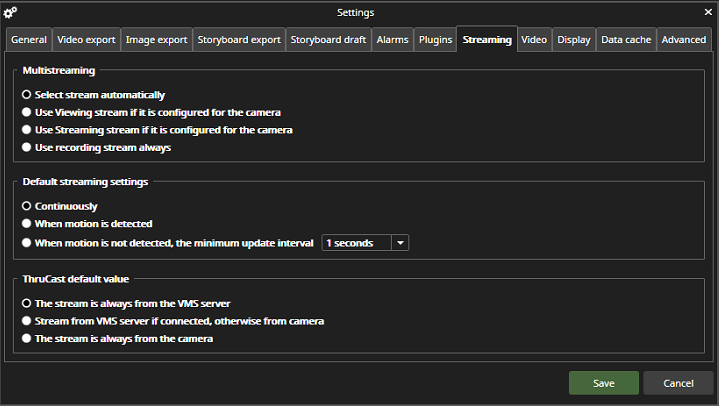
ThruCast Default Setting
The default setting for all cameras that have not been used for ThruCast before can be defined in Spotter settings – streaming – ThruCast default value.
The possible values are
-
Always stream from the VMS Server
-
Stream from the VMS Server normally, but switch to ThruCast if the connection to the server is lost
-
Always stream using ThruCast