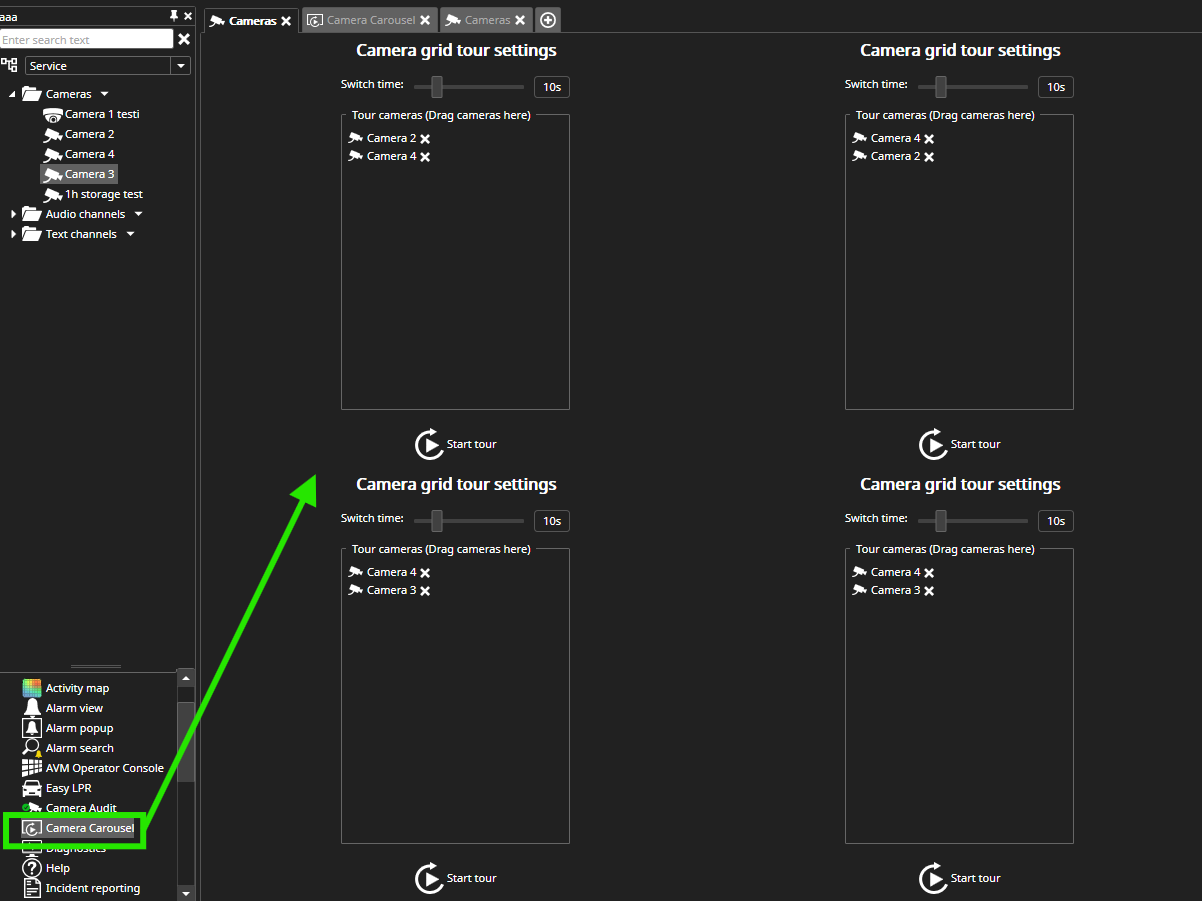
The Camera Carousel plugin allows users to create a lightweight camera tour on a single Spotter tab camera cell.
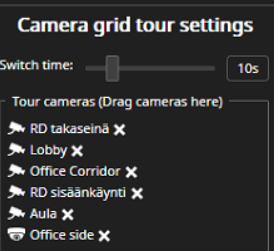
Camera grid tour settings
-
Open Camera Carousel
-
Drag needed cameras from the device tree to the camera carousel
-
Set switch time(from 5s to 30s)
-
Click Start tour

-
When the carousel is running, the camera grid cell is indicated with an orange border.

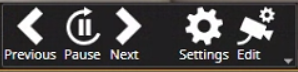
Mouse left-click opens toolbar with the options:
-
Previous
-
Pause
-
Next
-
Settings
-
Edit
Running Camera Carousel in a Quad
Here’s how you can run the Camera Carousel in a quad layout:
-
Open a new, empty tab.
-
Locate the Camera Carousel plugin in the available plugins list.
-
Drag and drop the plugin into the first empty camera cell on your new tab.
-
To create a quad view, repeat the drag-and-drop action three more times. Place the Camera Carousel plugin in the remaining empty cells of the tab.
-
Once the plugins are placed in each of the four cells, you can configure the cameras displayed in each Carousel.