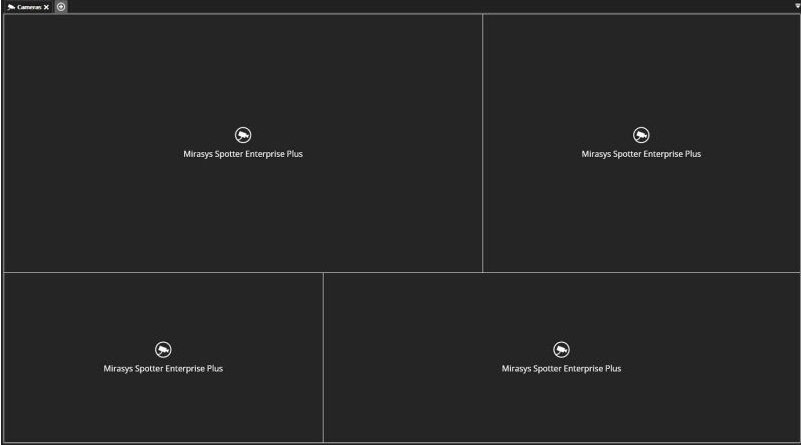
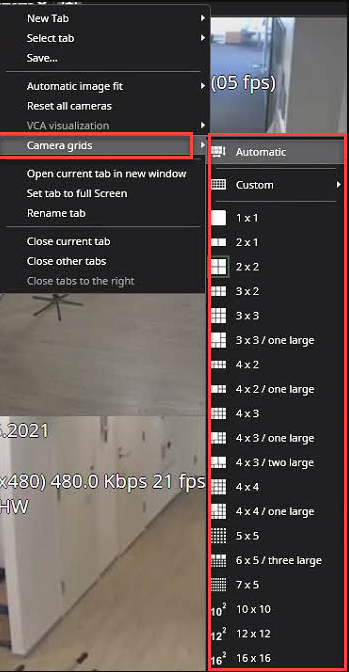
The default view mode of the work area is automatic. Cameras appear all using the same size in this mode, and the position and size change automatically as more cameras are added. There are also fixed grids available, where some cameras can be more significant than others, and cameras stick to the fixed view mode grid and do not move around like in automatic mode. The fixed grids are available from the tab menu
Custom camera grids
-
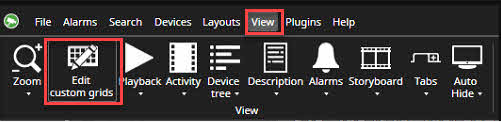
Click View
-
Open Edit custom grids
-
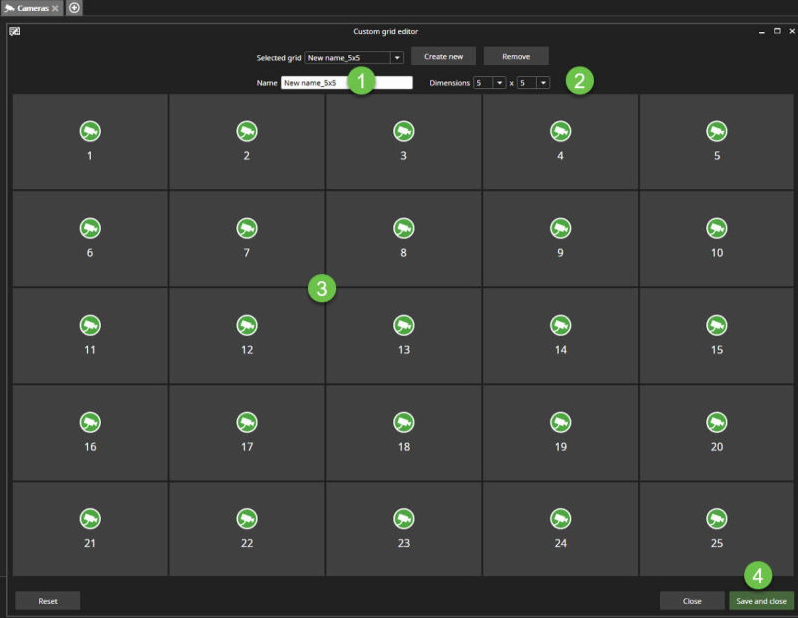
Enter the name of the camera grid
-
Set dimensions
-
Set the needed amount of the windows and their size
-
Click Save and Close
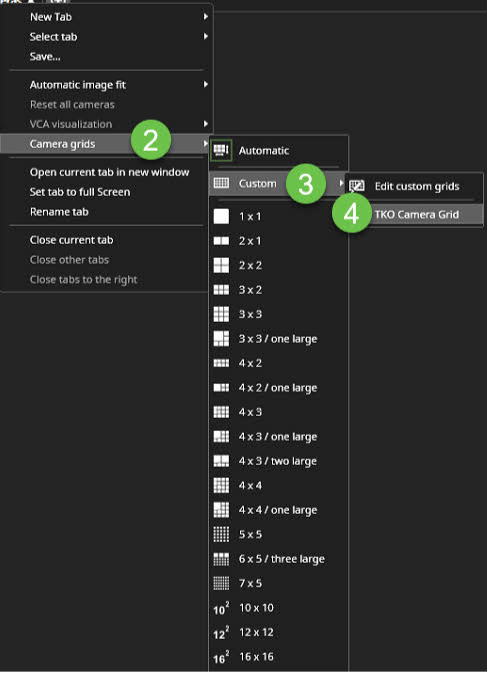
Using custom camera grids
-
Right-click top of the device tab name
-
Open Camera grids
-
Select Custom
-
Select needed custom camera grid name
After the loading, the user can see a custom grid view