
Opening the Incident Report
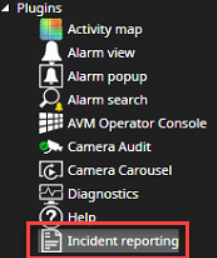
Open the Incident Reporting from the device tree
Creating an Incident Report
-
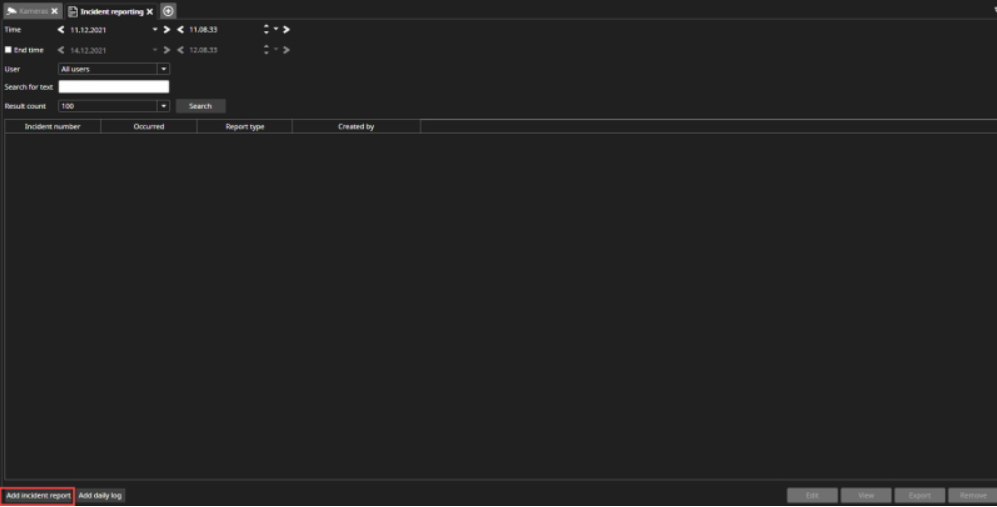
Click Add Incident Report
-
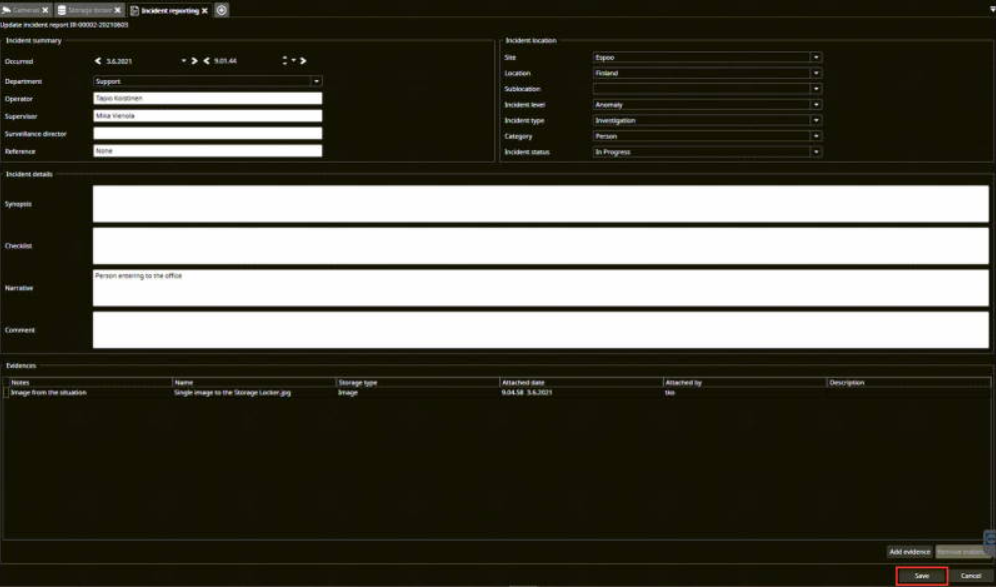
Select all necessary Incident Report details.
Department and Incident location fields are predefined by the administrator.
Adding evidence to the Incident Report
You can add images, video clips and camera audit reports as evidence.
-
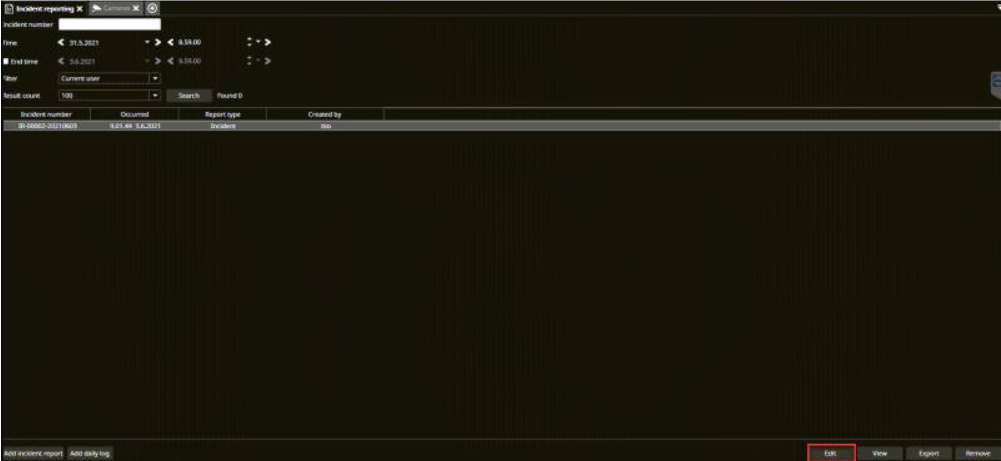
Select the Incident Report from the list and click Edit
-
Click Add evidence from the lower-left corner
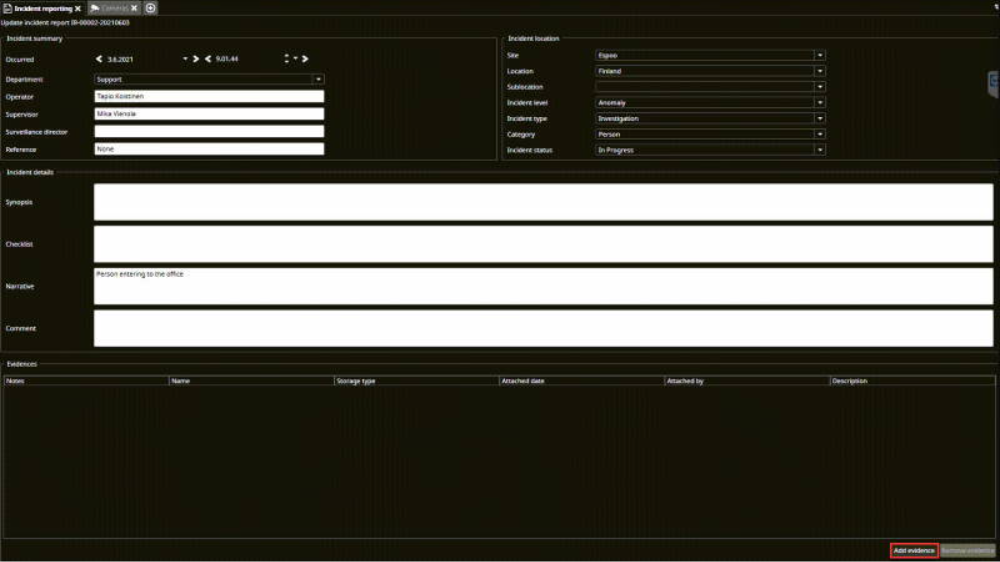
-
Click Search and select the evidence from the list
-
Click Add
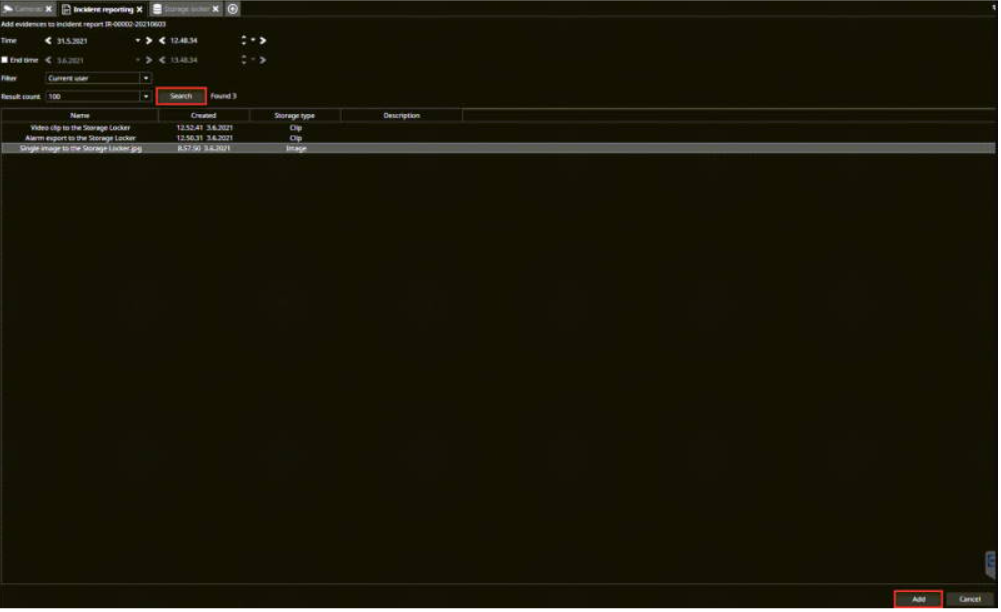
-
Click Save to finalize
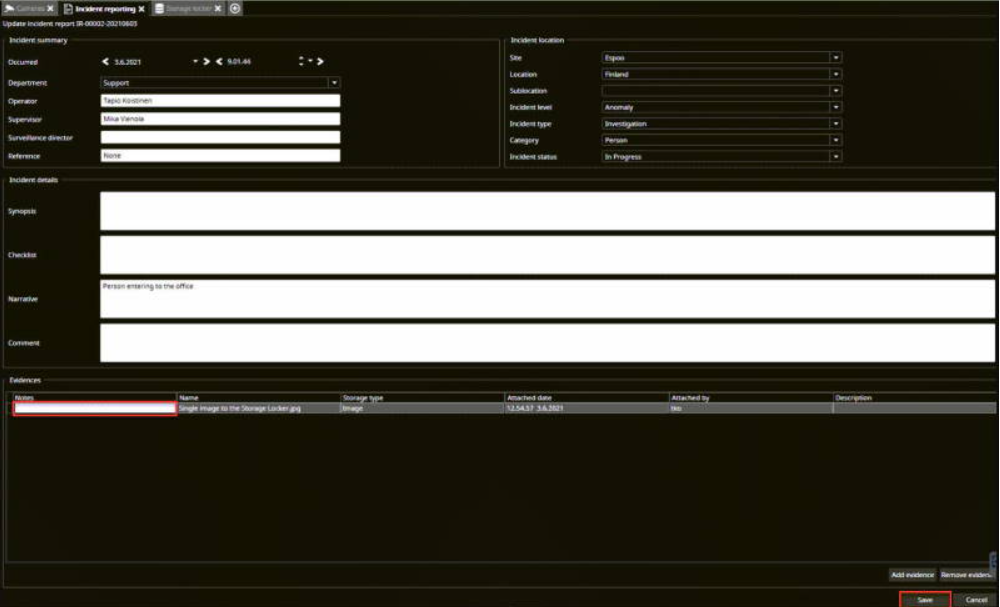
Editing the Incident Report
You can edit any Incident Report, which you have access to later.
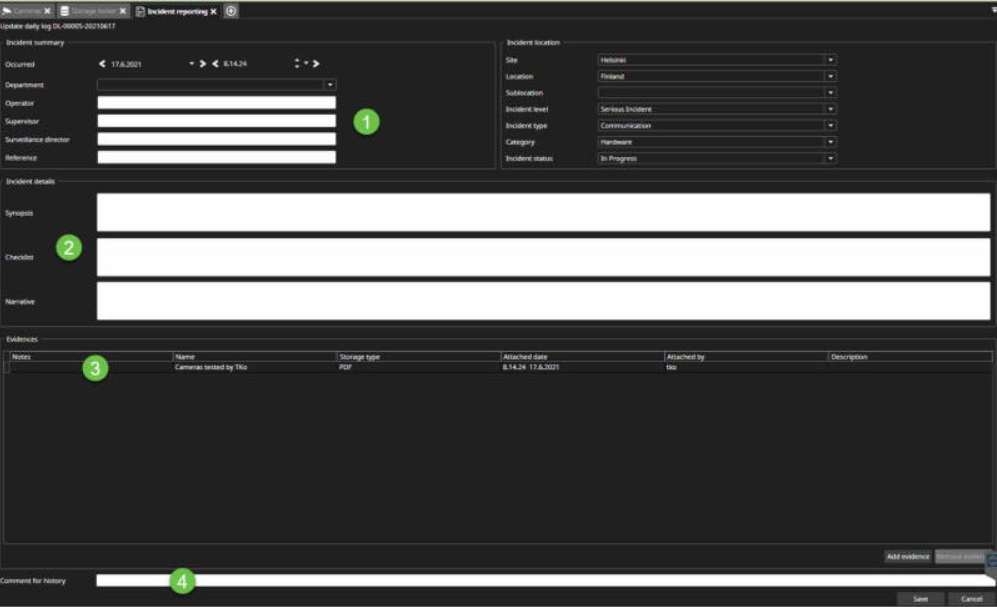
The editable fields:
-
Incident summary
-
Incident location
-
Incident details
-
Add notes to the evidence
-
Comment to history
Exporting the Incident Report & Daily Log
-
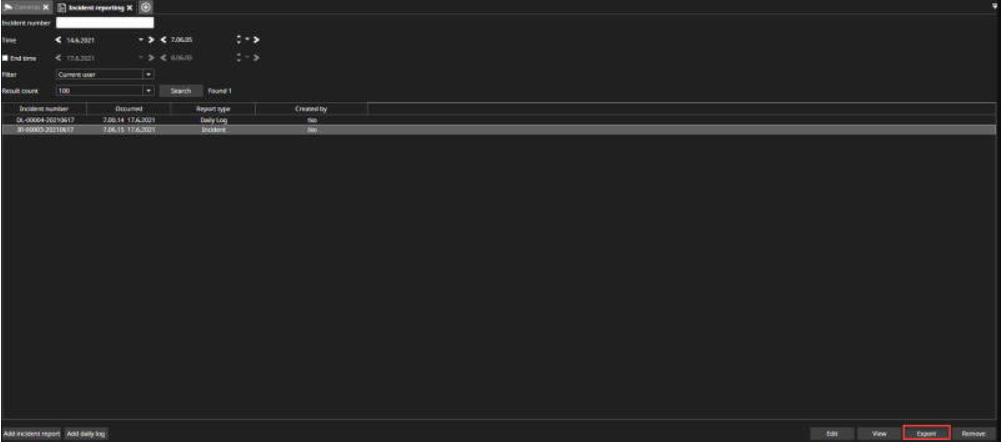
Select Incident Report or Daily Log from the list
-
Click Export
-
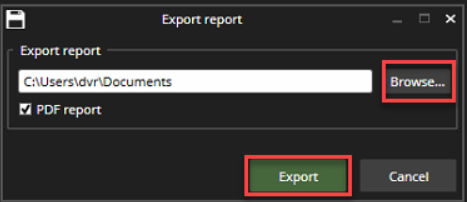
Select the location
-
Click Export
Searching the Incident Reports
-
Enter free text to the Search for text field(text from Name, Description and Incident numbers fields)
-
Press Enter or Search