
-
Open camera to the real-time view
-
Open camera toolbar
-
Select Camera
-
Select Duplicate
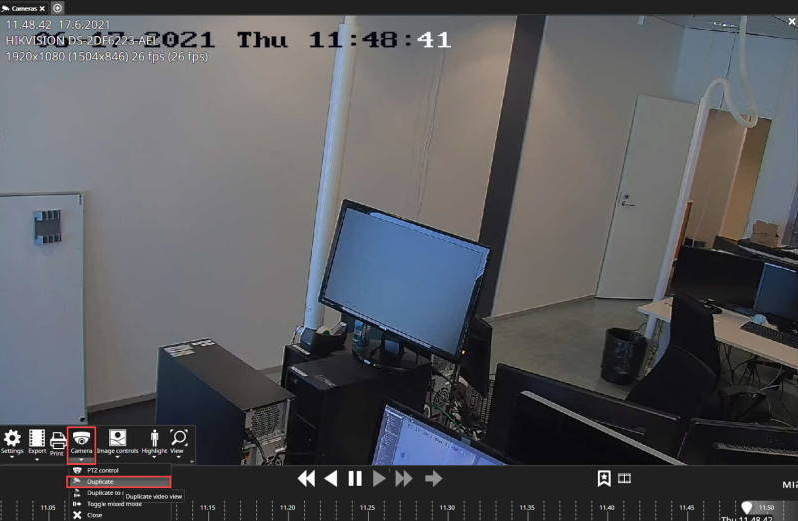
-
Open View
-
Select Move/Zoom
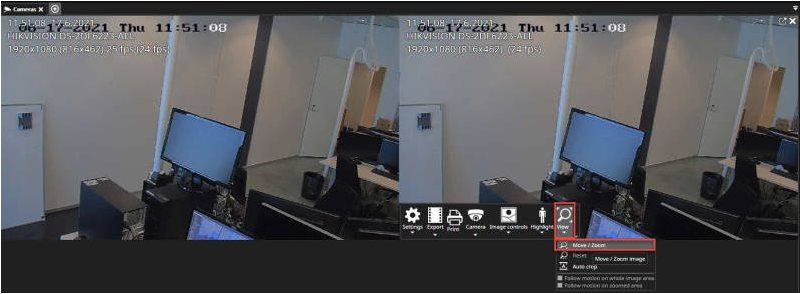
Mouse wheel movements will make the virtual camera rectangle larger or smaller.
The size can also be adjusted by dragging the edge of the rectangle with mouse and left-click.
The size will also change from the keyboard "page up" and "page down" buttons.
-
Draw zoomed area
-
Click OK
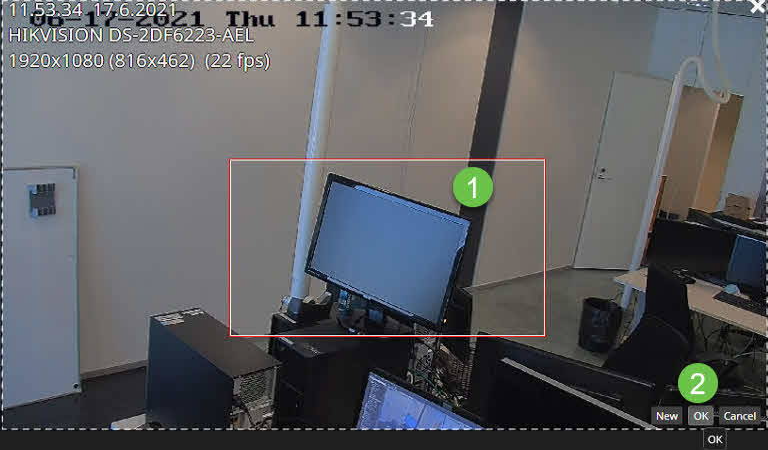
Create more virtual cameras, if needed
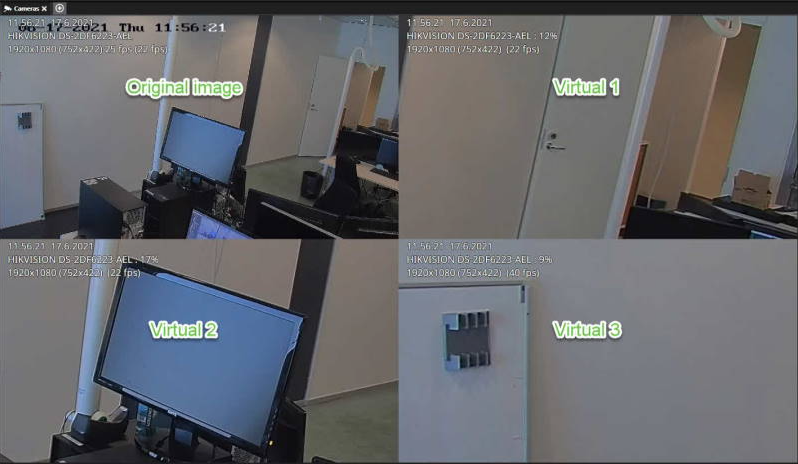
Frequently Used Keyboard Shortcuts:
NOTE: Only when in virtual camera editing mode.
|
Shortcut |
Description |
|
Arrow left |
Moves the red box to the left. |
|
Arrow right |
Moves the red box to the right. |
|
Arrow up |
Moves the red box up. |
|
Arrow down |
Moves the red box down. |
|
Page Up |
It makes the box more significant (zoom out). |
|
Page Down |
It makes the box smaller (zoom in). |