Camera health audit is a plugin that allows the operators to ascertain that every camera of the system works appropriately – plus that the cameras have not been turned/tampered/blocked.
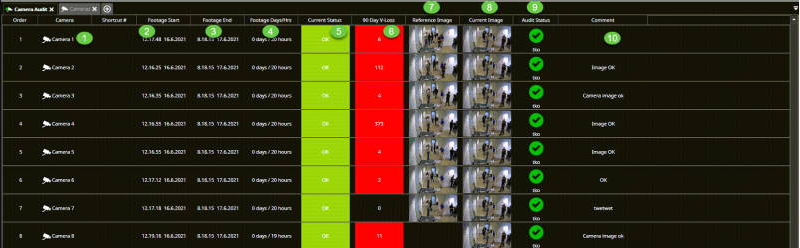
The main report page provides information on the
-
Name of the camera
-
Footage start time
-
Footage end time
-
Footage Days/Hours
-
Current status of the camera
-
90 days image loss
-
Reference image
-
Current image
-
Audit status
-
Comments
Auditing the cameras
-
Select cameras by control- and shift-clicking
-
Click Audit selected cameras

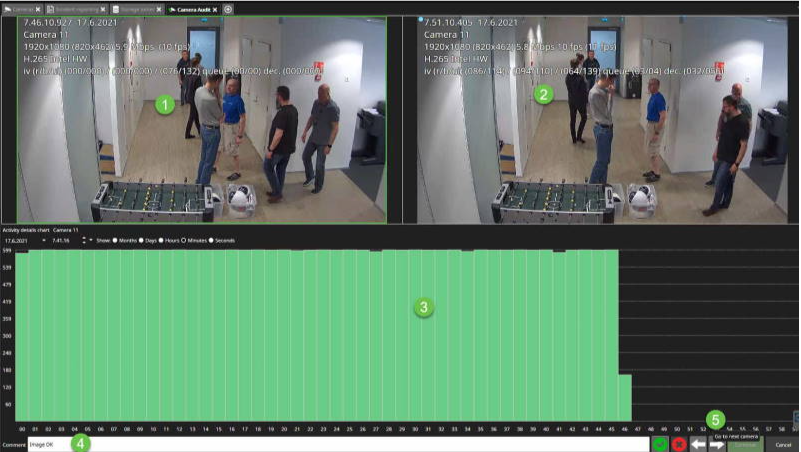
The camera audit view shows the following information:
-
Playback view from the camera
-
Real-time view from the camera
-
Amount of the frames received from the camera
-
You can add a comment to the camera audit report
-
Click Go to the next camera continue
-
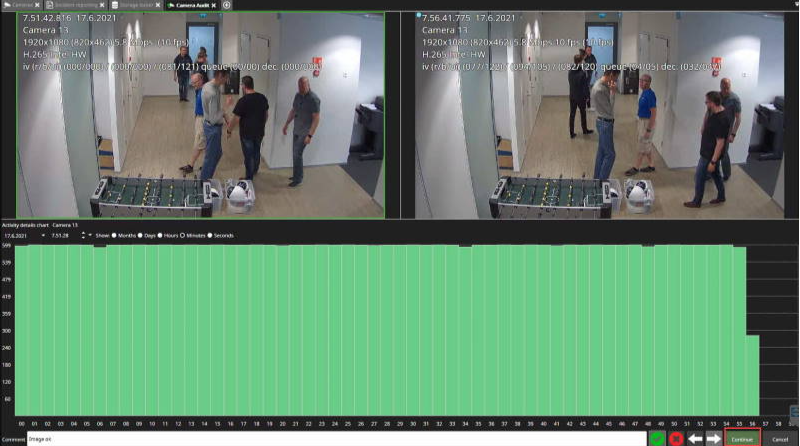
Repeat the actions with all cameras and click Continue
-
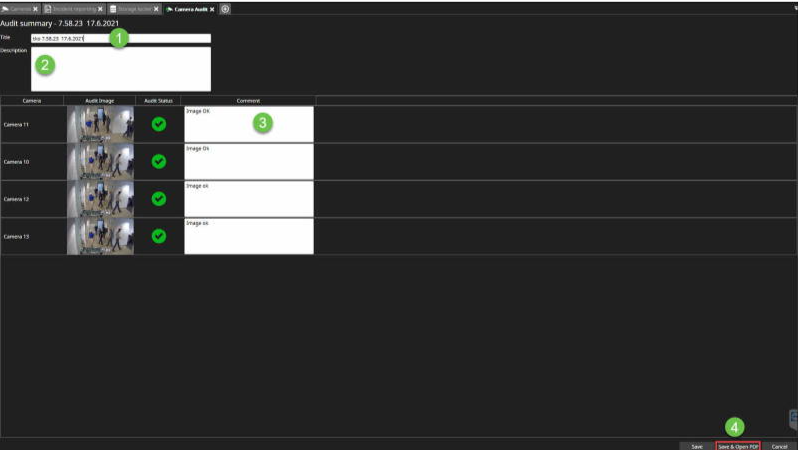
Enter the title of the camera audit
-
Type the description, if needed
-
Edit the comments, if needed
-
Click Save & Open PDF
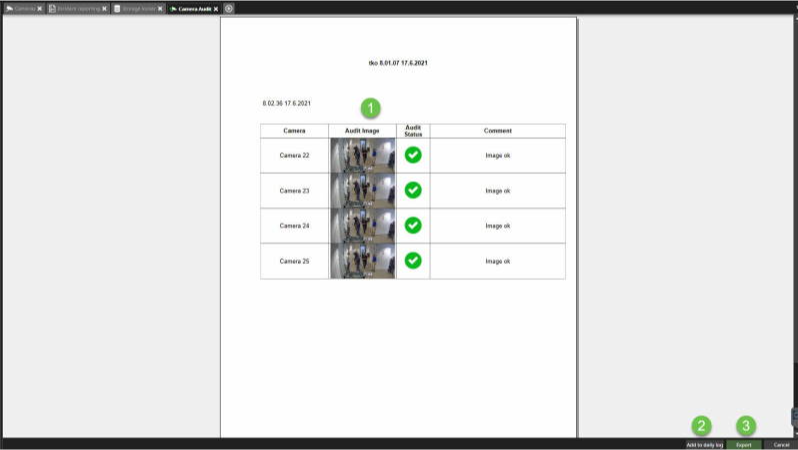
From the PDF view, you can do the following actions:
-
See an overall view of the camera audit report
-
Add camera audit report to the daily log
-
Export camera audit
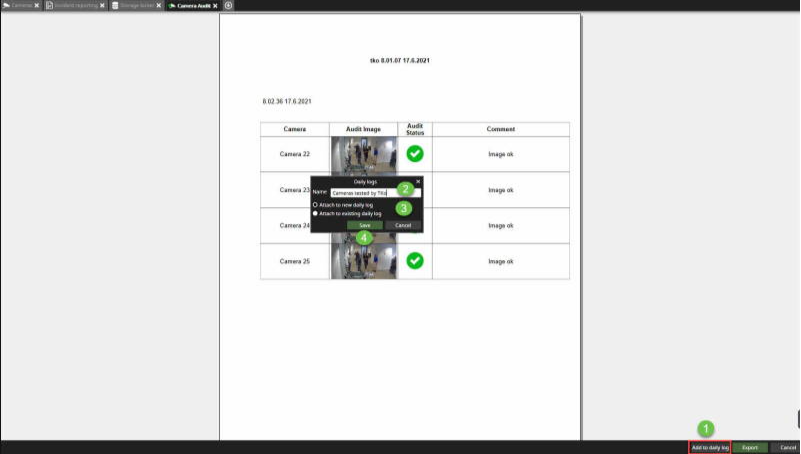
Add to the daily log
-
Click Add to the daily log
-
Set the name of the daily log
-
Select Attach to new daily log or attach to an existing daily log
-
Click Save
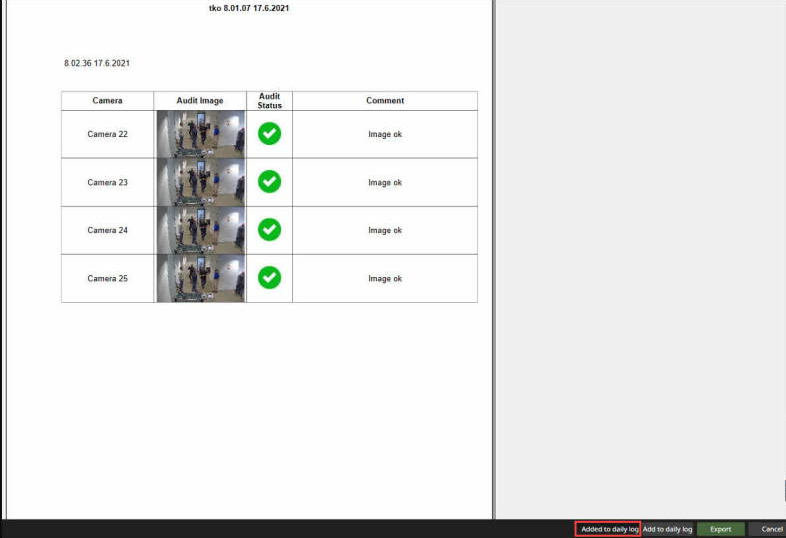
After the saving, you will see a message Added to the daily log
Exporting the camera audit report
Click Export
-
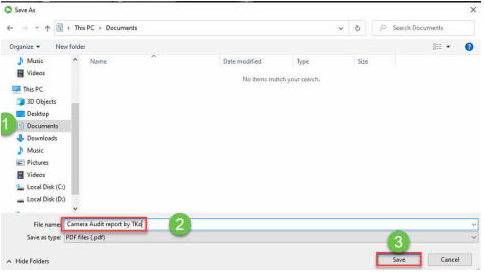
Select the location
-
Set name for the camera audit export
-
Click Save