
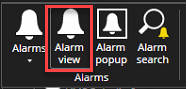
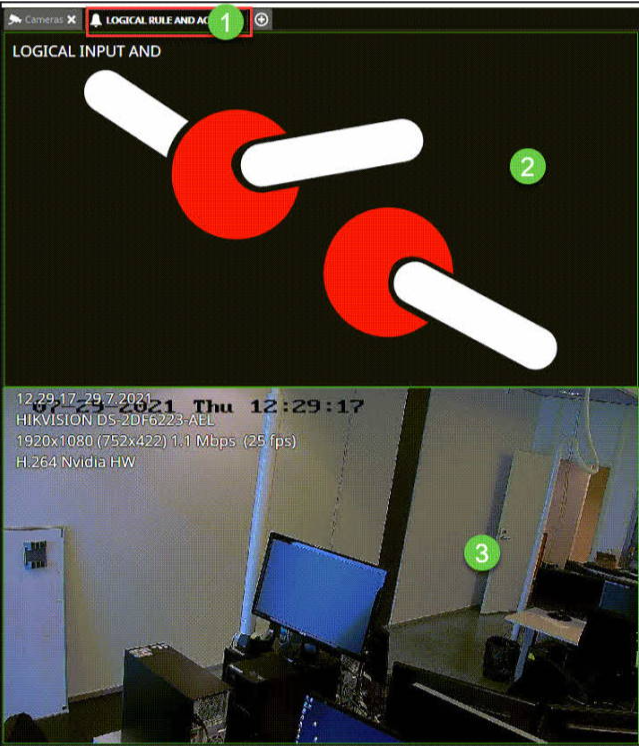
When you double-click an alarm name, the Alarm view tab is opened, and you can see all components related to the alarm for triggers and actions.
-
Name of the alarm
-
Trigger of the alarm
-
All action components of the alarm
Alarm view settings
The Alarm view settings can be configured under Settings > Alarms > Alarm view.
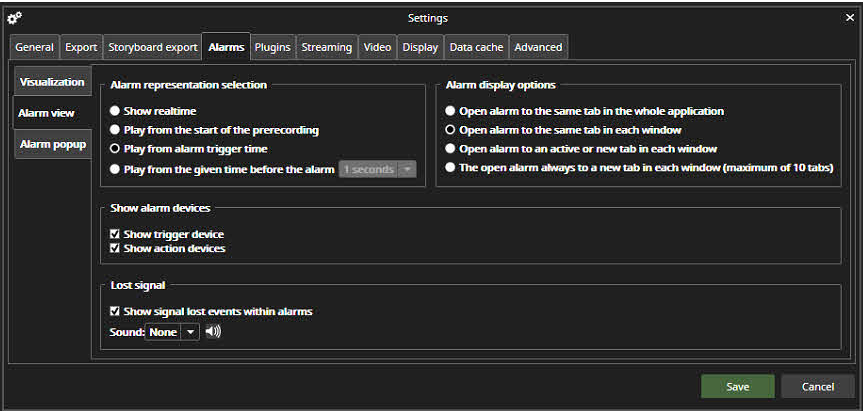
Alarm representation selection
The Alarm representation selection defines what time the alarm is being played when it is opened from the alarm list. Here you have the possibility to:
-
Show real-time
-
Play from the start of the alarm pre-recording time
-
Play from alarm trigger time (default option)
-
Play from the given time before the alarm(1- 60 seconds)
Alarm display options
You can define how the alarm is opened, with the following options:
-
Open alarm to the same tab in all whole application
-
Open alarm to the same tab in each window
-
Open alarm to an active or new tab in each window
-
Open alarm always to a new tab in each window(maximum of 1 10 tabs)
Lost signal
-
Show signal lost events within alarms