
Exportieren Sie Protokolldateien und senden Sie sie an den Systemlieferanten, wenn ein Problem mit dem System auftritt.
Die Protokolldateien werden in einer komprimierten (gezippten) Datei gespeichert, die auf einem entfernbaren oder nicht entfernbaren Gerät abgelegt werden kann.
Exportieren von Protokolldateien über System Manager
-
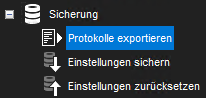
Öffnen Sie die Anwendung System Manager für Exportprotokolle und wählen Sie auf der Registerkarte System im Baumelement Backup den Unterpunkt Exportprotokolle.
2. Wählen Sie die Protokolle, die exportiert werden können, im Fenster Protokolle auswählen aus.
Wenn es Probleme mit einem Server gibt, wählen Sie Protokolle im Bereich System-Server-Protokolle. Wählen Sie außerdem Client-Programm-Protokolle.
Die Client-Protokolle stammen von dem Rechner, von dem aus Sie auf die Systemmanager-Anwendung zugreifen.
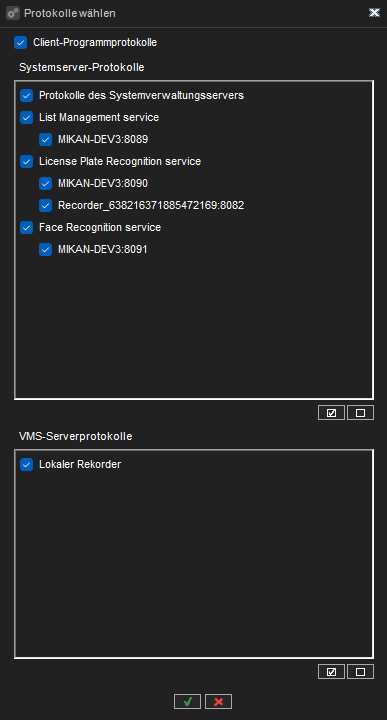
For fast selection, you can use the Select All and Clear Selections buttons placed under the System Server logs and VMS server logs panels. Select or clear all selections for specific service groups (e.g License Plate Recognition service) that contain specific services by clicking on the services group checkbox.
3. Click OK.
4. Select the storage device and the folder where you want to save the log files in the Destination Directory window.
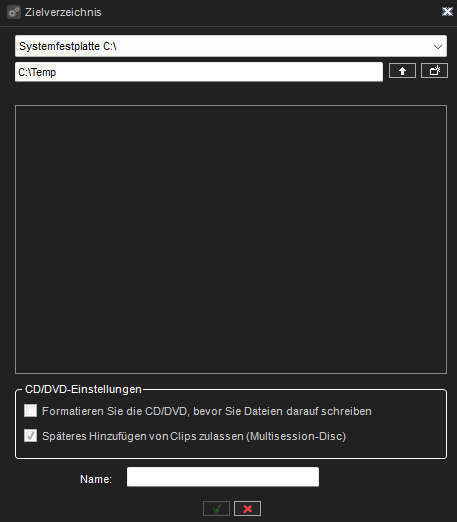
To create a new folder, click the New folder button.
Type a name for the ZIP file in the Name fields and click OK
You can see the progress of exporting in the Export Progress window. Operations are executed in order from top to bottom.
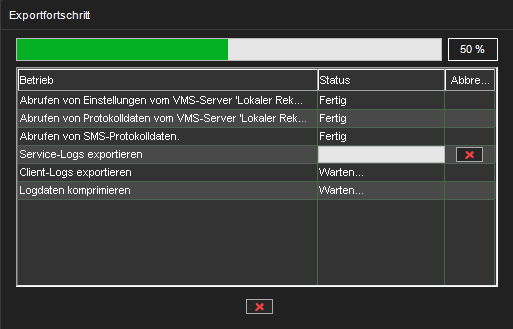
It is seems like the operation is stuck it can be cancelled.
Cancel all export by clicking on the Cancel button at the bottom of the window.
5. Click OK to close the window once the export is completed.
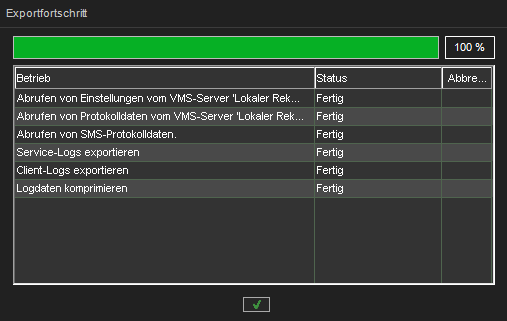
6. The system exports the files to a ZIP file. Send the ZIP file to the system supplier. Services log files are stored in inner ZIP archives in the main ZIP file.
The typical content of logs ZIP archive is the following:
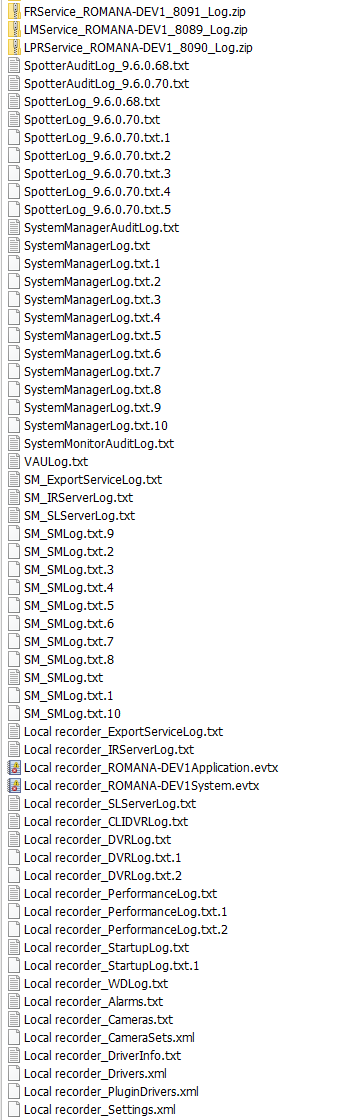
Some service sub-archives can be missed if there are no connections to services.
Export log files via System Monitor
It is possible to collect system logs via System Monitor application.
-
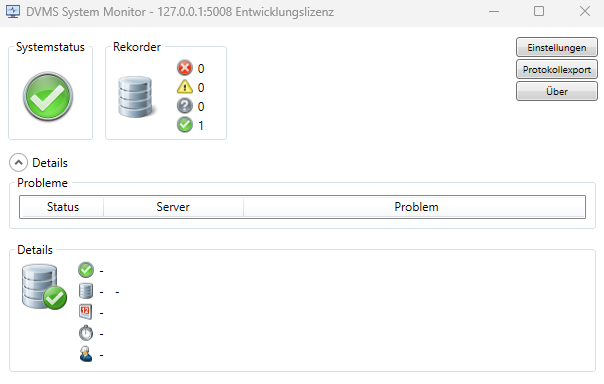
Open System Monitor and click the Log export button:
2. Choose the archive name and path for saving in the Save as dialog to save export archive.
3. Click Ok to start collecting logs.
The System Monitor can collect SM server logs (also ones include Incident Reporting log, Storage Locker log, and Export services log), DVRs logs, clients' logs (Spotter, System Manager, etc.), and logs of all List management, Face Recognition, and License Palate Recognition services observed in the current system.
The typical content of logs ZIP archive is the same as for ZIP archive from System Manager. Some service sub-archives can be missed if there are no connections to services.