
Requirements
-
Administrator rights
-
List Management Service feature is included in V9.6.0 and forward
Updating the List Management Service
Before updating the List Management Service to a newer version, create a full backup in System Manager and uninstall RabbitMQ Server and Erlang OTP – these can be uninstalled in the Windows settings or the Control Panel. After uninstalling the old LM version and the extra components, you can proceed with the installation with the instructions below. Note that the uninstallation needs to be done only once; there is no need to uninstall RabbitMQ Server and Erlang OTP if that is already done by the List Management Service or the Object Data Storage Service update phase.
The minimum version required of RabbitMQ is 3.13.0. The LM installation includes Erlang 27.3.4.6 and RabbitMQ 4.2.0
Installation
The installer has a step for accepting the End-User License Agreement (EULA). You must confirm that you accept the terms presented in the agreement to continue with the installation.
-
Download the latest version from Extranet.
-
Unzip this e.g. to the C:\temp folder.
-
Start installation by double-clicking the installation file.
-
Click Install to continue.
-
Change the PostgreSQL database password
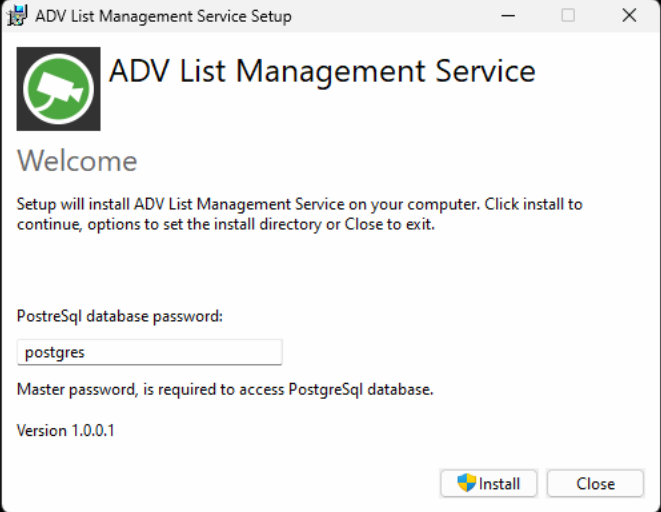
-
-
Wait that PostgreSQL is installed.
-
You may need to apply firewall rules when the installation is going forward.
-
PostgreSQL will be installed with the LM service if it hasn’t already been installed earlier.
Currently, there is no support for a separate PostgreSQL server, with the exception of an existing installation of PostgreSQL version 15 or 16.
-
Click Next to continue.
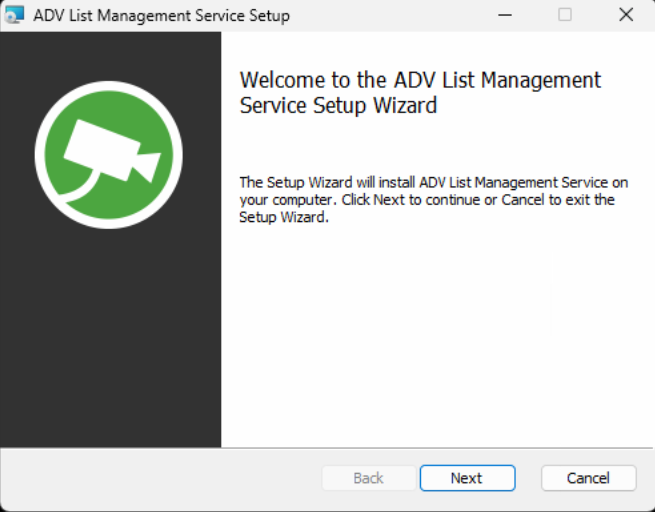
-
Change installation location if needed; if not, click Next to continue.
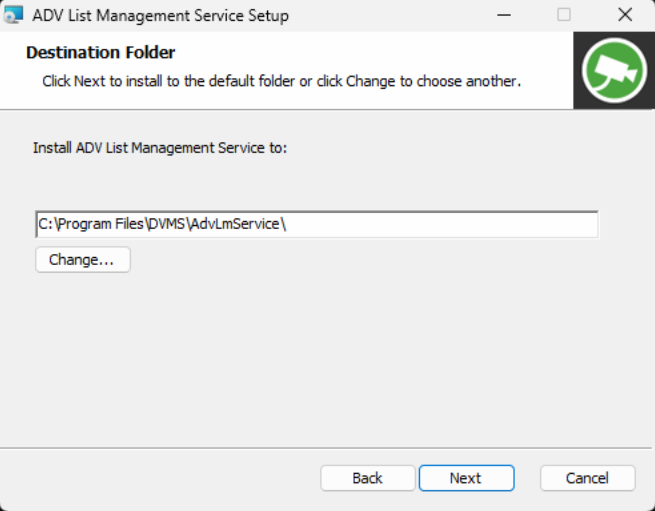
-
Change ports and addresses if needed.
-
If you are installing List Management Service on another server, you need to change this.
-
The event queue address is the same address as where the List Management Service is installed. Keep this as the default.
-
Change the service address to one accessible from client applications. By default, the service address is the machine's first detected IP address.
-
-
Click Next to continue.
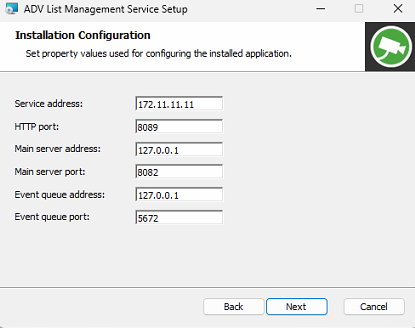
The HTTP port where the LM service is hosted is by default 8089. Change the port in case the default port is reserved for some other use.
The main server uses port 8082 by default. Set the main server address and port to allow the LM service to connect to the correct main server.
Event queue uses port 5672 by default. The event queue is installed with the LM service. Change the event queue port in case the default port is reserved for some other use.
-
Click Install to continue.
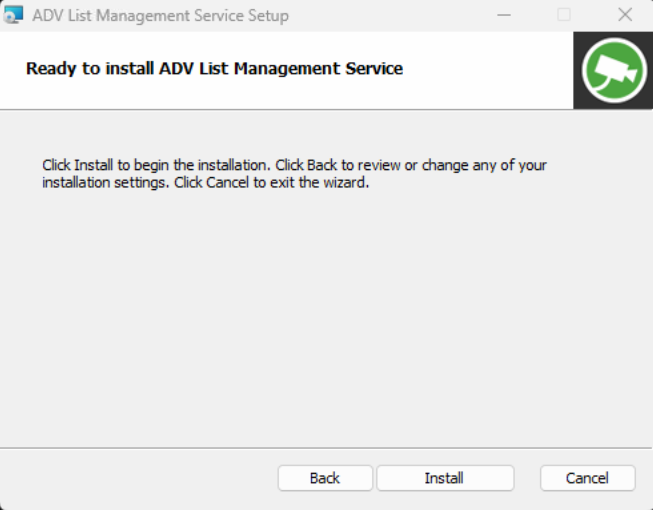
-
Wait until the installation is finished.
-
You may need to apply firewall rules when the installation is going forward.
-
The installer installs RabbitMQ Server, which handles events from the List Management Service, Face Recognition Service, and License Plate Recognition Service.
-
Default port 5672 TCP.
-
-
Click Finish to end installation.
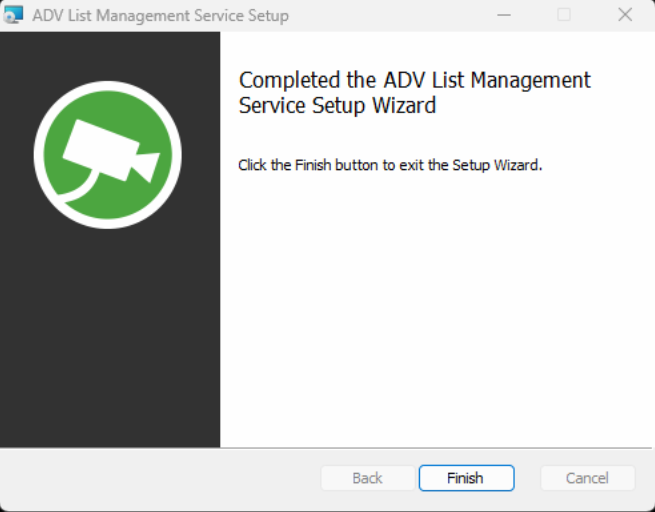
-
Click Close to close the installation window.
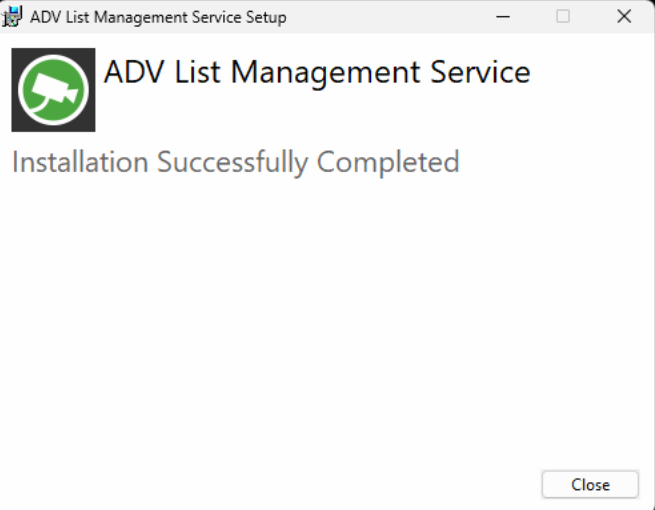
-
Now the List Management Service is installed to server and ready to use.
-
List Management Service sends details to the VMS Main server, and you can configure the service via System Manager.
-