
If you are using Mirasys List Management Service version 9.6.1 or earlier, it includes PostgreSQL 15. Before upgrading to Mirasys List Management Service 9.6.2 or later while retaining your current database, you must first migrate the database to PostgreSQL 16.
During the PostgreSQL upgrade process, the system will not store any data in the database.
This guide applies to
-
Mirasys VMS V9.6.2
-
Mirasys VMS V9.6.3
-
Mirasys VMS V9.7.0
-
Mirasys VMS V9.8.0
-
Mirasys VMS V9.9.0
-
Mirasys VMS V9.10.0
Requirements
-
Backup of database
-
Notepad++
-
PostgreSQL 16 installation package
-
postgresql-16.1-1-windows-x64.exe
-
-
Mirasys List Management Service 9.6.2 or newer installation package
-
The system where Mirasys List Management Service 9.6.1 or an earlier version is installed.
How to do upgrade
-
Stop the AdvPostgreDatabase and ADVLmService services in Windows Services.
-
Change AdvPostgreDatabase service startup type to manual.
-
Go to location C:\Program Files\PostgreSQL\15\data and open postgresql.conf file using the Notepad++ application.
a. Find line port = 5432 and change this to port = 5433.
port = 5432 -> port = 5433
-
Save the postgresql.conf configuration file.
-
Start the installation of PostgreSQL 16 by double-clicking the PostgreSQL 16 installation package
-
Click Next to continue.
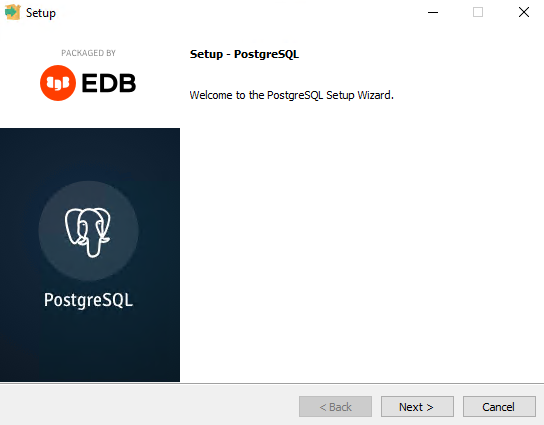
-
Use the default installation location and click Next.
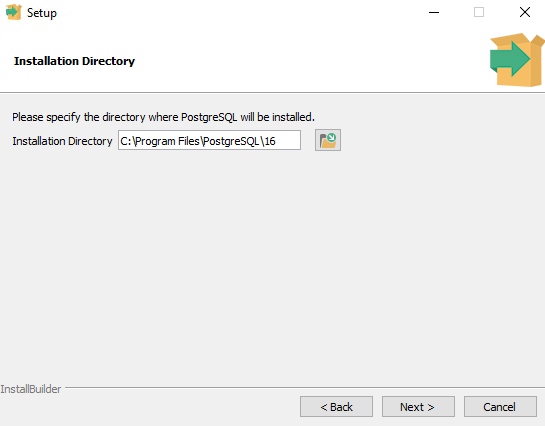
-
Install with all components.
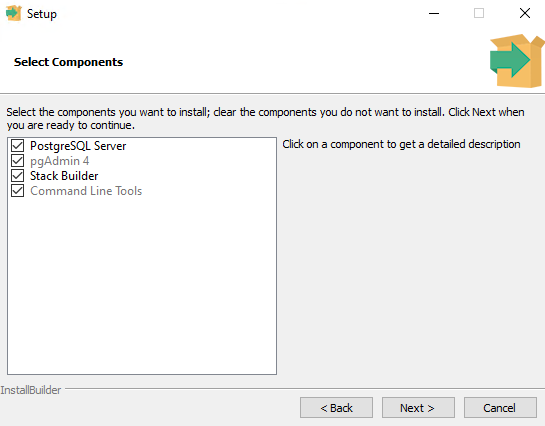
-
Use the default Data Directory location and click Next.
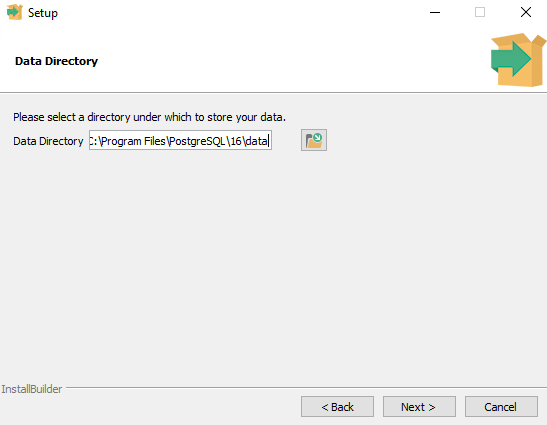
-
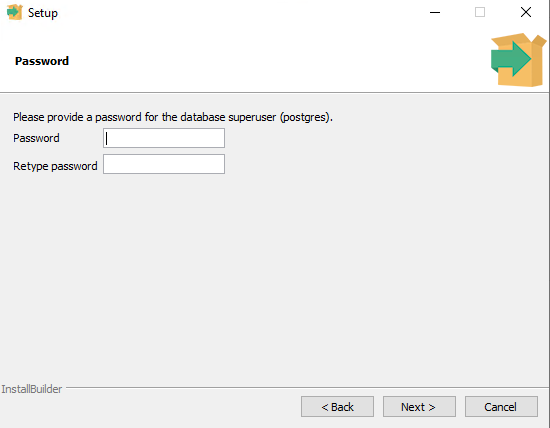
Enter the same password you used during the installation of Mirasys List Management Service.
-
Default is postgres
-
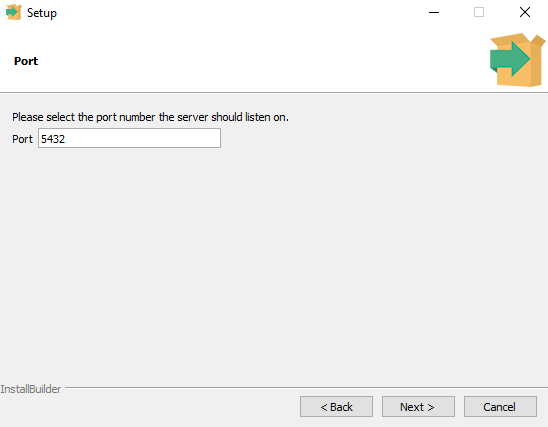
Use the default port 5432 and click Next.
-
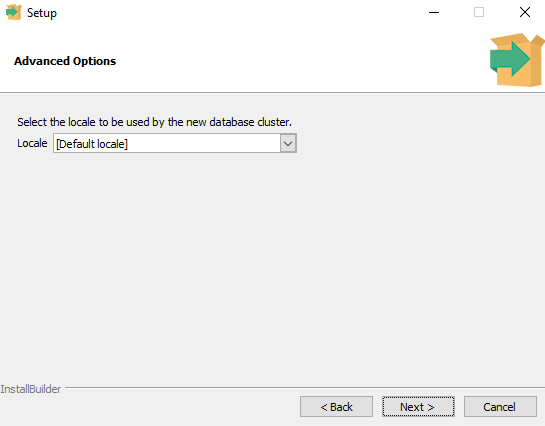
Use the default Advanced Options and click Next.
-
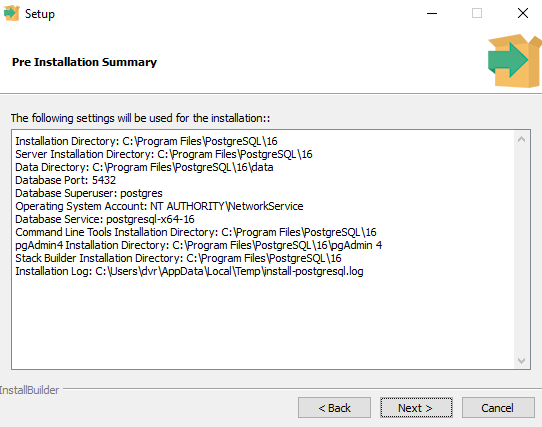
You can now review the installation settings. If any changes are needed, go back and modify the desired section. Otherwise, click Next.
-
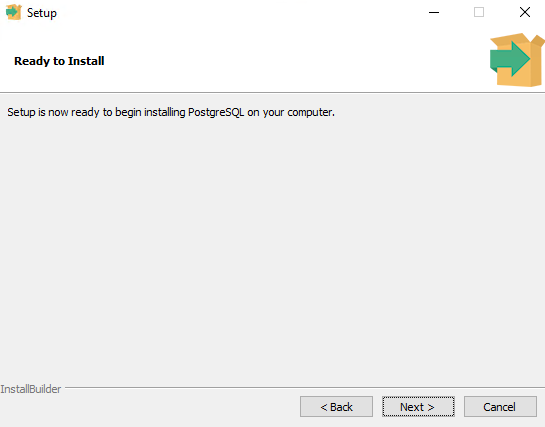
Click Next and the installation starts. This takes some time, so wait until the installation is finished.
-
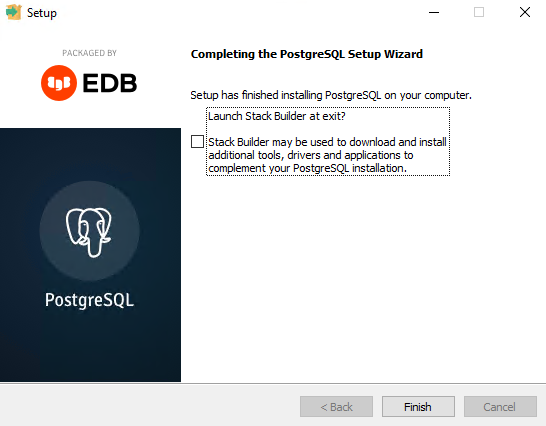
Untick the Launch Stack Builder option and click Finish.
-
Stop the postgresql-x64-16 service using Windows Services.
-
Change postgresql-x64-16 startup type to Manual.
-
Go to location C:\Program Files\PostgreSQL\16\data and open postgresql.conf file in Notepad++ and check that the port is the default 5432.
a. If not, change the port to 5432 and save the configuration file. -
Allow local access to edit old and new PostgreSQL pg_hba.conf files.
a. Locations are C:\Program Files\PostgreSQL\15\data and C:\Program Files\PostgreSQL\16\data
b. Open pg_hba.conf file from both locations and change local connections to trusted.
# IPv4 local connections:
host    all             all             127.0.0.1/32            scram-sha-256
# IPv6 local connections:
host    all             all             ::1/128                 scram-sha-256
To this
# IPv4 local connections:
host    all             all             127.0.0.1/32            trust
# IPv6 local connections:
host    all             all             ::1/128                 trust
-
Save both configuration files.
-
Open the PowerShell window and copy this script there.
a. Verify the file paths are correct; if not, modify necessary paths to correct ones
C:\Program Files\PostgreSQL\16\bin\pg_upgrade.exe --old-datadir 'C:\Program Files\PostgreSQL\15\data' --new-datadir 'C:\Program Files\PostgreSQL\16\data' --old-bindir 'C:\Program Files\PostgreSQL\15\bin' --new-bindir 'C:\Program Files\PostgreSQL\16\bin' -U postgres
-
Then press Enter and wait until the upgrade is done.
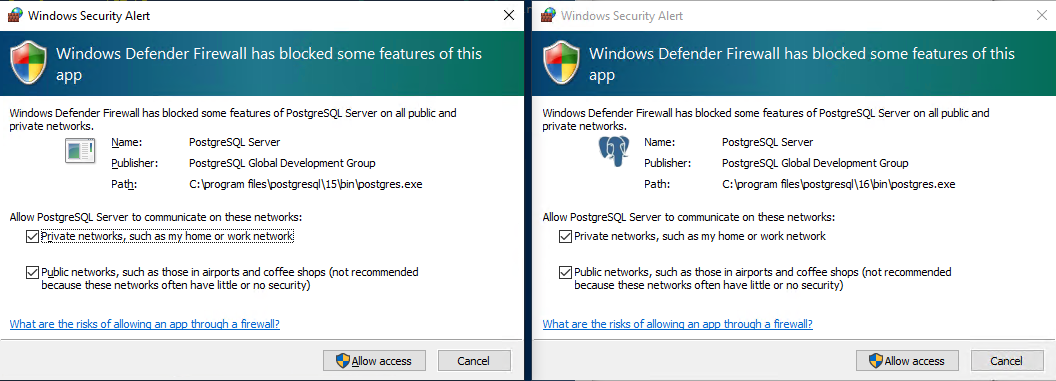
a. Allow network rules for Firewall if those are requested.
-
Verify that you see a similar result once the upgrade is complete.
Performing Consistency Checks
-----------------------------
Checking cluster versions                                     ok
Checking database user is the install user                    ok
Checking database connection settings                         ok
Checking for prepared transactions                            ok
Checking for system-defined composite types in user tables    ok
Checking for reg* data types in user tables                   ok
Checking for contrib/isn with bigint-passing mismatch         ok
Checking for incompatible "aclitem" data type in user tables  ok
Creating dump of global objects                               ok
Creating dump of database schemas
                                                              ok
Checking for presence of required libraries                   ok
Checking database user is the install user                    ok
Checking for prepared transactions                            ok
Checking for new cluster tablespace directories               ok
If pg_upgrade fails after this point, you must re-initdb the
new cluster before continuing.
Performing Upgrade
------------------
Setting locale and encoding for new cluster                   ok
Analyzing all rows in the new cluster                         ok
Freezing all rows in the new cluster                          ok
Deleting files from new pg_xact                               ok
Copying old pg_xact to new server                             ok
Setting oldest XID for new cluster                            ok
Setting next transaction ID and epoch for new cluster         ok
Deleting files from new pg_multixact/offsets                  ok
Copying old pg_multixact/offsets to new server                ok
Deleting files from new pg_multixact/members                  ok
Copying old pg_multixact/members to new server                ok
Setting next multixact ID and offset for new cluster          ok
Resetting WAL archives                                        ok
Setting frozenxid and minmxid counters in new cluster         ok
Restoring global objects in the new cluster                   ok
Restoring database schemas in the new cluster
                                                              ok
Copying user relation files
                                                              ok
Setting next OID for new cluster                              ok
Sync data directory to disk                                   ok
Creating script to delete old cluster                         ok
Checking for extension updates                                ok
Upgrade Complete
----------------
Optimizer statistics are not transferred by pg_upgrade.
Once you start the new server, consider running:
    C:/Program Files/PostgreSQL/16/bin/vacuumdb -U postgres --all --analyze-in-stages
Running this script will delete the old cluster's data files:
    delete_old_cluster.bat
-
Check for any errors, as they indicate an issue preventing the upgrade. Identify the possible cause and attempt the upgrade again.
-
Close the PowerShell window.
-
Change pg_hba.conf back to normal.
a. Locations are C:\Program Files\PostgreSQL\15\data and C:\Program Files\PostgreSQL\16\data
# IPv4 local connections:
host    all             all             127.0.0.1/32            trust
# IPv6 local connections:
host    all             all             ::1/128                 trust
To this
# IPv4 local connections:
host    all             all             127.0.0.1/32            scram-sha-256
# IPv6 local connections:
host    all             all             ::1/128                 scram-sha-256
-
Uninstall the following applications using Windows Programs And Features
a. ADV List Management Service
b. PostgreSQL 15 and select Entire application
No need to care about warning messages related to data folder removal, click OK.
c. PostgreSQL 16 and select Entire application
No need to care about warning messages related to data folder removal, click OK.
-
Now you can install the newer Mirasys List Management Service and follow our guide on how to install it.
-
Verify that the upgrade was successful. The older PostgreSQL version should now be updated to the newer version, and you should be able to see both old and new data via System Manager and Spotter.
-
If desired, you can clean up the old PostgreSQL version by navigating to C:\Program Files\PostgreSQL and deleting the "15" folder.