
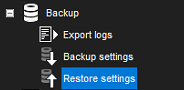
If you have created a backup file of the system and server settings, you can restore the settings if a problem occurs.
Restoring the settings
-
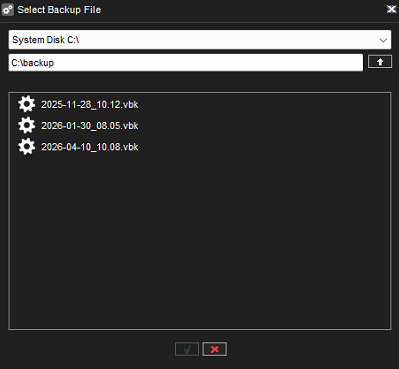
On the System tab, open Restore settings. The “Select Backup File” dialogue box is shown.
-
Find and select the backup file (.vbk) and click OK. The system decompresses the file and then shows the Restore settings dialogue box. The dialogue box shows the settings and their description.
-
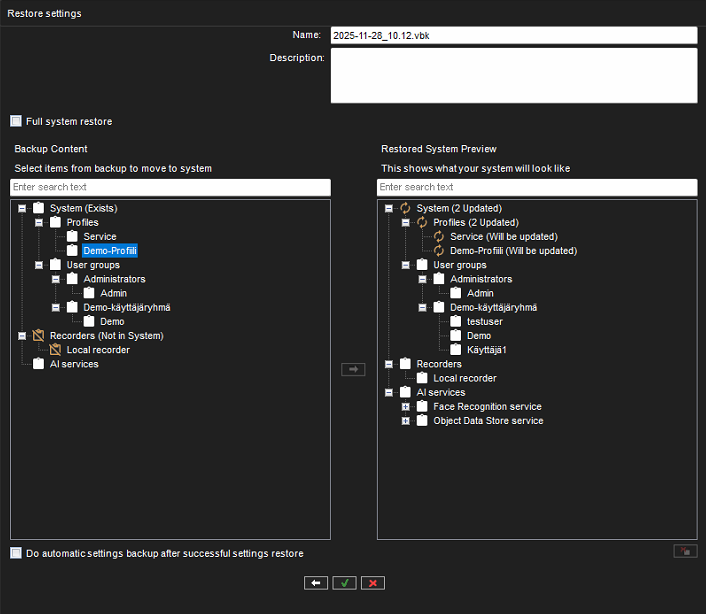
Select the settings you want to restore and click Select to restore. The dialog box shows what is included in the backup.
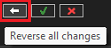
A full system restore can be done by enabling the checkbox Full system restore. All changes made by the user can be cancelled by clicking Reverse all changes, and an individual setting can be removed from the restore by selecting it from the “Restored System Preview” panel and clicking Remove selected item from system.
Selecting Do automatic settings backup after successful settings restore is recommended, especially when restoring the system after a failover has happened.
After making the selections, click OK. The settings are restored, and a summary of the process is shown.
-
Click OK to accept the new settings or Reverse all changes to return to the “Restore settings” dialogue.
Content status and icons
The status of the backup content is indicated with an icon and a status text next to the main folder name in the “Restore settings” dialog. The icons have the following meanings:
-

The item already exists in the current setup, item is not updated
-

The item partially exists in the current setup
-

The item does not exist in the current setup
-

The item is updated in the current setup
-

The item is added to the current setup
-

The item is deleted from the current setup