
Layouts contain all content settings of Spotter and are helpful when the user has perfected a monitoring view and wants to save it for future use.
Layouts contain, for example, the following:
-
Spotter window location and size (full-screen or regular)
-
View component visibility settings
-
Virtual camera settings
-
Toolbar option settings such as image showing, 360 camera settings, VCA visualization settings and image control settings
-
Camera tour settings
-
Playback position, i.e., date and time
-
Tab names and order
-
Plugin specific settings, for example, Agile Virtual Matrix (AVM) settings and content
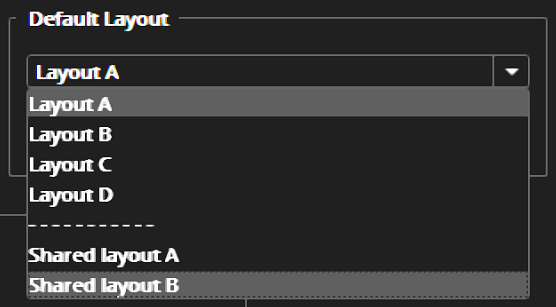
Layouts are arranged similarly in Spotter’s settings and the Layouts menu. The layouts are divided into two groups: shared layouts and the user’s own layouts (My layouts). Items in both groups are sorted in alphabetical order. In the General tab in Spotter settings, the user’s own layouts and shared layouts are separated by a line in the Default Layout dropdown menu to make a clear distinction between the two.
Frequently Used Keyboard Shortcuts:
|
Shortcut |
Description |
|---|---|
|
Ctrl+L |
Open layout menu (layout name selection can be changed with arrow keys, Esc closes menu without selecting layout). |
|
Ctrl+M |
Takes the user to new layout saving. |
|
Ctrl+Up |
Load previous layout (same order as in the layout menu). |
|
Ctrl+Down |
Load following layout (same order as in the layout menu). |