
Enabling PTZ Control
-
Open needed camera to the real-time view
-
Open camera toolbar
-
Click Camera and select PTZ control
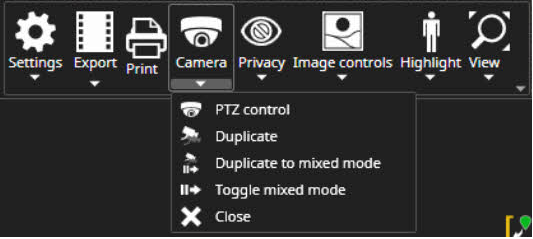
Controlling PTZ camera
PTZ camera can be controlled with the mouse left button and dragging in the needed direction or with keyboard arrow keys.
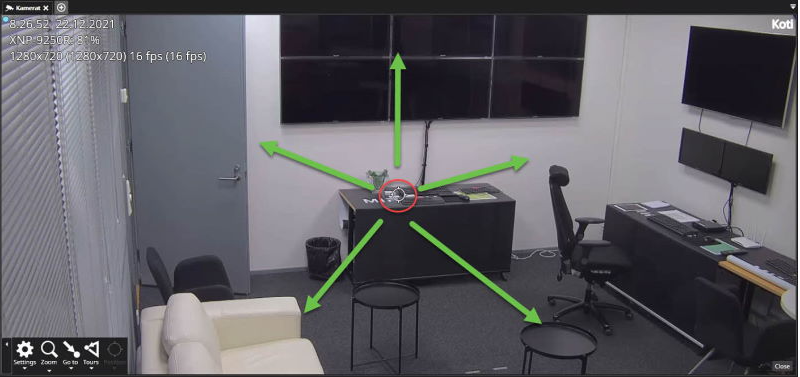
PTZ control in full screen
PTZ control can be used while in full-screen mode. To maximize or restore the video view, click the corresponding buttons. Double-clicking the video view is disabled when the PTZ control is in use to ensure that the PTZ control functionalities can be used properly.
Settings
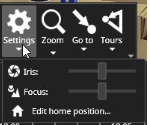
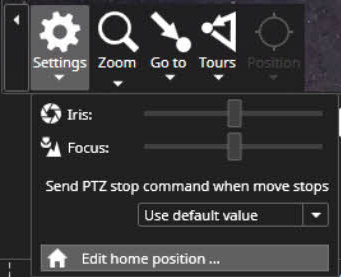
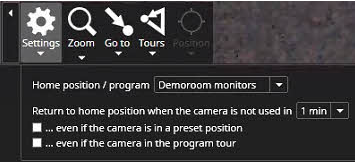
The PTZ settings menu contains iris and focuses slider controls and editing the camera home position.The home position can be selected from the currently saved presets or tours.It is also possible to define how long the camera takes until it returns to the home position and if the switch to the home position is made only if it is not in some other tour or preset position.
Zoom
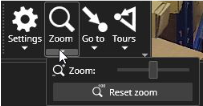
The zoom settings menu allows controlling the camera zoom. The camera zoom can also be controlled from the keyboard or the mouse wheel.
Creating a preset
-
Open needed camera to the real-time view
-
Open camera toolbar
-
Click Camera and select PTZ control
-
Control PTZ camera to the needed position
-
Click Go to and select Edit preset positions
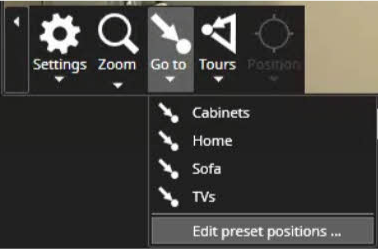
-
Enter the name of the preset and click Save
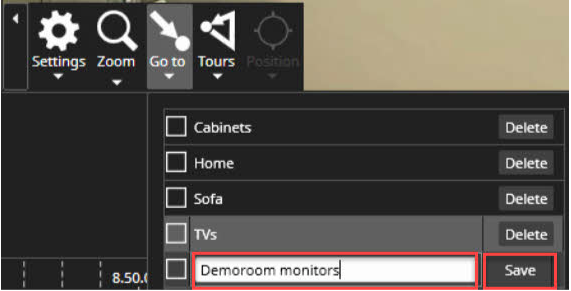
Using the presets
-
Click Go to and click mouse left button top of the needed preset
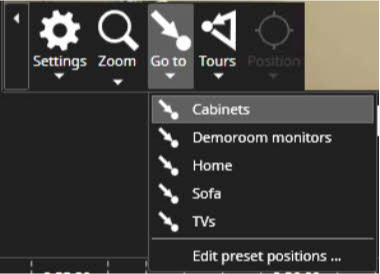
Creating camera tours
-
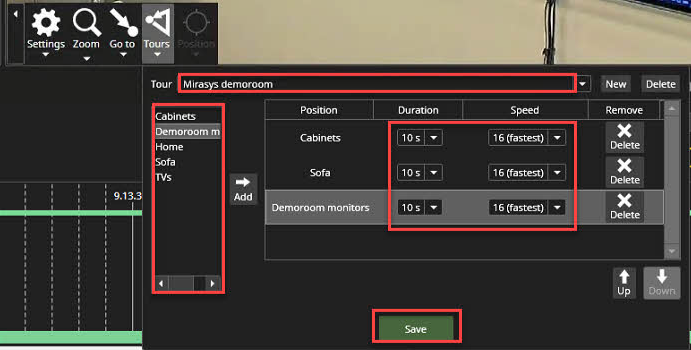
Click Tours and select Edit camera tours
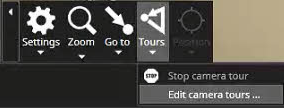
-
Set the name of the tour
-
Select presets for the tour
-
Set duration for each camera
-
Set transition speed between the presets
-
Click Save
Using camera tours
-
Open needed camera to the real-time view
-
Open camera toolbar
-
Click Camera and select PTZ control
-
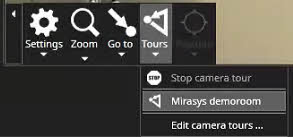
Click Tours and activate the needed camera tour
Editing camera tours
-
Open needed camera to the real-time view
-
Open camera toolbar
-
Click Camera and select PTZ control
-
Click Tours and select Edit camera tours
-
Select tour from the list
-
Do modifications and click Save
Deleting camera tours
-
Open needed camera to the real-time view
-
Open camera toolbar
-
Click Camera and select PTZ control
-
Click Tours and select Edit camera tours
-
Select tour from the list
-
Click Delete
-
Click Save
Setting up PTZ camera home position
-
Open needed camera to the real-time view
-
Open camera toolbar
-
Click Camera and select PTZ control
-
Click Edit home position
-
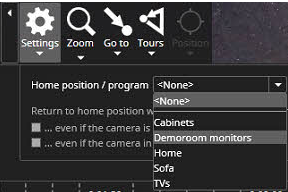
Select the correct home position or program from the list
-
Define settings for:
-
Return to home position when the camera is not used in:
-
...even if the camera is in a preset position
-
...even if the camera in the program tour
-