
User credentials
Default username and password
Username: Admin
Password: 0308
Please ensure that the default username and password are not in use after installing the system. They should not be used even in closed networks.
How to log in
To login to System Manager do one of the following:
-
Double-click the shortcut icon System Manager on the desktop.
-
Click Start, point to Programs, and then to DVMS. Click System Manager.
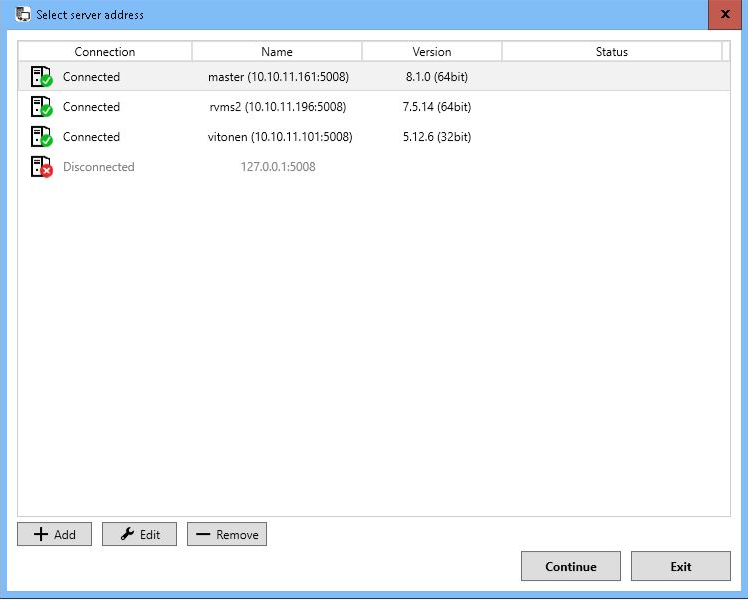
In systems that have only one Main Server address configured, the System Manager login screen is shown. In systems with multiple main servers and addresses configured, or if the user presses the Delete key in the initial startup phase, the site selection screen is shown.
The user can add, remove or edit the Main Server addresses or choose a server to log on on this screen.
After selecting a server and pressing the “Continue” button, a user is taken to the login screen.
-
On the login screen, type your username in the Username box and your password in the Password field.
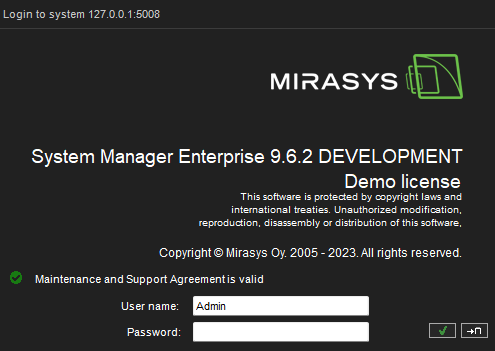
The username and password are case-sensitive.
-
Click OK. A progress bar is shown on the screen while the program loads.
Log off or change user
After the program starts, the user interface is shown. To log off or to change the user click on the menu bar File and then Log off. To quit the program:
-
On the menu bar, click File and then Exit.
-
Close the application window.
The user can only have one System Manager application running at any one time.
It is not possible to have the System Manager simultaneously connected to multiple servers.
To connect to another Main Server, exit from the current Main Server and choose another Main Server from the site selection screen.