
The Device tree title shows the name of the Main Server that Spotter is connected to.
Below is a search field that can be used to filter the tree contents.
Any text entered in the area can be removed with the "X" control or by pressing the Esc-key.
This also clears all profile folder searches.
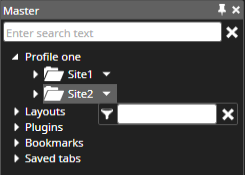
The Device tree contains five different types of content that can be opened to the work area.
Profile
The currently selected profile, which includes the cameras and other devices, is the first item.
The shape can be changed from the title menu.
Each profile folder can be searched independently using profile folder search.
Layouts
Contain all the available layouts for the current user if configured.
Plugins
Contains all plugins, which are enabled in the main server license
Bookmarks
Contains all specific user saved and shared bookmarks
Saved tabs
Contains all tabs, that the user has saved.
Device states
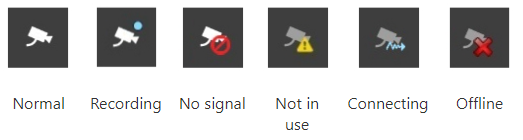
When the device is in another state, for example, no signal, connecting, and connection, there is an icon on top of the device symbol.
Alarms
If a device is used as a trigger or an alarm action in an active alarm, it has a yellow highlight colour.
The colours for active and ended alarms can be adjusted in the Alarm Visualization Settings
Alarms can also be assigned a custom colour that can be specified for each alarm separately.
Device name and descriptions
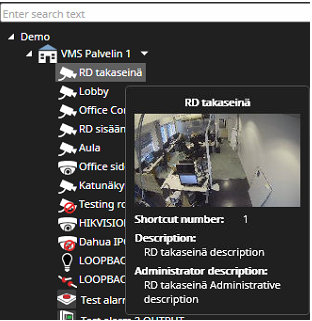
The name and description are visible in the device tooltip—unique icons for the System Manager Profile Settings devices.
Frequently Used Keyboard Shortcuts:
|
Shortcut |
Description |
|
Ctrl+Alt+D |
Cycle between the different device tree view modes |