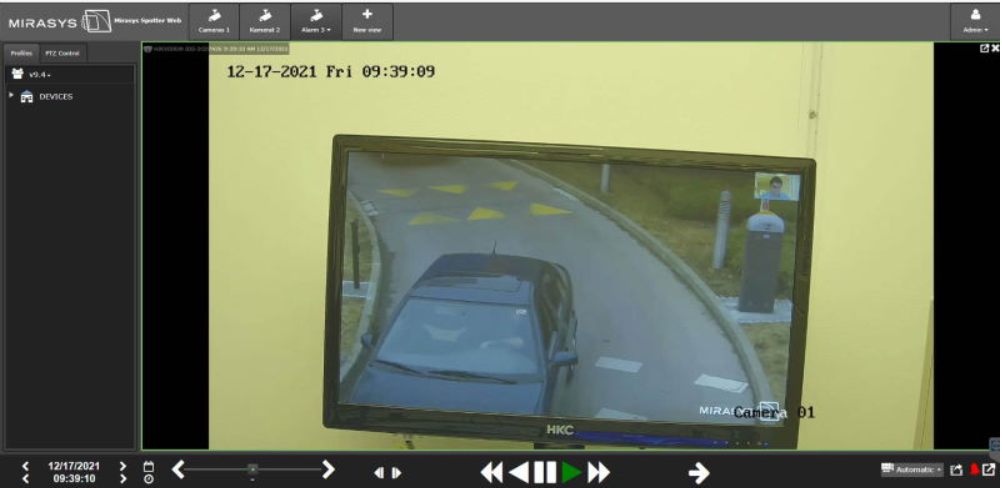
The alarm list can be opened from the lower-left corner
If there are no active alarms, the icon is GREEN
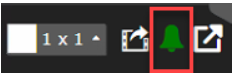
Active Alarms
If there are active alarms, the icon is RED
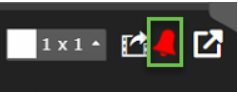
When the alarm list is opened, the list shows active alarms with RED background and ended alarms with GREY background

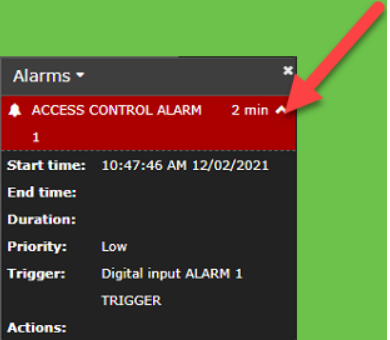
The user can see details of the alarm by clicking the small arrow end of the alarm name
The following details are shown:
-
Alarm name
-
Start time
-
End time
-
Duration
-
Priority
-
Trigger
-
Actions
Opening an alarm
Alarms can be opened by selecting an alarm from the list
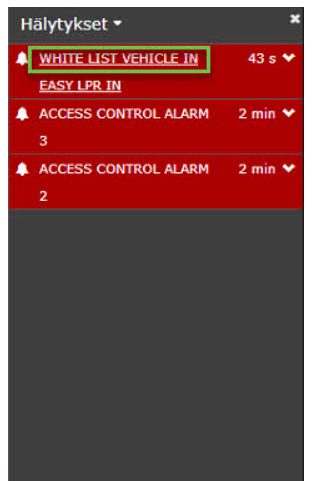
When an alarm is opened, then all cameras, which has been set as alarm action cameras will be opened