
Camera health audit is a plugin that allows the operators to ascertain that every camera of the system works appropriately – plus that the cameras have not been turned/tampered/blocked.
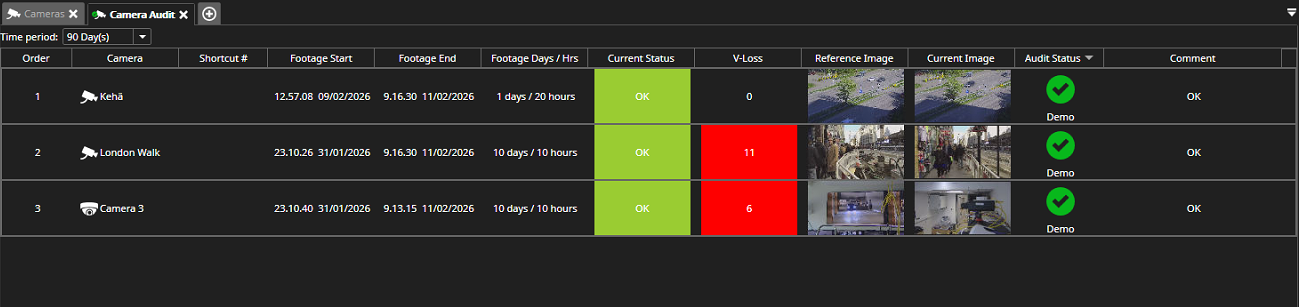
The main report page provides information on the
-
Name of the camera
-
Footage start time
-
Footage end time
-
Footage Days/Hours
-
Current status of the camera
-
Image loss
-
Reference image
-
Current image
-
Audit status
-
Comments
Auditing the cameras
-
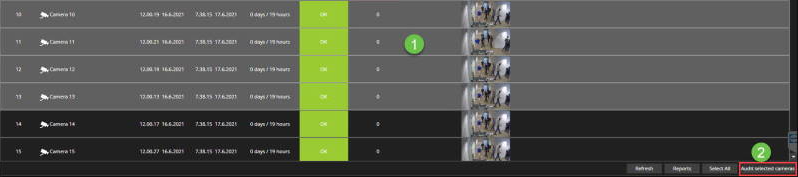
Select cameras by control- and shift-clicking
-
Click Audit selected cameras
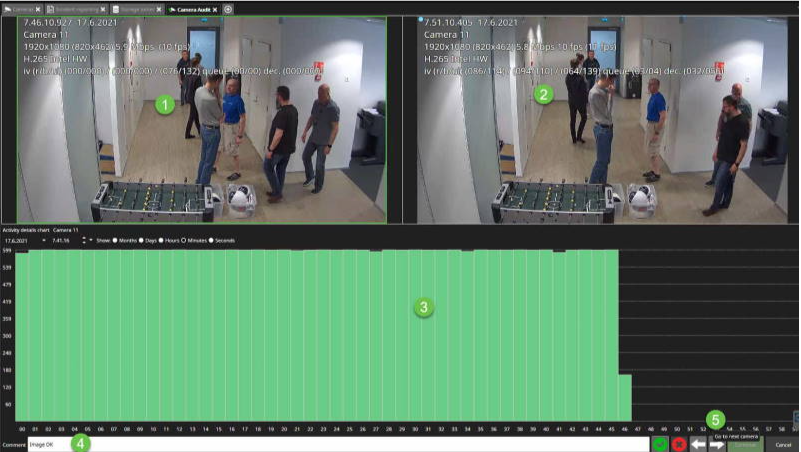
The camera audit view shows the following information:
-
Playback view from the camera
-
Real-time view from the camera
-
Amount of the frames received from the camera
-
You can add a comment to the camera audit report
-
Click Go to the next camera continue
-
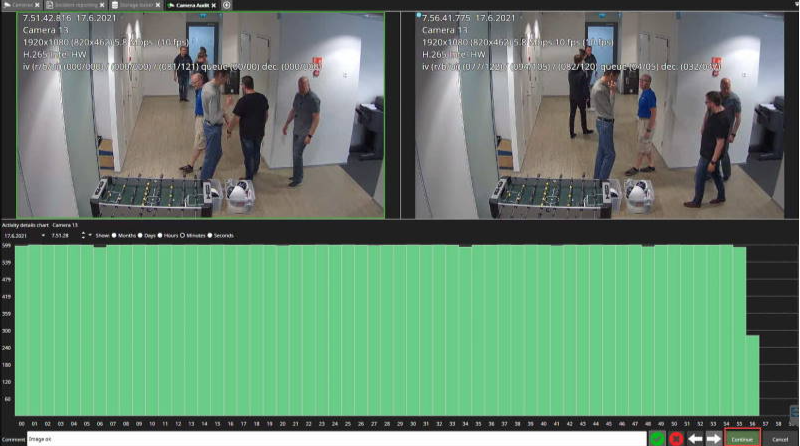
Repeat the actions with all cameras and click Continue
-
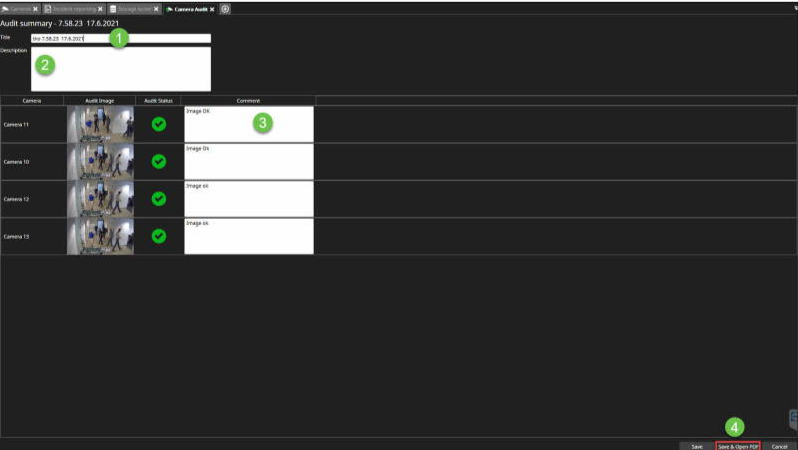
Enter the title of the camera audit
-
Type the description, if needed
-
Edit the comments, if needed
-
Click Save & Open PDF
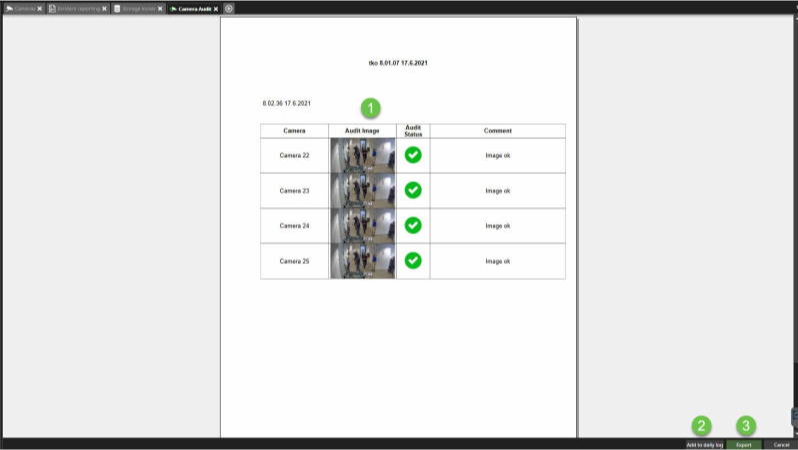
From the PDF view, you can do the following actions:
-
See an overall view of the camera audit report
-
Add camera audit report to the daily log
-
Export camera audit
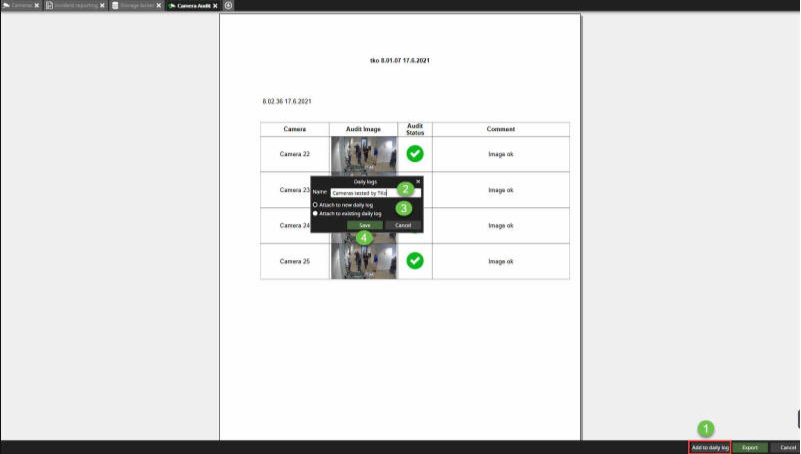
Add to the daily log
-
Click Add to the daily log
-
Set the name of the daily log
-
Select Attach to new daily log or attach to an existing daily log
-
Click Save
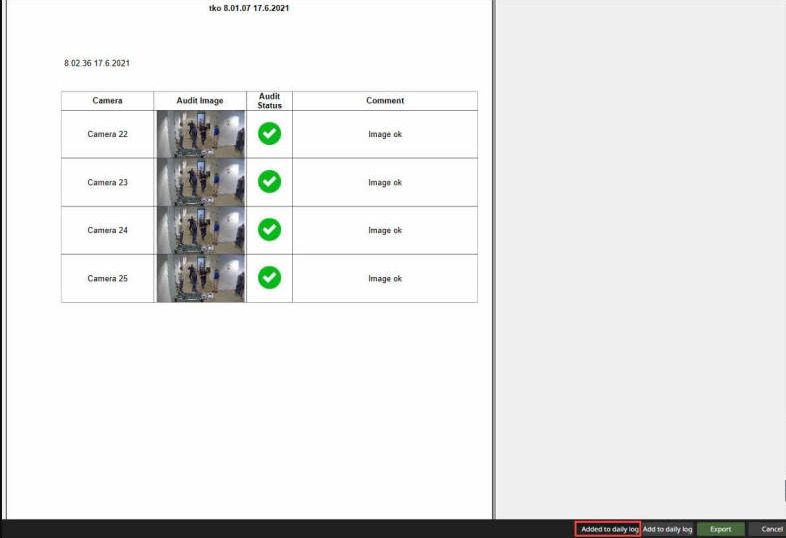
After the saving, you will see a message Added to the daily log
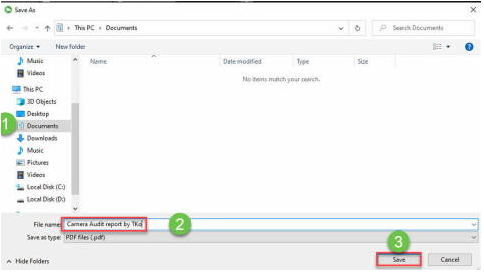
Exporting the camera audit report
Click Export
-
Select the location
-
Set name for the camera audit export
-
Click Save
Camera Audit signal loss time period
No signal information for cameras is displayed in the Spotter camera audit plugin. The time period for signal loss can be selected from the following options:
-
1 Day
-
7 Days
-
15 Days
-
30 Days
-
90 Days
Selecting a time period for showing camera signal loss:
-
Select Plugins from the Spotter title menu
-
Select Camera Audit
-
Select the time period from the dropdown menu