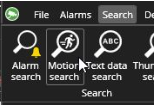
With the Spotter Motion Search plugin, the user can open a new tab and select Motion search. A camera can be selected by double-clicking a camera in the device tree or by dragging and dropping it to the Motion search tab. Motion search works only if camera playback is allowed.
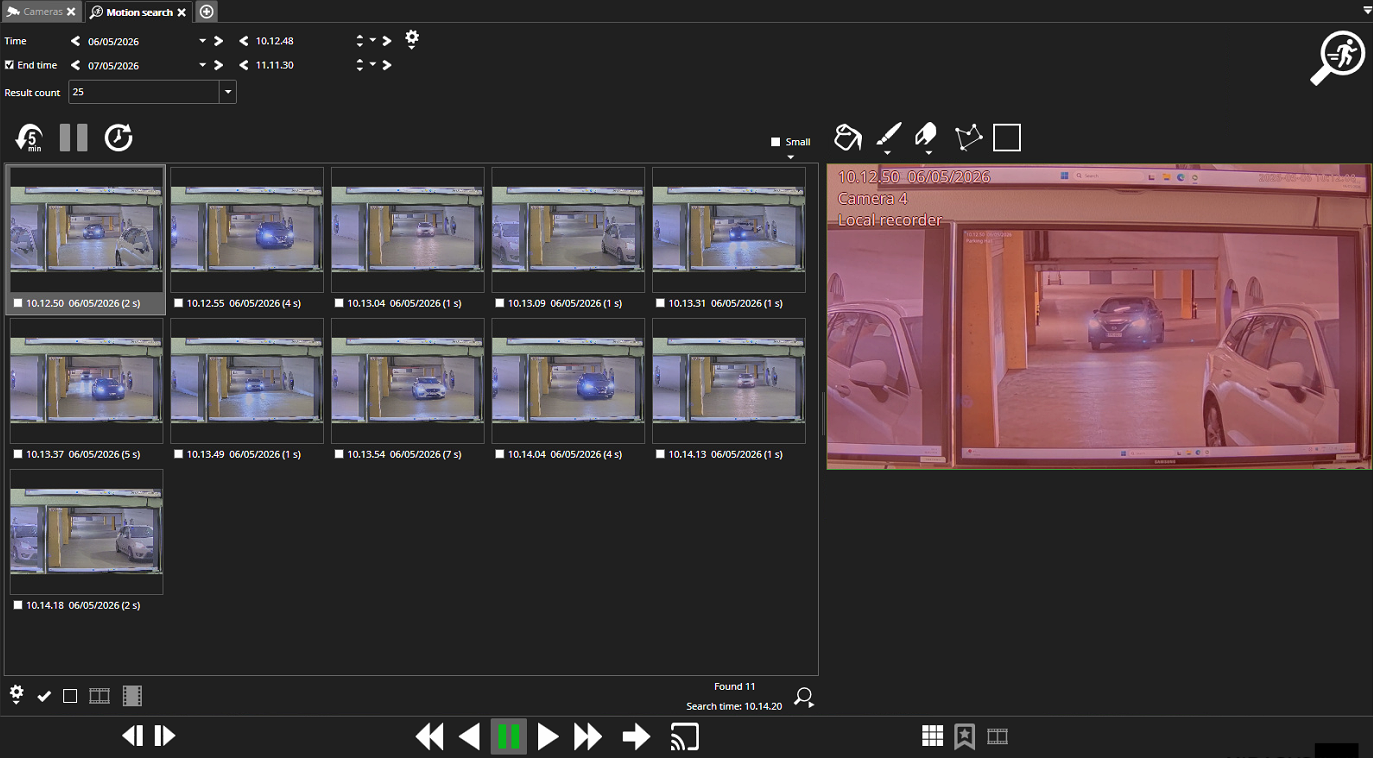
The search results can be clicked, and the camera area on the right will be updated to show the image. The playback controls can then be used to review the event. It is possible to play all results in sequence.
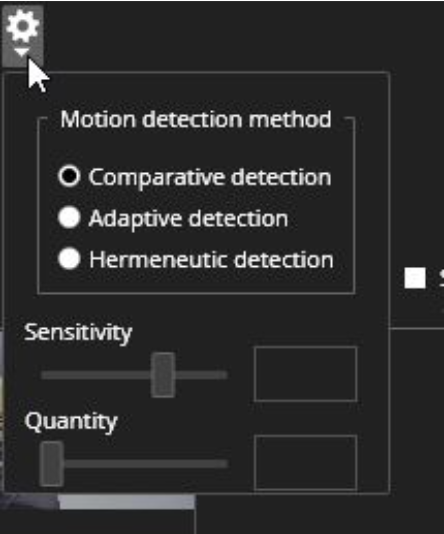
The playback will jump to the following result at the end of the previous one. The search settings can be adjusted with the Settings button.
|
Comparative detection |
For stable indoor conditions |
|
Adaptive detection |
For outdoor conditions with changing light levels |
|
Hermeneutic detection |
A sophisticated method for environments with image "noise" (such as heavy weather). Requires more system resources than other methods. |
The user can search for more results with the Search more button in the lower right corner. Search continues from the time of the last found item.
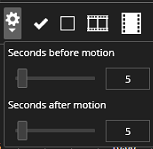
Export options are located in the lower left corner. You can set the seconds before and after motion by clicking the settings button. The durations are added only to exported clips or storyboards, not to the clip previews in the plugin.