
Use Spotter Autostart to start Mirasys Spotter automatically one minute after a Windows user signs in. The tool detects the Spotter installation, lets you select the server address and creates the Windows startup task.
Download: Obtain the Spotter Autostart ZIP package from the Mirasys Extranet. Use the package version supplied for your installation. An Extranet account with download access is required.
Before you start
-
Install Mirasys Spotter on the Windows computer first. This tool configures startup; it does not install Spotter.
-
Have the server IP address or DNS name available.
-
Sign in to Windows as the user who will use Spotter. Open the tool normally in that user's session. Administrator approval is requested when saving the task or changing Windows logon settings.
-
Use Windows PowerShell 5.1 on a Windows desktop with Task Scheduler available. Organizational script and application policies still apply.
-
Check for an existing Spotter startup shortcut or other automatic startup setting to avoid launching Spotter twice.
Download and open the tool
-
Sign in to the Mirasys Extranet, open Downloads and download the Spotter Autostart package.
-
Extract the entire ZIP to a local folder. Do not run the tool from inside the ZIP.
-
Keep Start.cmd, README.txt and the scripts folder together.
-
Double-click Start.cmd. Check that the Windows user displayed at the top is the user whose Spotter startup you want to configure.
Configure Spotter startup
-
Check Spotter application path (VAU.exe). The installation is detected automatically. If the path is incorrect, select another detected path, type the correct path or click Browse….
-
Enter the Server IP address or DNS name, for example
192.168.1.10orvms.example.local. Do not include a protocol, port or additional command-line arguments. -
Click Create / update task.
-
Review the application path, server address, Windows user and one-minute delay in the confirmation window. Confirm the save and approve the Windows administrator prompt.
-
Read Process status (information only) and confirm that the task was saved and verified.
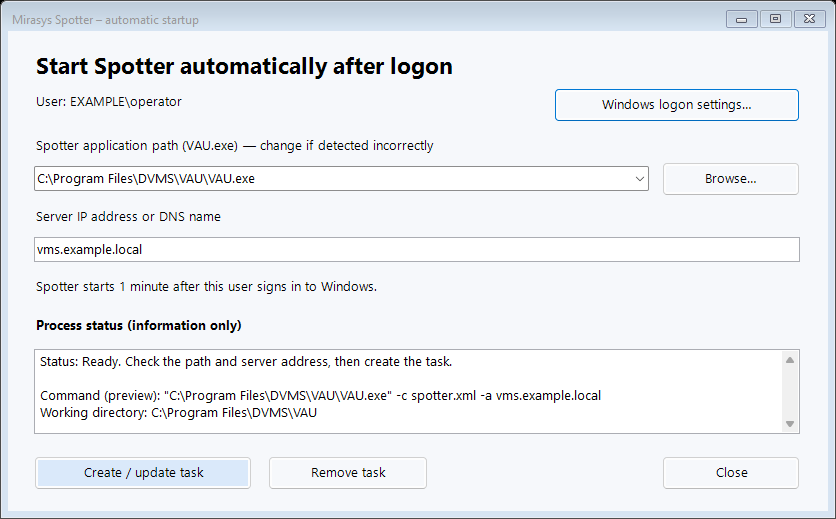
The status area is read-only setup information. It does not monitor whether Spotter is currently running or connected. Saving the task does not start Spotter immediately; the task runs after the next Windows logon.
A typical installation path is C:\Program Files\DVMS\VAU\VAU.exe. The spotter.xml file must be in the same folder. The tool checks Mirasys installation registry information first and uses other detection methods if a valid installation is not found there.
Optional: automatic Windows logon
This setting signs the selected Windows user in automatically when the computer starts. It is separate from the Spotter startup task and can be configured before or after saving that task.
-
Click Windows logon settings… and approve the administrator prompt.
-
Read Current setting. Disabled means automatic logon is not enabled. Configured for DOMAIN\user identifies the account configured in Windows. Click Refresh to read the setting again.
-
If automatic logon is already configured for the correct account, close the window without making changes.
-
To enable it or change the account, check the Windows user shown in the window, enter that account's Windows password and click Enable. Use the account password, not a Windows Hello PIN.
-
Confirm the computer-wide change and read the result. Test automatic logon by restarting Windows at a suitable time.
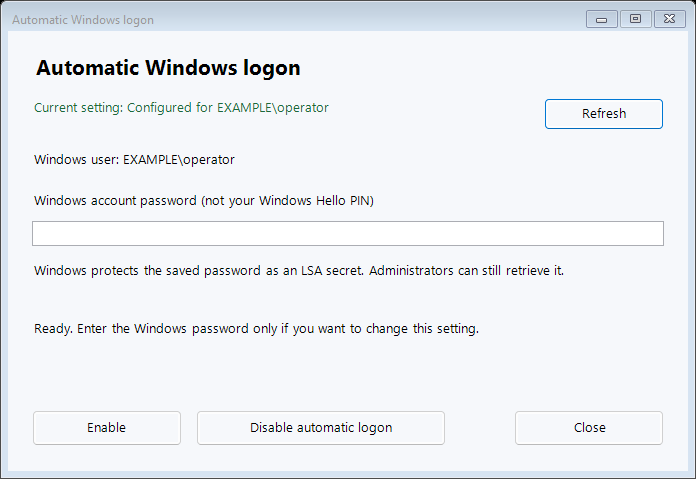
The Windows user targeted by the tool remains the original user who opened it, even if a different administrator approves the prompt. The account shown under Current setting may be different if automatic logon was previously configured for another user.
Automatic logon applies to the whole computer. Enabling it replaces the existing automatic logon account. Someone with physical access can use the signed-in account. The password is protected using Windows LSA storage, but administrators can still retrieve it.
Current setting reads the saved configuration only. It does not retrieve or validate the saved password, and it does not guarantee successful sign-in. Windows logon policies can prevent automatic logon.
Automatic Windows logon does not configure Spotter's own sign-in. Configure any required Spotter credentials or automatic sign-in in Spotter itself.
Verify the result
-
Sign out of Windows and sign back in as the configured Spotter user.
-
Wait at least one minute. Confirm that Spotter opens and connects to the intended server.
-
If you enabled automatic Windows logon, restart the computer at a suitable time and check both Windows sign-in and Spotter startup.
Change or remove the configuration
-
Change the application path or server: open the tool as the same user, enter the new settings and select Create / update task. This updates the task previously created by the tool for that user.
-
Remove Spotter startup: select Remove task and confirm. This removes the tool's startup task for that user. It does not close a running Spotter or change automatic Windows logon.
-
Turn off automatic Windows logon: open Windows logon settings…, select Disable automatic logon and confirm. This disables automatic logon for the computer and removes its saved automatic logon password.
Troubleshooting
|
Symptom |
What to check |
|---|---|
|
VAU.exe is not detected, or the path is incorrect |
Use Browse to select VAU.exe in the actual Spotter installation. Confirm that spotter.xml is in the same folder. |
|
The task cannot be saved |
Read the exact error, approve the administrator prompt and check that Task Scheduler is available. A verification error identifies the setting that differs from the expected value. |
|
Spotter does not open after logon |
Confirm that you signed in as the user displayed when the task was created, wait at least one minute and check the task in Windows Task Scheduler. Also test starting Spotter manually from the selected installation. |
|
Spotter opens but does not connect |
Check the server IP address or DNS name, network access and Spotter's own sign-in settings. |
|
Windows shows Configured, but automatic logon fails |
The displayed status is a saved setting, not a sign-in test. Check the account password, account availability and applicable Windows or organizational logon policies. |
When contacting Mirasys support, provide the tool version, the step that failed and the exact error message. Do not share passwords.