
The Storyboard Draft feature allows you to save and manage Storyboard drafts securely in Spotter. This guide explains how to configure, protect, and access your drafts.
Important Notes:
-
Passwords cannot be recovered, so ensure that you keep a secure record.
-
The password you set applies to both Storyboard drafts and their versions.
-
Always use the correct password for the time the draft was saved, as password changes will affect future drafts, but not previously saved ones.
Password Protection for Drafts
When password protection is enabled, all drafts and versions will be encrypted.
To open a password-protected draft, you will be prompted to enter the password that was active when the draft was saved.
Changing the Password
If you change the password in the settings, the new password will apply to any drafts saved after the change.
For example:
-
If the password was 0202 on December 14 and you changed it to 0204 on December 15 at 14:00, any draft saved before 14:00 on December 15 will still require 0202, while drafts saved after 14:00 will require 0204.
Accessing Storyboard Draft Settings
-
Open Spotter.
-
Navigate to Settings.
-
Select the Storyboard Draft tab.
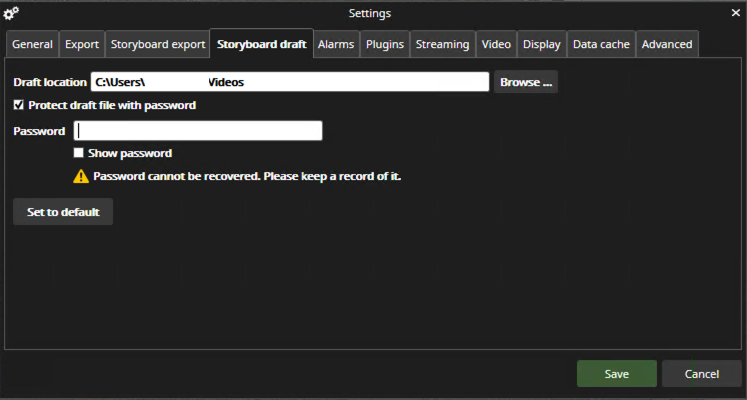
Configuring Storyboard Draft Settings
-
Define the folder where Storyboard drafts and their versions will be saved in Storyboard draft settings.
-
Check the box Protect Draft with Password to enable password protection for both Storyboard drafts and their versions.
-
Once the password protection is enabled, enter your desired password in the password field.
Password Warning: Passwords cannot be recovered, so make sure to securely store or remember your password.
The password will be securely stored in encrypted form in Spotter’s settings file.
-
Check the Show Password box to reveal the password if needed while typing.
-
Clicking Set to Default resets all settings to their default values.
-
Click Save to apply changes or Cancel to discard them.
Opening a Password-Protected Draft
-
When opening a draft with password protection, Spotter will prompt you to enter the password.
-
If you click Cancel, the draft will not be opened.
-
The password must match the one used when the draft or draft version was saved.