
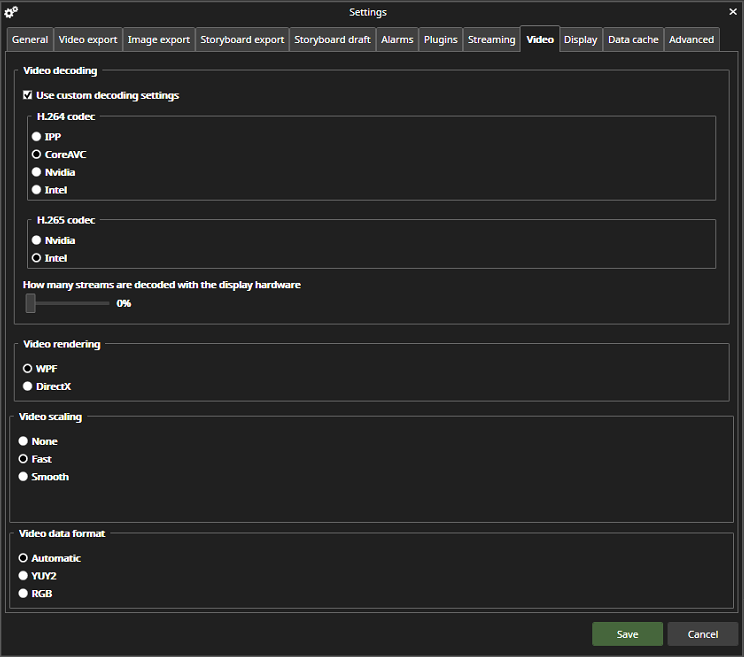
The video settings allow setting custom decoding and changing rendering technologies and video scaling to help improve performance depending on hardware.
Video decoding
Use custom decoding settings allows you to select a specific decoding setting and decide what percentage of streams are decoded using GPU.
H.264 codec
-
IPP: uses CPU
-
CoreAVC: Can use CPU or Nvidia CUDA
-
Nvidia: requires Nvidia GPU
-
Intel: uses CPU; if the processor chip has an Intel Graphics inbuilt GPU, it can also use the GPU
H.265 codec
-
Nvidia: requires Nvidia GPU
-
Intel: uses CPU; if the processor chip has an Intel Graphics inbuilt GPU, it can also use the GPU
How many streams are decoded with the display hardware
Defines the percentage of cameras that use CPU/GPU. If the decoding method Nvidia is chosen and the slider is set to, E.g. 50%, half of the cameras will be decoded using Nvidia, and the other half will use CoreAVC if they are H.264, and Intel CPU if they are H.265
Video rendering
Allows changing video rendering to WPF (default) or DirectX.
Video scaling
Options for video scaling include None, Fast, and Smooth. Smooth uses a different image drawing mechanism, and it will have a smoothening effect on video, especially if the framerate is high (over 20 fps). However, the smooth video scaling setting should not be used if the user has multiple Spotter windows open. Smooth video scaling will make the video image appearance better, but this setting increases the computer load slightly.
Turning off video scaling can cause performance problems when dealing with numerous open streams or streams with high resolutions or frame rates.
Video data format
Determines the data format of the video. Can be selected to be Automatic, YUY2, or RGB.