
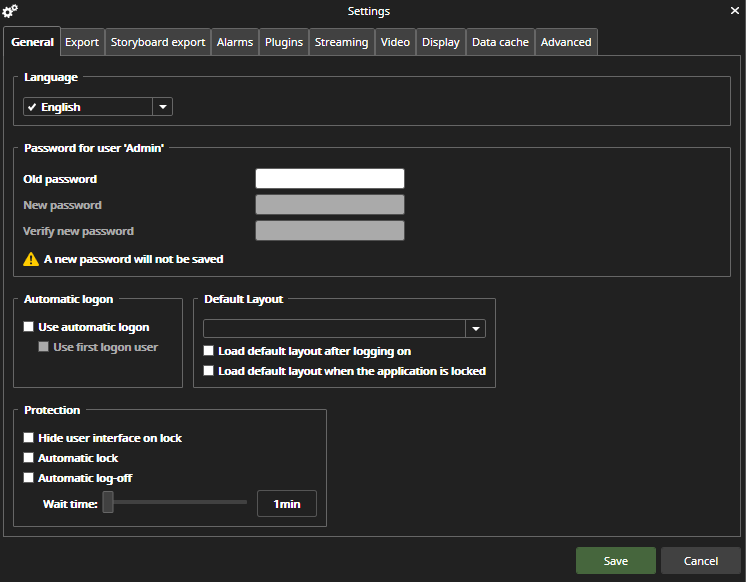
Language
You can select the used language from the drop-down list
Password settings
You can change the current user password
Automatic logon
-
Use automatic log-on
-
When selected, Spotter logon is executed automatically
-
Example: User A logs on to Spotter and switch to User B. Under user B, select ‘Use automatic log-on,’ switch to User C, and under User, C log off Spotter. Next time when Spotter is started, it is automatically logged on as User C (was the user when logged off).
-
-
Use the first log-on user.
-
When selected, Spotter logon is executed with the user who was the Spotter start-up logon user when this selection was made.
-
Example: User A logs on to Spotter, switch to User B under User B select ‘Use automatic logon’ and ‘Use first login user’, switch to User C, and under User C logs off Spotter. Next time when Spotter is started, it is automatically logged on as User A (the user who first logged on).
-
Default layout
You can select a layout from the layout drop-down list to a layout that is available to you
-
Load default layout after logging on
-
If checked, load the selected layout after logging on
-
-
Load default layout when the application is locked
-
If checked, load the selected layout when the application is locked
-
Protection
Can select behavior at lock and log off situations
-
Hide user interface on lock
-
When selected, do not show the user interface when the application is locked, only an empty scene with locked information.
-
-
Automatic lock and Automatic log off
-
When selected, lock/log off after selecting Wait time, between 1 minute to 24 hours.
-