

With the playback buttons, the user can choose the direction and speed of the playback.
With each mouse click, the speed can be increased (left click) or decreased (right-click).
The speed is indicated with a small number on the button.
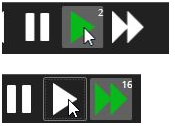
Very low speeds 1fps, 0.1x, 1/8x, 1/4x and 1/2x are accessible only with the slider or by clicking with mouse right button on the playback button to reduce the speed.
If the user wants to go to real-time mode, there is a Go to current time button.
Playback panel controls
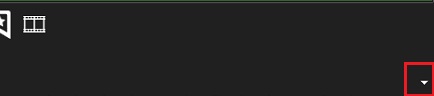
Using the small arrow to the right of the playback panel, the user can configure which controls are displayed in the two available view modes for the playback panel.
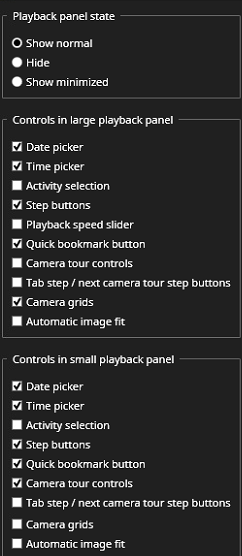
Playback panel state
-
Show normal
-
Hide
-
Show minimized
Controls in the large playback panel
-
Date picker – Set the date of the footage you wish to view
-
Time picker - Set the time of the footage you wish to view
-
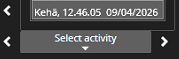
Activity selection – Select an activity to move to
-
Step buttons - Step forward or backward in the footage by one frame
-
Playback speed slider - Set the playback speed with the slider control
-
Quick bookmark button – Create a fast bookmark of the footage
-
Camera tour controls – Options for camera tours
-
Tab step / next camera tour step buttons – Move between camera tours
-
Camera grids – Select the grid type for cameras to be displayed in
-
Automatic image fit – Set image fitting to Off, Crop, or Stretch
Controls in the small playback panel
-
Date picker
-
Time picker
-
Activity selection
-
Step buttons
-
Quick bookmark button
-
Camera tour controls
-
Tab step / next camera tour step buttons
-
Camera grids
-
Automatic image fit
The only control that is not available in minor view mode is the Speed slider.
Date And Time Controls
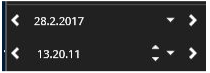
The date and time controls show the selected date and time.
The user can change the date by opening the calendar.
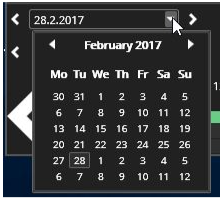
The buttons left and the date adds or subtracts one day from the currently shown day.
It is also possible to click on the date box and enter the date manually.
The buttons left and right of the time add or subtract one hour.
Like with the date selector, it is possible to click on the time box and manually enter the time box.
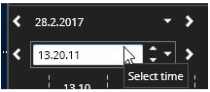
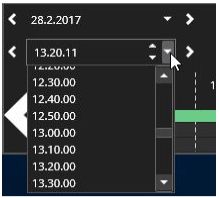
It is also possible to quickly set time with 10-minute accuracy using the pulldown menu.
Activity selection
With the Select Activity function, you can go to an activity by choosing an activity from the list. The arrow buttons can be used to move to the next or the previous activity.
Sharing Spotter view
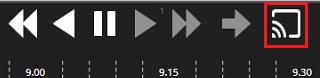
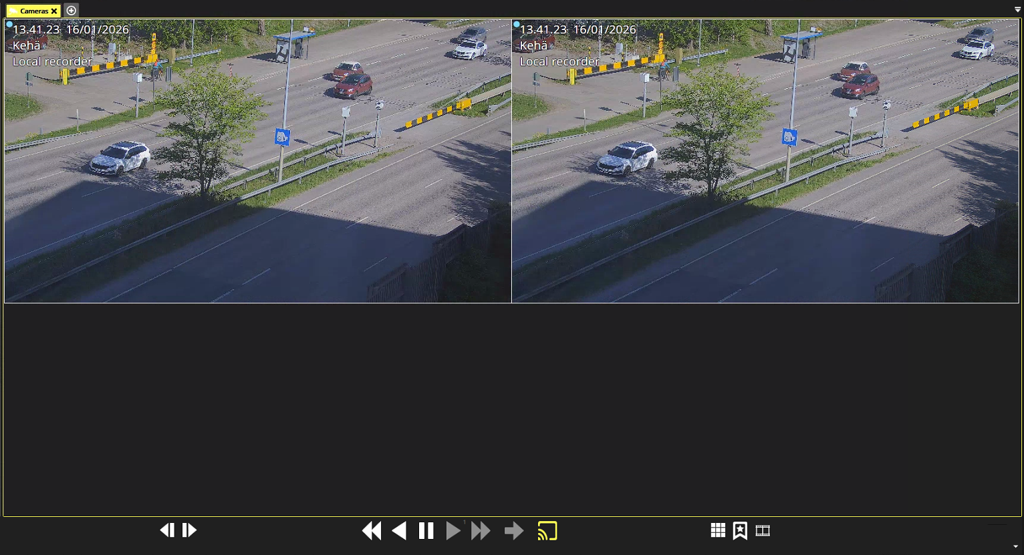
Spotter view can be shared by clicking “Cast tab content to viewing station” on the playback panel. The viewing station can be selected from the dialog that opens up. The sharing can be stopped by clicking again the same button that was clicked to start sharing, and selecting “Stop sharing“ in the dialog window.
Frequently Used Keyboard Shortcuts:
|
Shortcut |
Description |
|
Ctrl+Right |
Set playback time +30 seconds. |
|
Ctrl+Left |
Set playback time -30 seconds. If in real-time mode, switch to playback mode first, and set 1x speed. |
|
Ctrl+Space |
Pause playback. |
|
Ctrl+Enter |
Go to real-time. |
|
Ctrl+Alt+C |
Cycle between different view modes. |