
File
Various functions can be accessed from the File menu.
New Window
New Windows opens independent Spotter Window, which can be dragged for example to another monitor.
New tab
A new tab creates a new device tab in the work area.
Create Archive
See more from Create Archive
Open Media
The opening created archive or media clip
Settings
See more from Settings
Lock
The user can manually lock and log off Spotter from the File menu.
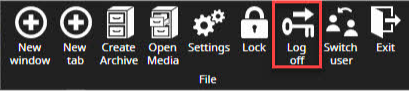
Log off
Using Log off, users can end the Spotter session and go back to the login screen.
Switch user
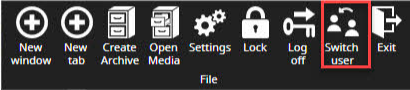
Switch user option allows change logged users without logoff.
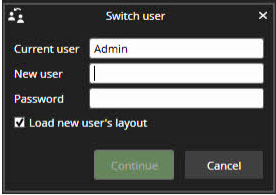
When the Switch user is selected, the current user is shown.
-
Enter a new username and password
-
Click Continue
As default new user´s layout is loaded
Exit
-
With the Exit, the user can close the Spotter application
Alarms
See more from Alarm Management
Search
See more from Search Tools
Devices
Input devices
You can use any DirectX compatible joystick as a control device.
A joystick can be fully configured, and each button can be assigned a customizable function.
Before a joystick can be taken into use, it needs to be configured, first in Windows, then in Spotter.
To calibrate a joystick in Windows, open the Control Panel and find “Set up USB game controllers” under “Devices and printers”.
Follow the instructions on calibrating the joystick.
Adding Input devices
-
Start Spotter
-
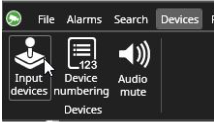
Go to Devices and open Input devices
-
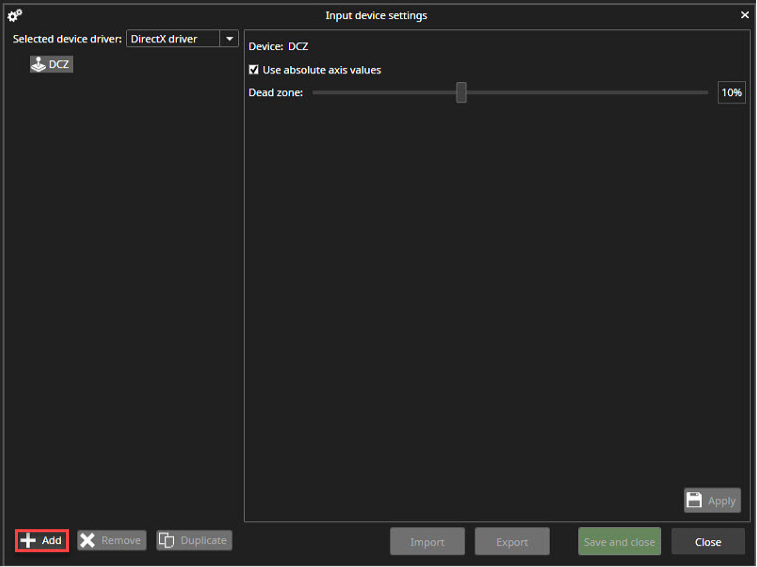
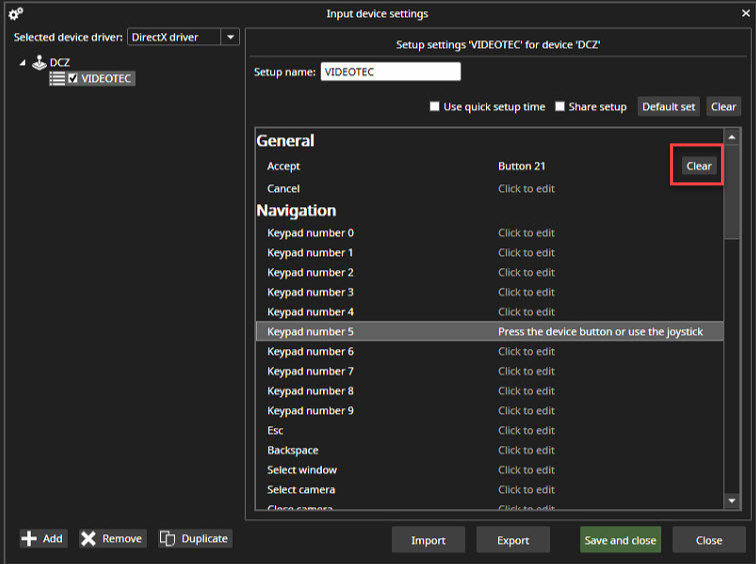
If the “Setup” line item is not visible, add it using the “+ Add” button.
-
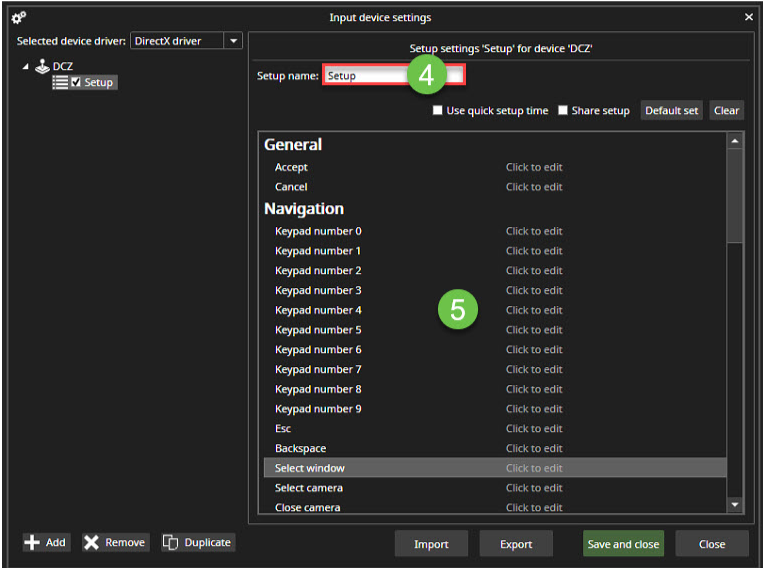
Define the Setup name
-
Start configuring the buttons by clicking Click to edit
-
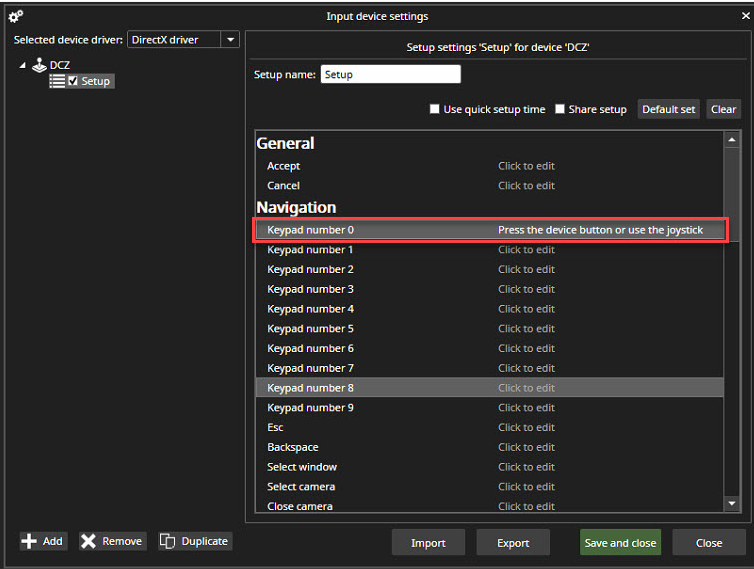
Select functions from the list
-
Click Press the device button or use the joystick
-
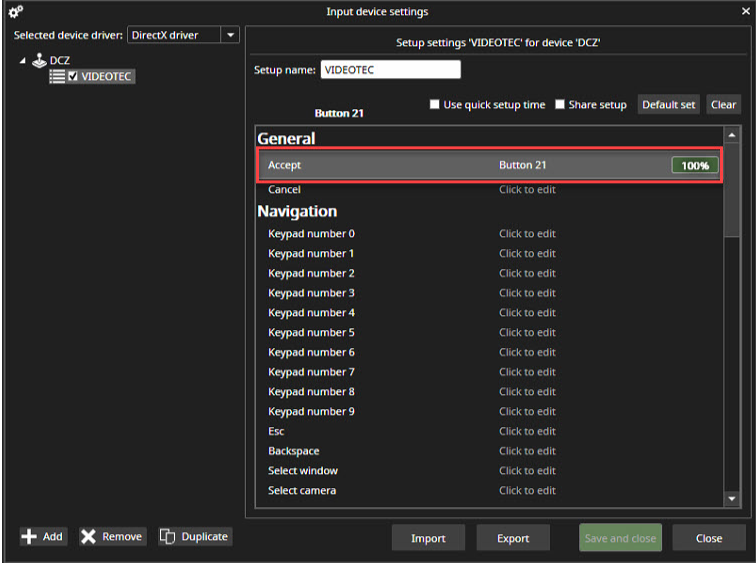
Press the select button until the value reaches 100% and the release button
-
When the button is correctly initialized, the clear button appears at the end of the line
-
PTZ Pan/tilt and Zoom speed can be set by entering a minimum and maximum value. The default range is 1-16.

-
Repeat the actions and finalize by clicking Save and close
Profiles
Profiles contain all profiles, which has been added to the user group
Layouts
View
View-tab contains view options for:
-
Zoom
-
Edit Custom grids
-
Playback
-
Timeline
-
Device tree
-
Description
-
Alarms
-
Storyboard
-
Tabs
-
Utility Bar
-
Auto Hide
Plugins
See more from Plugins
Help
Spotter contains built-in help. The help is accessible from the Help menu or by pressing the F1 key.
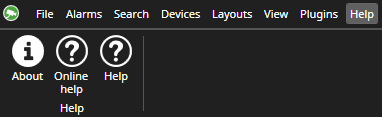
Spotter PDF help guide can be directly accessed by clicking Help on the Help menu. The guide is available in English, Finnish, and German: if one of these languages has been selected in Spotter, the guide will be in the selected language. If a different language has been selected in Spotter, the English version of the guide will be displayed. The guide is opened with the default PDF document reader.
Help contains information on new features and valuable things like keyboard shortcuts and links to view training videos.