
When adding a map in profile settings, we support the following formats:
-
JPG / JPEG (Joint Photographic Experts Group)
-
BMP (Bitmap)
-
PDF (Portable Document Format)
-
SVG (Scalable Vector Graphics)
-
PNG (Portable Network Graphics)
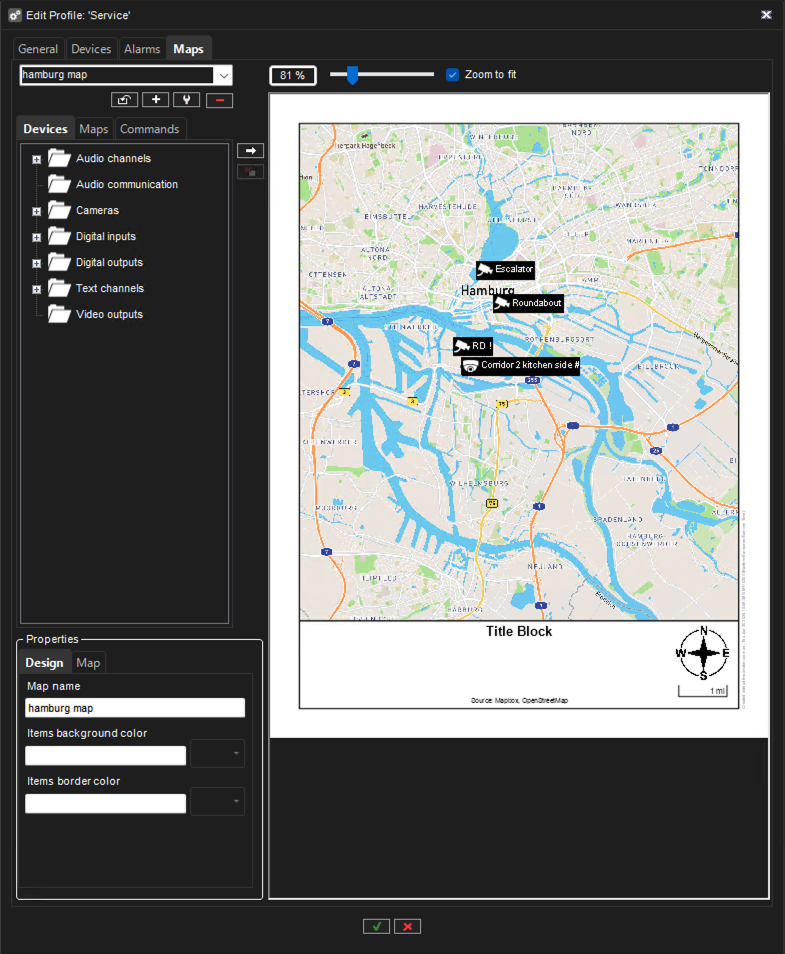
Adding Maps to Profiles
-
Click the Change Level button and then select the device group to which you want to attach a map.
-
The devices that belong to the selected group are shown in the left pane.
-
Subgroups are also shown. You can also double-click the subgroup icons in the left pane to move to a lower level.
-
-
Click Add Map and find the image that you want to use as a map.
-
Zoom to fit above the map is selected by default. You can also unselect Zoom to fit to adjust the zoom with the slider above the map manually.
-
From the left pane, select the devices and device groups you want to add to the map and click the Add to Map arrow.
-
Items that are already on the map appear dimmed in the left pane. If you add subgroup icons to the map, the icons will act as links to the subgroup maps.
-
Users can move to a lower-level map by double-clicking the subgroup icon.
-
Tip: To select multiple devices simultaneously, keep the SHIFT or CTRL key pressed.
-
Select a device or device group from the map, and then, under Device properties, you can set these options:
-
You can select the direction the camera icon points to for cameras.
-
By default, the name label of each device is shown on the map. To avoid label clutter, clear the check box Label. The name will be shown as a popup label instead.
-
You can use placemarks if you need to fit several device icons in a small space.
-
Select the Placemark check box. A placemark (x) and a connecting line are shown on the map. Drag the placemark (x) to the device’s correct position.
-
Then, drag the icon to a convenient position on the map.
-
Click ✓ to Save.
To remove a site map:
-
Display the map that you want to remove and click Remove Map
To remove an icon from the map:
-
Select the icon and click Remove