
Editing Profile Specific Alarm Settings
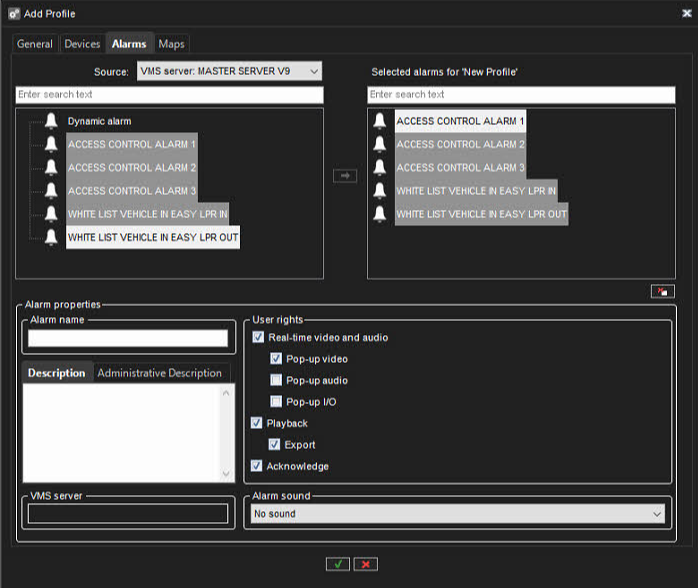
On the Alarms tab, you can select the alarms you want to include in a profile and edit the alarms’ profile-specific user rights.
The Trigger Type for Alarm Triggers created by the System Administrator for ONVIF Profile M conformant devices, and for the Alarm Triggering Web API is External.
Adding Alarms to a profile
-
Open the Alarms tab.
-
Select a server from the Source drop-down menu. The available alarms are shown in the left pane.
-
Select the alarm or alarms that you want to add and then click the right arrow. You can also drag alarms from the left pane to the right.
-
Save the profile by clicking OK.
Note: You can also add alarms to profiles through the alarm creation/editing screen.
Editing profile-specific alarm user rights
-
Open the Alarms tab.
-
Click on an alarm in the Selected alarms pane.
-
Set the user rights for each alarm. The user rights settings are located on the bottom right side of the Alarms tab.
-
You can set individual rights for each alarm or select multiple alarms (by holding the shift or control keys down while selecting alarms) and set the same options for multiple alarms.
-
-
To have the computer play a sound when an alarm occurs, select Alarm sound and then select the played sound. To test the sounds, select the sound from the list and click Play.
-
Save the settings by clicking OK.
The user rights include
-
Real-time video and audio. Select to let the users see real-time alarm video or audio.
-
Pop-up video. Select to let users receive alarm video automatically.
-
Pop-up audio. Select to let users receive alarm audio automatically.
-
Playback. Select to let the user's playback alarm video.
-
Export. Select to let the users save alarm video on local media.
-
Acknowledge. Select to let the users acknowledge alarms.