
-
Click New Alarm at the lower-left corner of the Alarms screen.
-
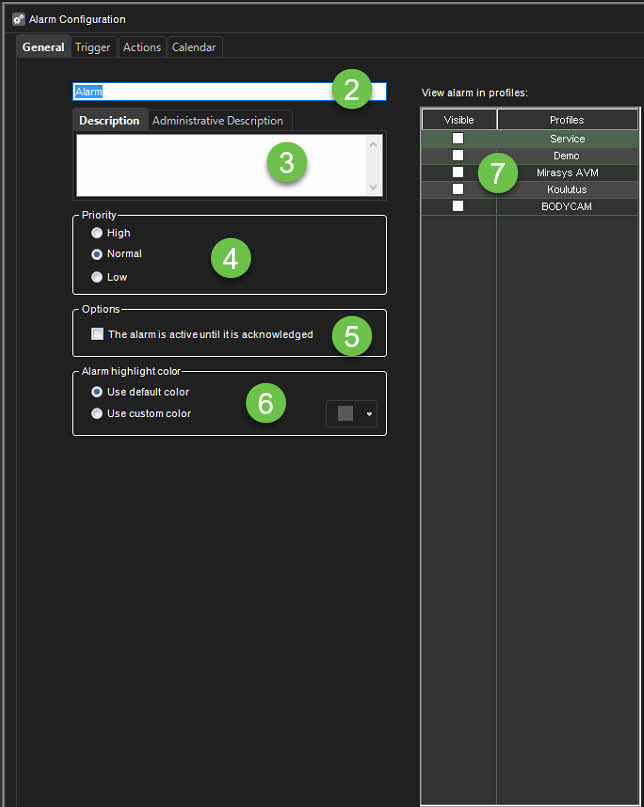
Type the name of the new alarm in the Name field.
-
Type the description and administrative description of the new alarm to the respective fields below the Name field.
-
Select whether the alarm is of high, average or low priority. The priority is used to define the order in which alarms are executed in case of multiple simultaneous alarms.
-
Select The Alarm is active until it is acknowledged to create the alarm as continuous; if the option is selected, the alarm will continue until a user acknowledges it through the Spotter application.
-
Alarm highlight colour allows administrators to define a custom colour for each alarm separately.
-
In the View Alarms in Profiles menu, select the profiles in which the alarm will be used.
Alarms can also be added to profiles through the Profiles tab.
Select trigger
-
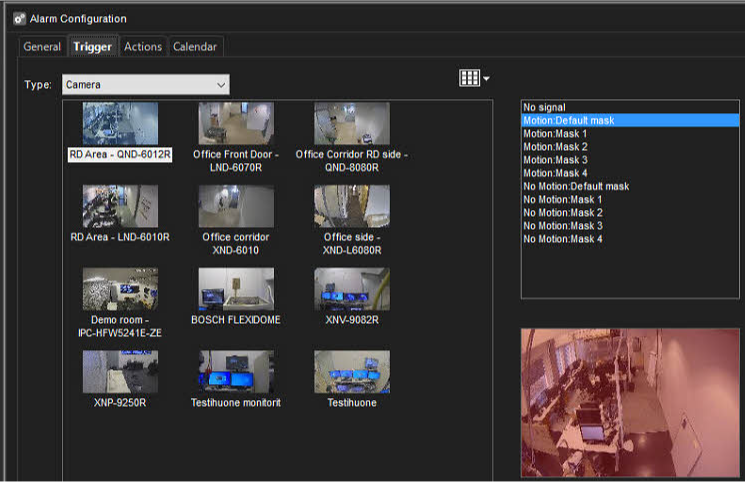
Open the Trigger tab. The Trigger tab is used to define the triggers that start the alarm event.
-
Select the trigger Type from the drop-down menu.
-
Camera
-
Audio
-
Text data
-
Digital input
-
Metadata
-
External (Customized triggers, created under VMS Servers > Alarm Triggers)
-
-
Select the device that will trigger the alarm from the device list below the Type drop-down menu.
-
Select the triggering condition from the condition list on the right side of the screen.
-
For camera-based triggers, you can select the mask used in motion detection to trigger the alarm.
-
For audio-based triggers, you can set the alarm to trigger based on a high or low audio level.
-
For text data based (e.g., VCA, metadata, etc.) triggers, you can set the alarm to trigger based on a text data string.
-
In addition, you can set an optional alarm ending trigger by marking Define ending input and selecting a string for ending the alarm.
-
For digital input-based triggers, the alarm is triggered based on the change of the input’s polarity.
-
For External triggers, you can select the triggers created under Alarm Triggers. For channel based triggers, you can also select the channel.
-
Actions
-
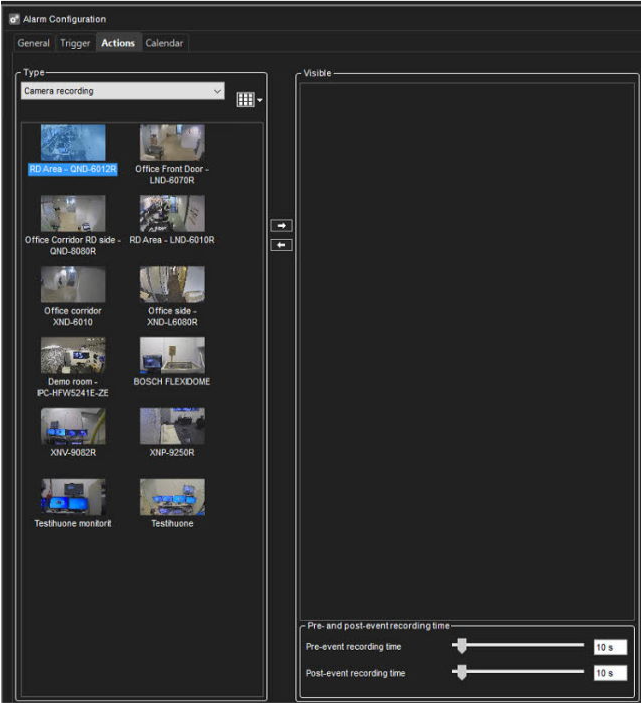
Open the Actions tab. The Actions tab is used to define the actions performed by the alarm when it is triggered.
-
Select the action type from the Type drop-down menu. The action type defines the basic functionality of the alarm.
See more about Action types and settings in the next page.
Deleting an Alarm
-
On the VMS Servers tab, select the server.
-
Double-click on Alarms.
-
Select the alarm you want to delete by clicking on its name.
-
Click Remove Alarm at the lower-left corner of the Alarms screen.
-
The alarm is deleted from the system.