
It is possible to update all connected VMS Servers remotely via the Update VMS Servers –option
The Main server must be upgraded from the Windows Control Panel\Programs\Programs and Features\Uninstall or change a program.
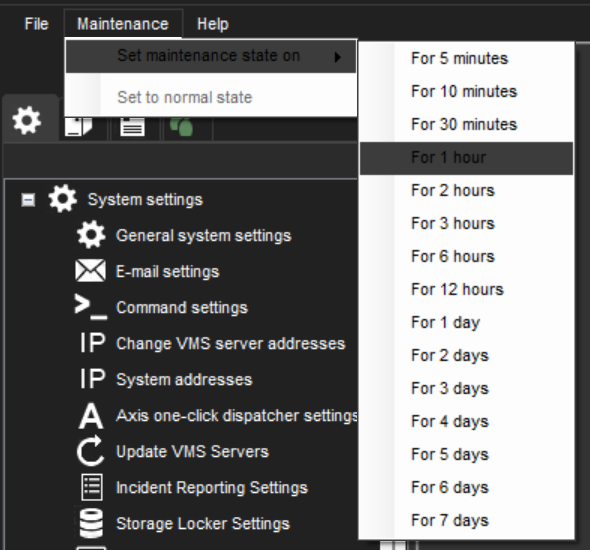
Please remember to set the Maintenance state on before upgrading.
-
Click Maintenance
-
Select Set maintenance state on
-
Select the duration of the maintenance mode
Updating VMS servers
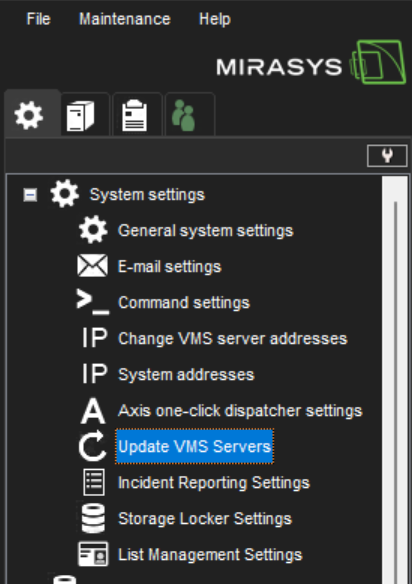
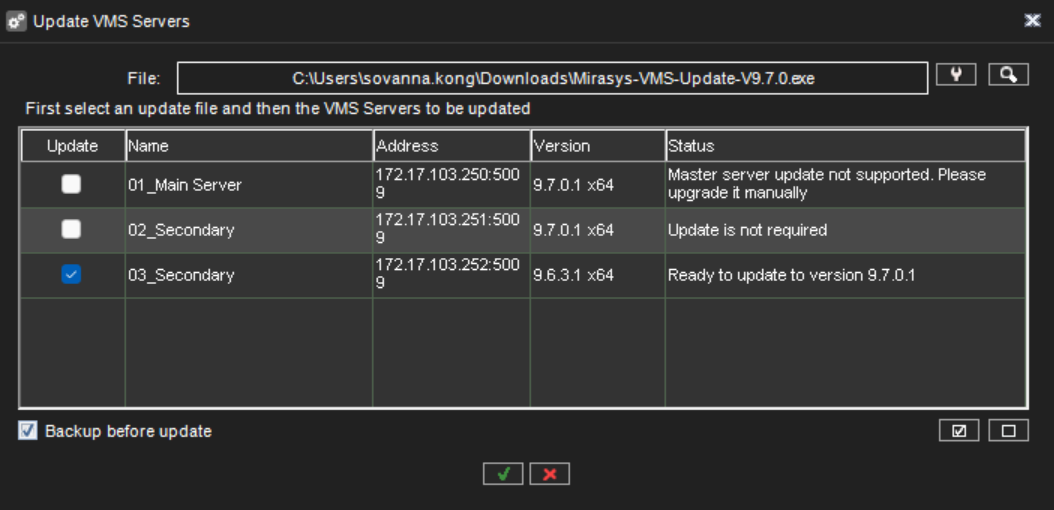
To update servers, first, select the installation file with the button:

The list is updated to show which servers can be updated with the selected installation file.
Note: When performing a major version upgrade, for example, from VMS 6. x to 7. x, it is usually necessary to first upgrade the server licenses, and only after this upgrade the VMS software.The Update VMS Servers dialogue will inform the user if a license upgrade is needed before the software update.Next, choose which servers you want to update and if you want to perform a backup before updating.
By selecting this button

you will start the update, and an update progress dialogue is shown:
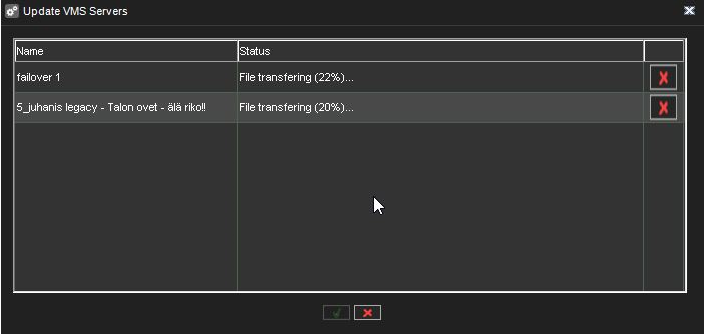
This dialogue can be closed at any time without affecting the server updates.
Notes:
-
The progress dialogue might display no status information for the installation file transfer and update progress if the network connection is slow or intermittent.
-
This is no cause for alarm; in most cases, the update will be successful, but it might take a long time (20 – 30 minutes).
-
It is recommended to prepare for the possibility to have remote access to any such servers.
-
-
If a local server were selected to be updated, the system manager would automatically close after this dialogue is shown.
-
In rare cases, some servers require system restart after remote VMS software update if the connection between the Main Server and VMS Server is not returning after the update.
-
It is recommended to monitor the connection to VMS Servers after the update.
-
-
Since Version 7.4.3, Mirasys VMS has had support for 64-bit servers. The upgrade from 32-bit (x86) to 64-bit can be achieved precisely by installing any DVMS version.
-
After the update, the control panel of windows will show DVMS-x64 for 64-bit DVMS.
-