
You can copy an existing Profile in System Manager to make it easier to create new profiles based on existing ones.
The copied profile will include identical Device, Alarm, and Map settings.
Please note that General settings such as description and user groups will not be copied.
The new profile will be active by default and can be edited and deleted.
Only System Administrators with the “can add profile” ability enabled in the System Manager role can copy the profile.
-
Select a profile in System Manager > Profiles.
-
Click the “copy profile” button located between “add profile” and “remove profile”.
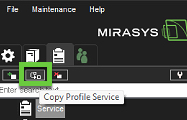
Please note that this button will only be active when a profile is selected.
-
When clicking “copy profile, a new profile is created with device, alarm, and map settings identical to the copied profile.
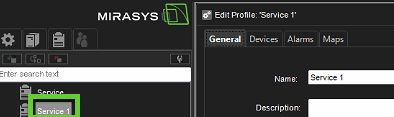
The new profile copy is below the copied profile with a number after the name: If the profile name is Service, the copy will be “Service 1”. If there is already a “Service 1” profile, it will be “Service 2”, and so on.
-
In General settings, the name can be edited, the profile can be activated or deactivated, and a description can be added. The new profile copy will be active by default.
-
Click ✓ to Save. The profile will now be visible in SM > User groups and can be added to user groups.