
The Scheduler defines which motion mask is used for each camera at what time. You can select active days for a motion mask, or even more granular, active hours. By default, video is recorded when the system detects motion in the default mask. The default mask is active 24/7 by default.
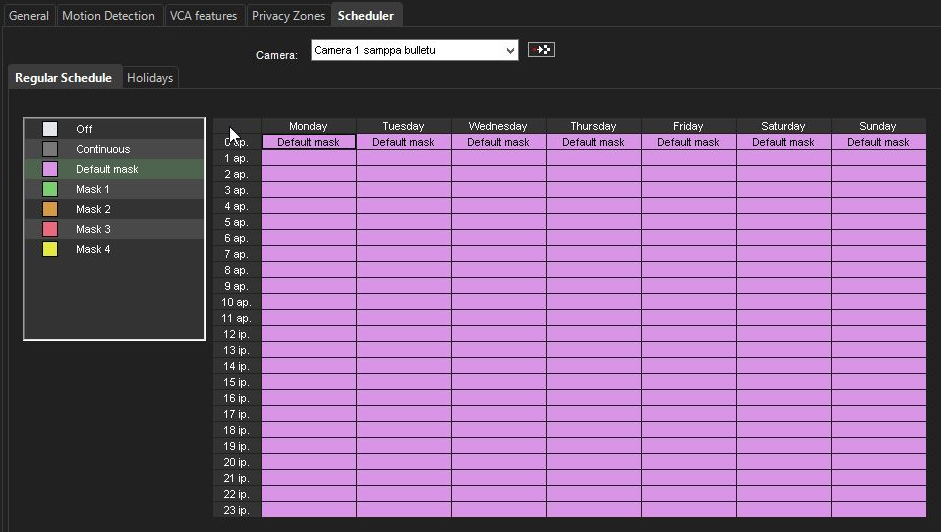
For each hour of the week, you can set different options, like using different motion detection masks during the day and the night. The Scheduler has the following options:
-
Off
Video is not recorded. However, possible alarms are recorded. Alarms are configured in Alarm Settings. -
Continuous
The camera records all images. This option uses a lot of disk space. -
Default mask
The camera records video using the default motion detection mask and default motion detection parameters. -
Custom mask
The camera records video using a custom mask. Each camera can have as many as four custom masks.
How to use the Scheduler
-
Set the regular weekly schedule in the Regular Schedule tab.
-
Set holiday schedules on the Holidays tab, if needed.
-
To change the schedule, click on the motion mask you want to select.
-
Click on the scheduled hour where you want the motion mask to be used.
-
To change more than one hour at the same time, drag with the mouse or click the first cell, keep the SHIFT key pressed, and then click the last cell.
-
To change all hours in a column or a row, click the column or row heading.
-
To change all hours of the week, click the cell above the hour's column (on the left side of the weekday heading row).
-
-
Click the Save icon ✔️at the bottom of the page to save all Camera settings.
Copy a schedule for all cameras
You can copy the currently selected recording schedule for all cameras in the system.
-
Click the Copy Schedule icon.

-
When asked for confirmation, click OK.
Exception days settings for holidays
You can use alternative recording schedules for holidays, and apply a daily schedule from the Regular Schedule or use an Exception days schedule.
Adding a schedule for exception days
-
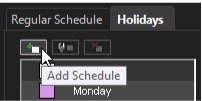
Click Add Schedule
-
Select a name for the schedule and use the text box to name it.
-
Click the motion mask you want to apply.
-
Click the hours you want to apply the motion mask.
-
Click OK.
Using exception days schedules
-
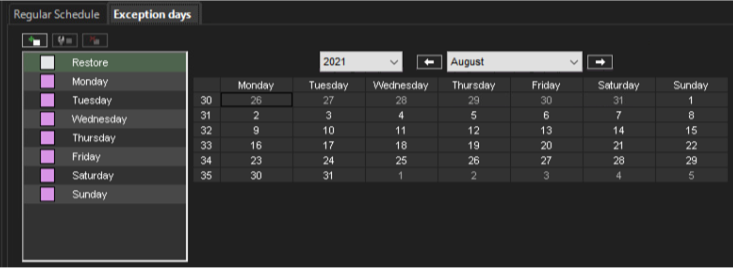
Click the Exceptions days tab.
-
Select the year and month.
-
In the left panel, click the schedule that you want to apply.
-
Click the holiday in the calendar.
Editing a custom schedule
-
Select the schedule.
-
Click Edit Schedule.
-
Make the changes you wish to apply.
-
Click OK.
Deleting a custom schedule
-
Select the schedule from the left pane.
-
Click Delete Schedule.
-
Confirm that you want the schedule to be deleted.
Restore the original schedule
-
Click Restore
-
Click the day that you want to restore.
-
Click ✔️ to Save.