-
Exporting VCA Core HW GUID file
-
Activating VCA license
-
Setting up the motion detection method
-
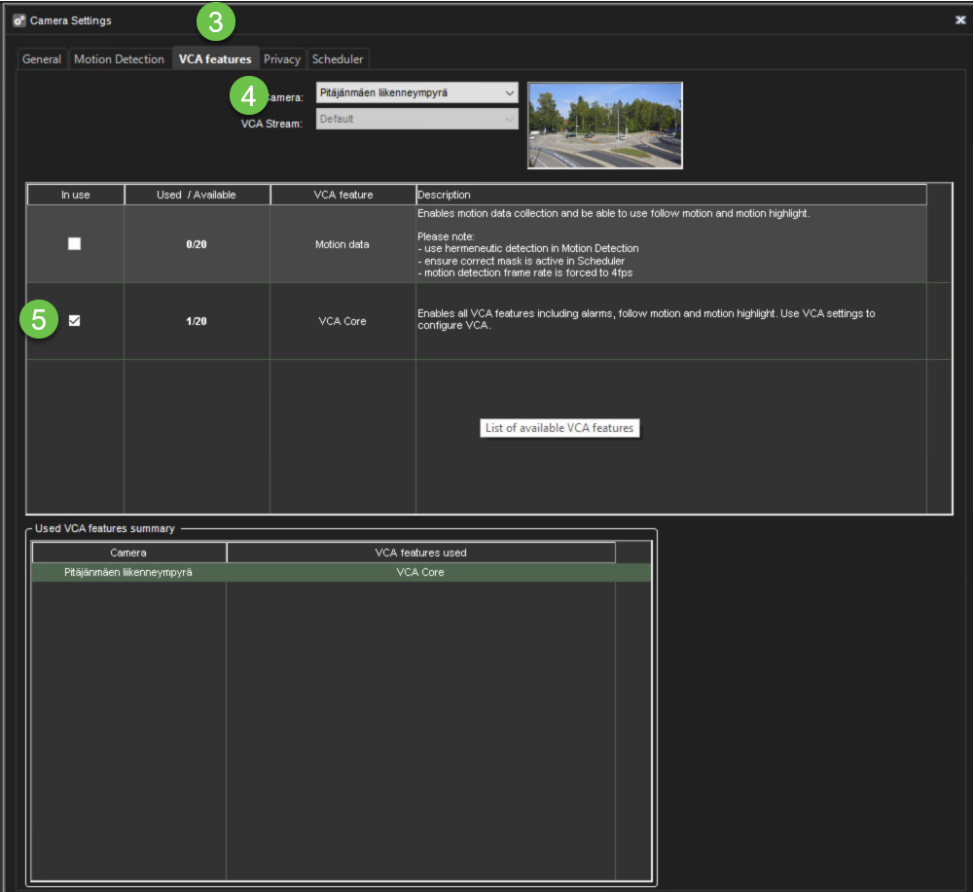
Activating VCA Core for the cameras
Exporting VCA Core HW GUID file
-
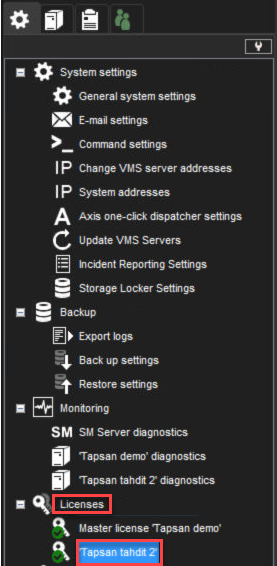
Go to the System tab
-
Open Licenses
-
Double-click the license
-
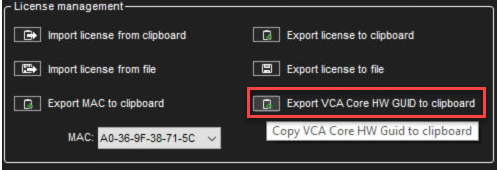
Select Export VCA Core HW GUID to clipboard
-
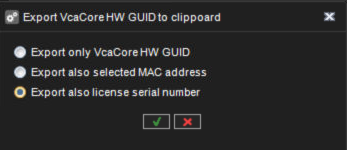
Select Export also license serial number
-
Click Ok
-
Paste clipboard data to the text document.
-
Send it to Mirasys to receive the VCA license.
VcaCore Hw Guid: C1092267BD20344A5853FFD2BEA65406C1884F6FA19B503395E85F8545F75E2D
License serial number: YL9QMELM9QK5
Activating VCA licenses
-
Go to the VMS Servers tab
-
Open VCA settings
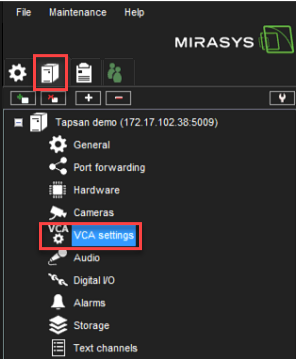
-
Click the Settings icon from the upper left corner
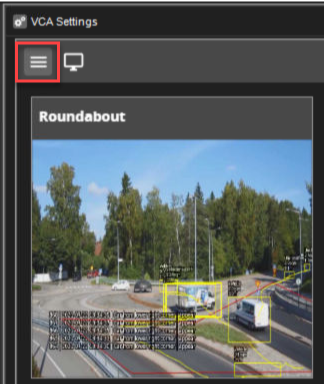
-
Select Licenses
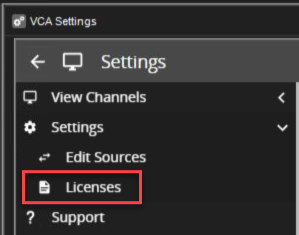
-
Paste the license, which you have received from Mirasys to the Activation Code field
-
Click Add New License
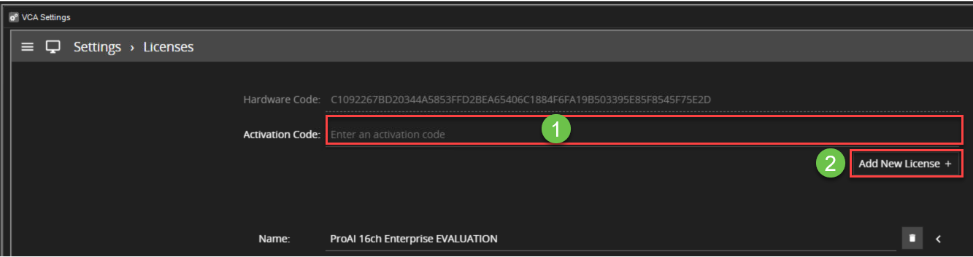
-
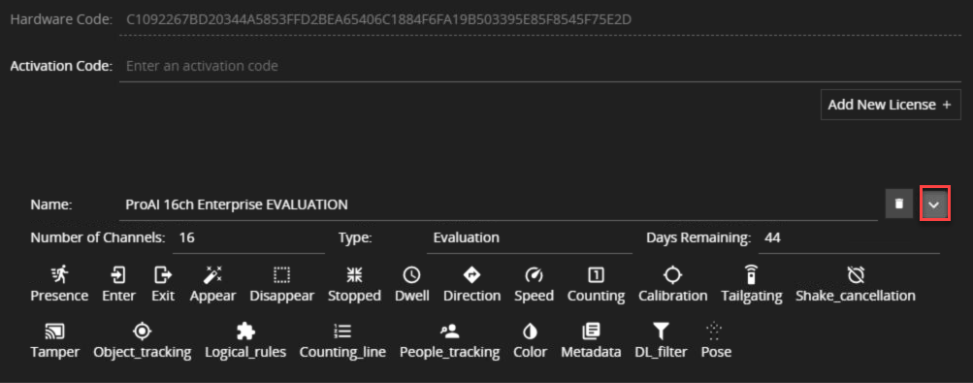
When the license is added, you will see overall information about the license and supported features
Setting up the resolution and record rate
-
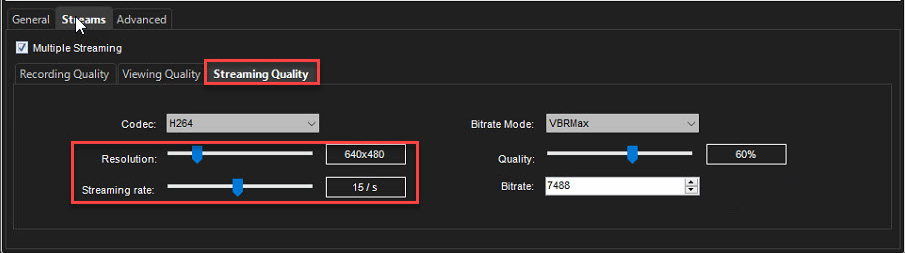
Enable Multiple Streaming to the cameras which are used for the Mirasys VCA
-
Set Streaming Quality resolution to 640x480
-
Set Streaming Quality Streaming rate to 15/s
Selecting VCA Stream
-
Open VCA Features tab
-
Select camera from the list
-
Open VCA Stream dropdown list and select Streaming Quality

Activating VCA Core for the cameras
-
Go to the VMS servers tab
-
Open Cameras
-
Select VCA features
-
Select camera
-
Enable In use
-
Click OK