
Zones are the detection areas on which VCAcore operate.
To detect a specific behaviour, a zone must be configured to specify the area where a rule applies.
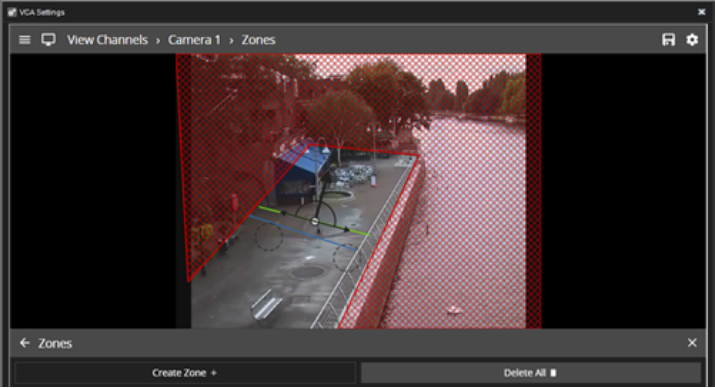
Zone specific settings
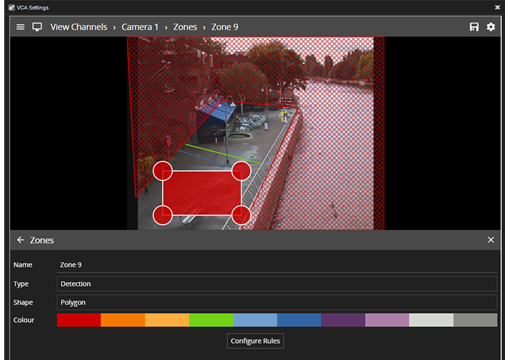
The zone configuration menu contains a range of zone-specific configuration parameters:
-
Name The name of the zone, which appears in event notifications.
-
Type: The type of the zone. Can be one of:
-
Detection: A zone that detects tracked objects and to which rules can be applied.
-
Non-detection: A zone that specifies an area that should be excluded from VCAcore analysis.
-
Objects are not detected in non-detection zones.
-
Useful for excluding areas of potential nuisance alarms from a scene (e.g. waving trees, flashing lights, etc).
-
-
Shape: The shape of the zone. Can be one of:
-
Polygon: A polygonal detection area with at least three nodes. Rules apply to the whole area.
-
Line: A single- or multi-segment line with at least two nodes. Rules apply to the length of the line.
-
-
Colour: The colour of the zone.
-
Configure Rules: A shortcut button to navigate directly to the rules configuration page
Adding a zone
Zones can be added in multiple ways:
-
Double-click anywhere on the video display.
-
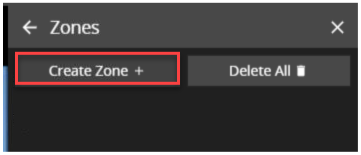
Click the Create Zone button in the zone settings menu.
-
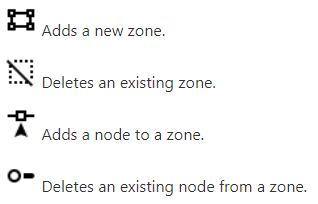
Right-click or tap-hold to display the context menu and select the add zone icon

The context menu
Right-clicking or tap-holding (on mobile devices) displays a context menu that contains commands specific to the current context.
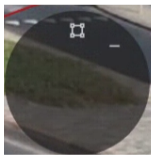
The possible actions from the context menu are:
Creating a zone
Click Create Zone icon
-
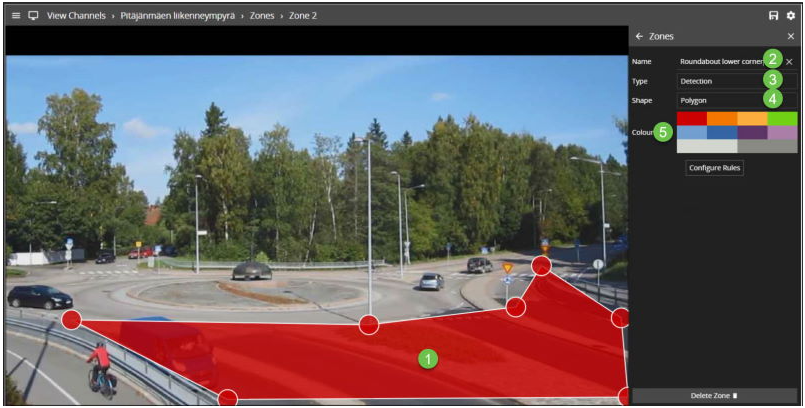
Draw zone and set the location to the image
-
Set name of the zone
-
Set detection type
-
Set shape
-
Define color
Positioning zones
To change the position of a zone, click and drag the zone to a new position. To change the shape of a zone, drag the nodes to create the required shape. New nodes can be added by double-clicking on the edge of the zone or clicking the add node icon from the context menu.
Deleting the zone
Zones can be deleted in the following ways:
-
Select the zone and click the Delete Zone button from the zone settings menu.
-
Select the zone, display the context menu and select the delete zone icon