Before adding IP cameras to the Mirasys VMS system, check the following:
-
Make sure you have the IP addresses, usernames, and passwords for the cameras you want to add
-
Verify that the computer on which the Mirasys VMS software is installed is on the same network as the IP cameras
-
Verify that the time zone, date, and time on the IP cameras match those on the computer where the Mirasys VMS software is installed
Adding cameras one at a time
-
Go to the VMS Servers tab
-
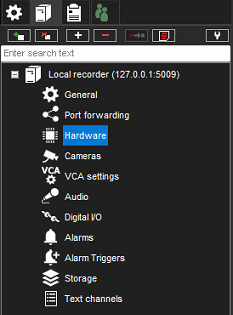
Open Hardware
-
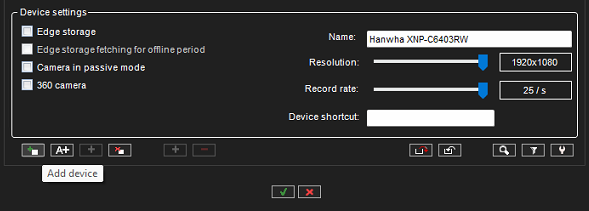
Select Add device in the lower-left corner
-
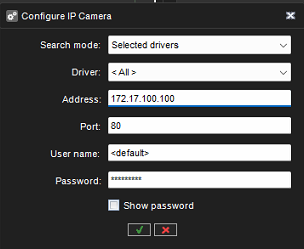
Enter the following information:
-
IP address
-
Username
-
Password
-
Press OK to start adding a camera
-
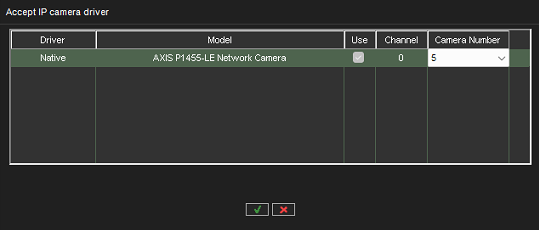
Once the camera is detected, select the Native driver if the software offers multiple drivers for the camera
-
Continue by clicking OK
-
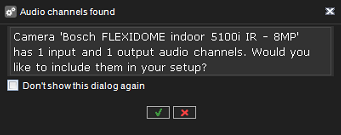
The audio channel dialog will be displayed if the camera has support for audio channels. Select OK (✓) or Cancel (×), depending on whether you’d like to enable audio channels.