
Depending on the customer’s case, it is possible to use an SSL Certificate to protect camera authentication and communication. In the Axis case, they offer Axis Device Manager, which allows to creation of needed certificates for the server and camera ends.
Axis Device Manager
Axis offers its support site, Axis Device Manager. You can download this software from their site.
If you encounter a problem installing this software, please contact Axis Support for help.
More information on how to use and help from the Axis Device Manager Support page.
CA Certificate creation in ADM
-
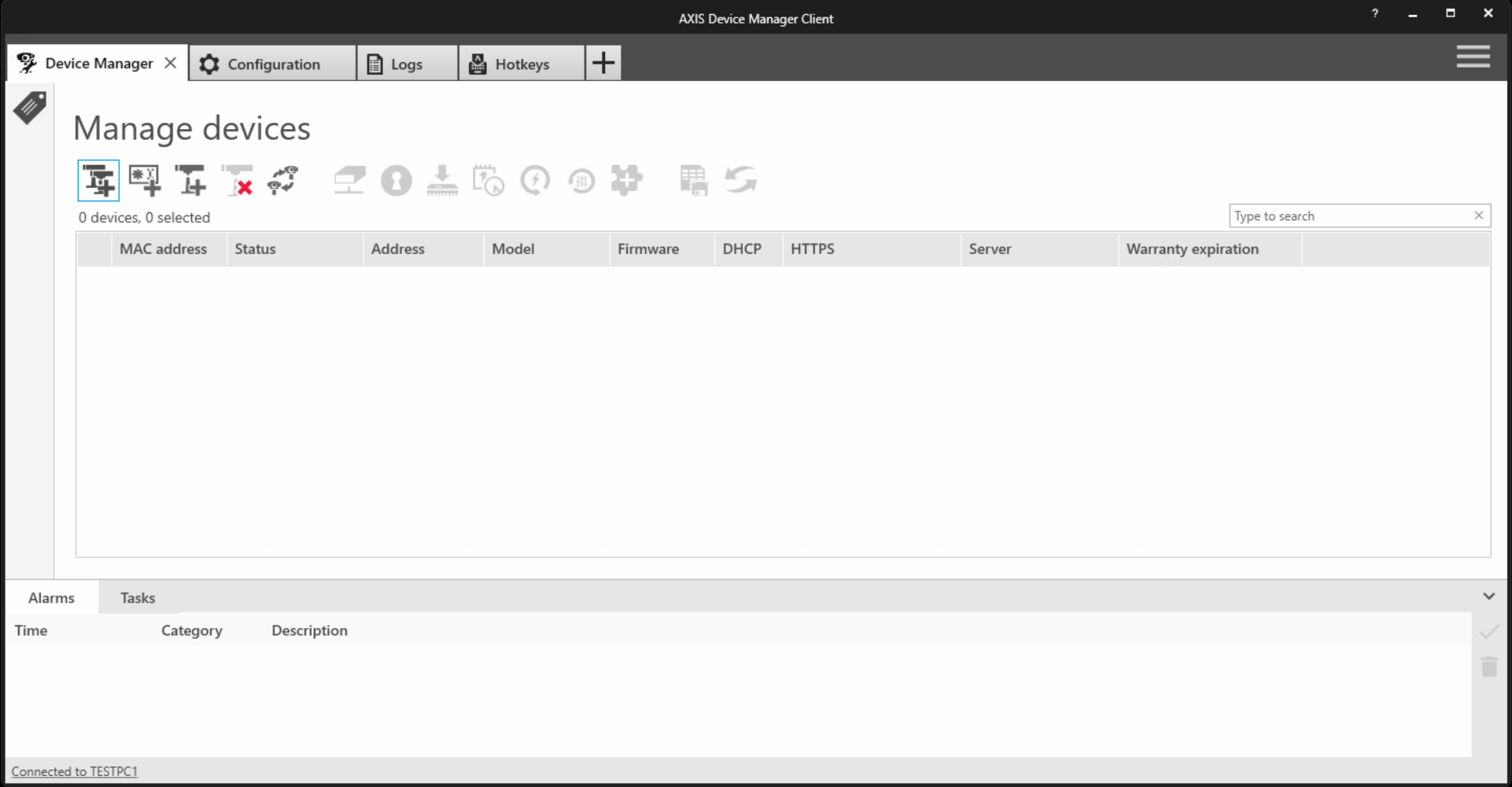
Start Axis Device Manager software.
-
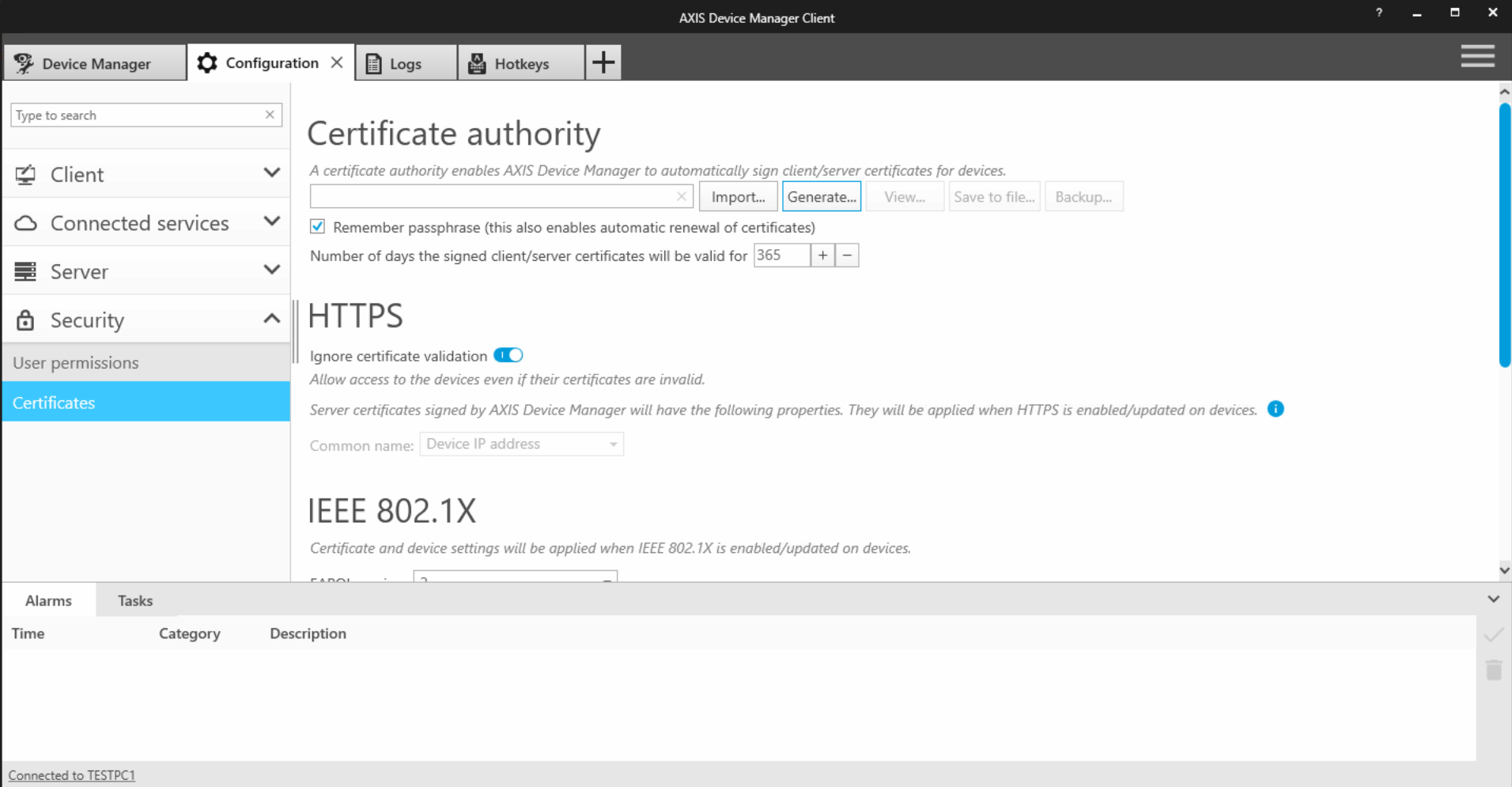
Go to the Configuration tab.
-
On this page, you can determine how long the certificate is valid.
-
The default value is 365 days.
-
You can increase this value if needed or wanted.
-
-
Click Generate.
-
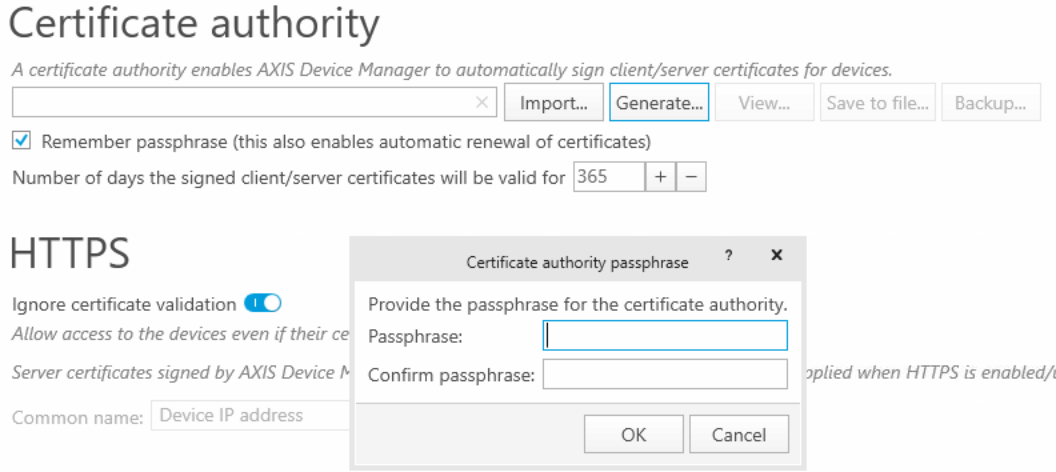
This starts certificate generation and asks for asking password for this certificate.
-
Please keep this password safe.
-
-
Type your wanted password and click OK to continue.
-
Now wait.
-
After a few seconds system has created the Axis Device Manager root certificate.

-
Now you need to click the Save to file… -button and save this certificate to your server.
Camera certificate creation and installation to device
-
Go to the Device Manager tab
-
Add their camera or cameras where you want to create and install the certification.

-
Right click on the wanted device and go to Security → Secure communication → Enable/disable…
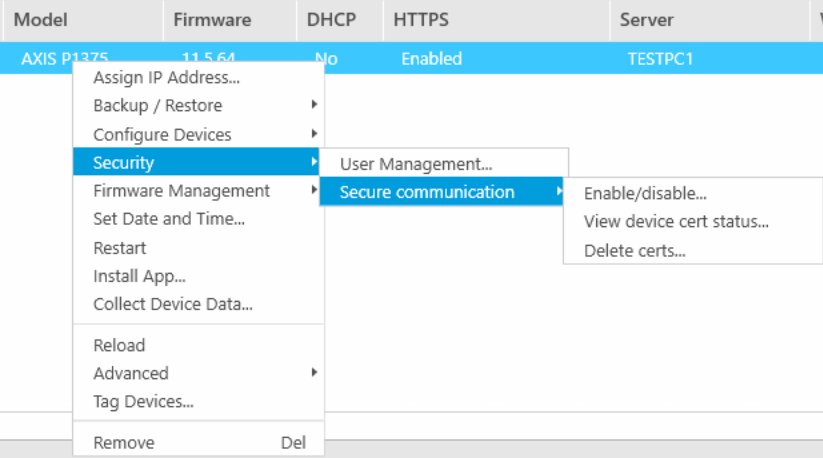
-
This opens a new window where you can enable or disable HTTPS communication
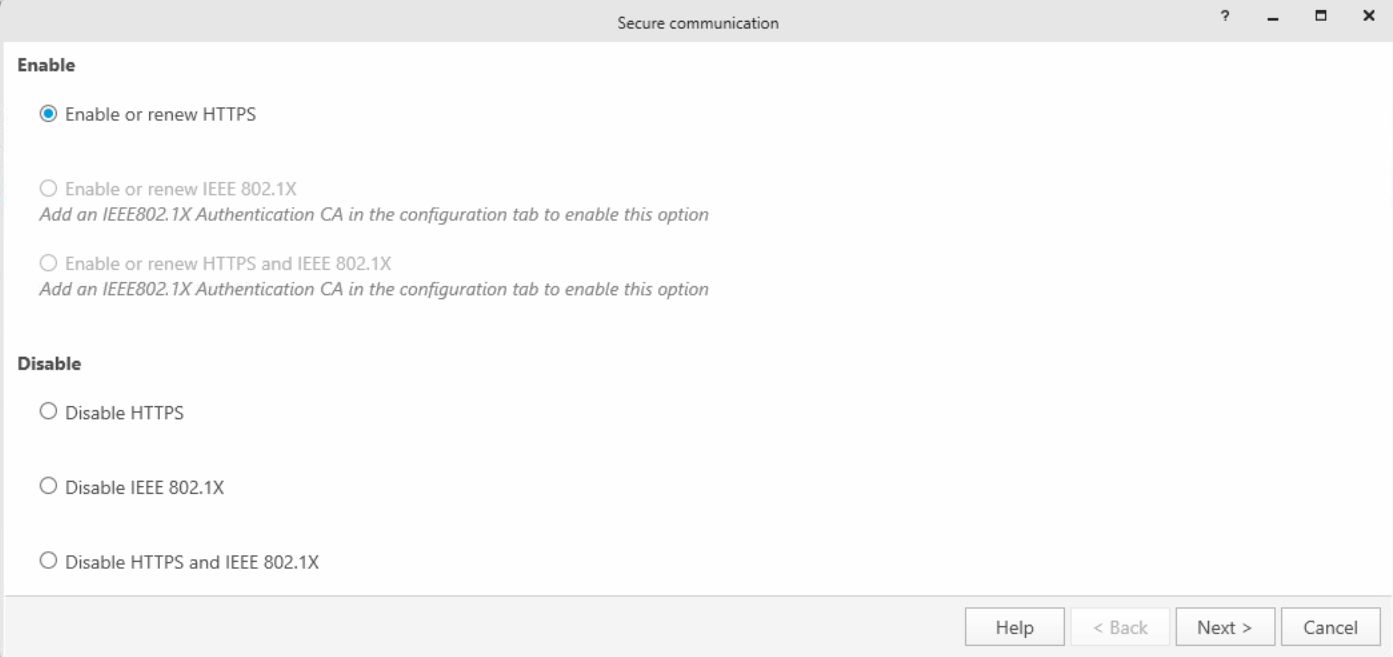
-
Click Next to continue
-
Next window, you have the option to change the CA certificate or use ADM’s certificate, which was created earlier
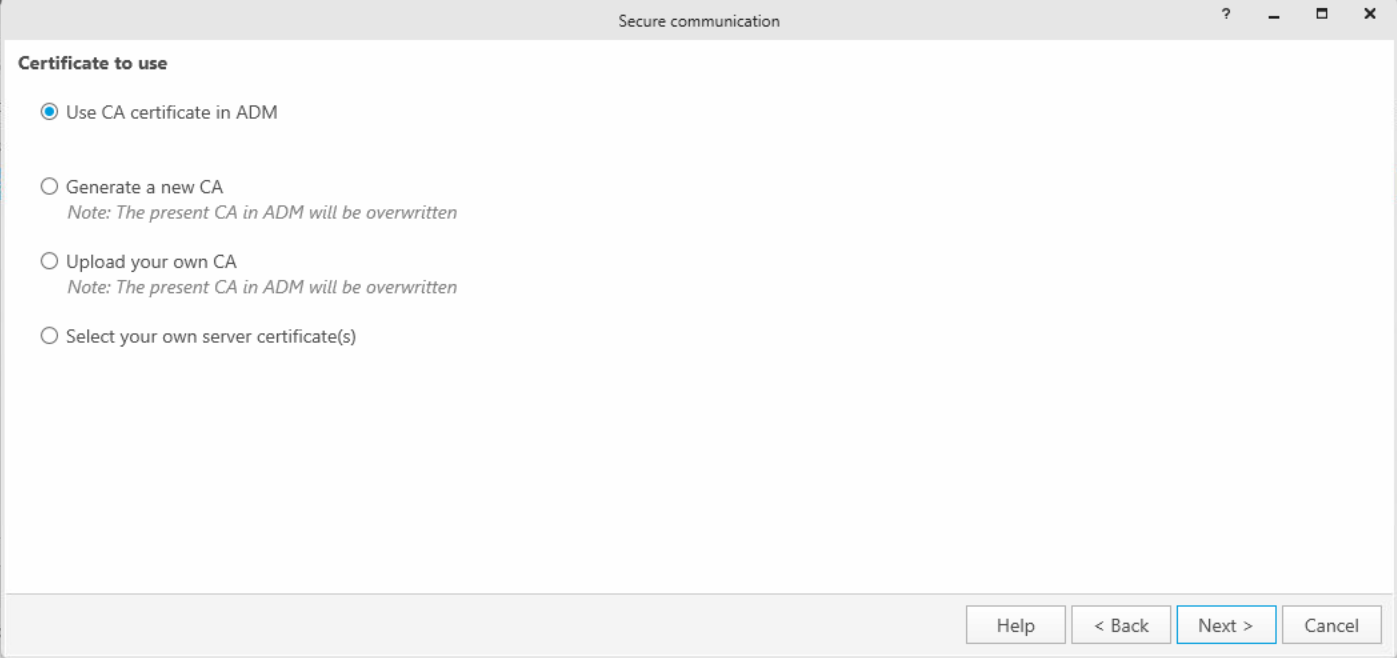
-
Click Next to continue
-
On this window, select the device or devices where you want to install the certification
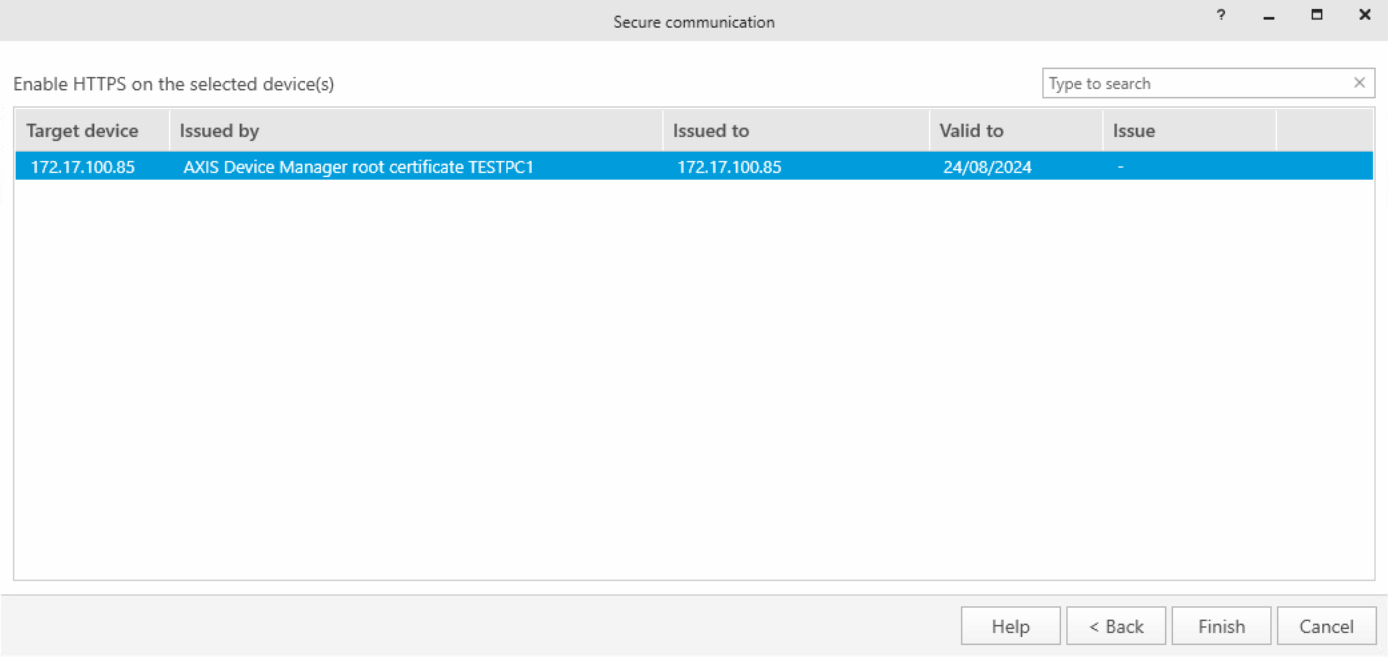
-
Click Finish to continue
-
Now wait, the certification is created and installed on the device
-
Status change to Maintenance

-
-
When the status is back to OK, this indicates that the certificate is now created and installed on the device

-
Now you have installed the certificate on the device using the CA Certificate in ADM
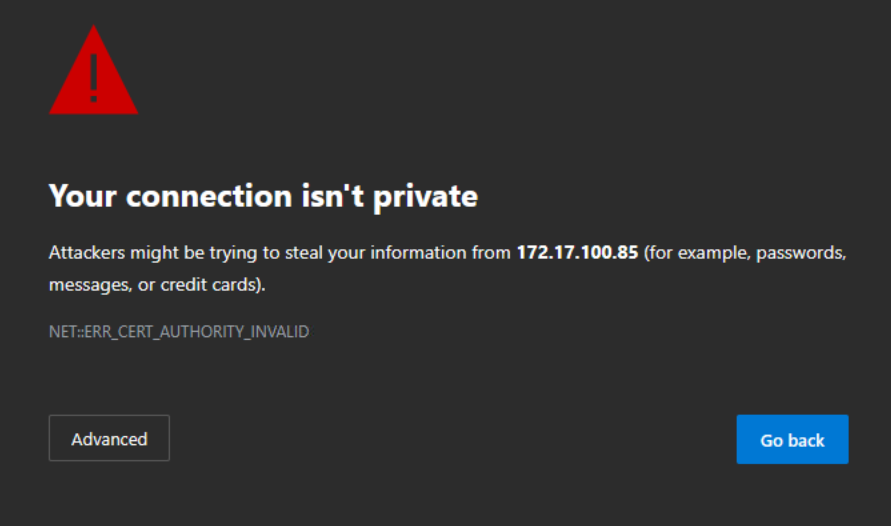
If you now open a browser and go to the device IP address, you still get an error related to certification. This means that there is a missing CA Certificate on the server side.
Adding CA Certificate to certificate store
-
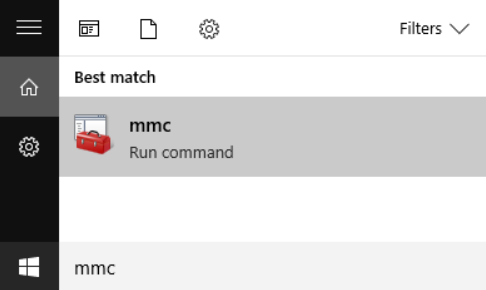
Open the Windows Start menu and enter MMC to open the Console Root.
-
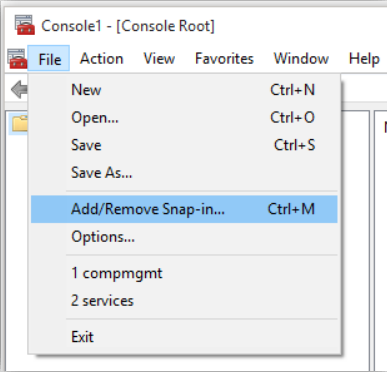
In the console, go to File > Add/Remove Snap-in…
-
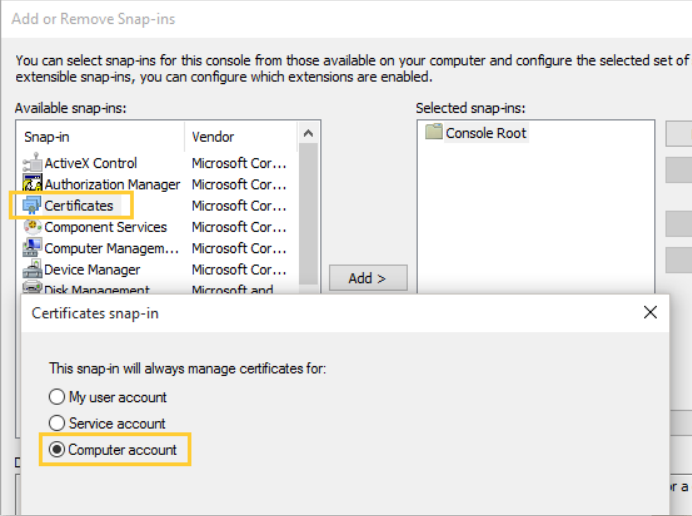
In the list on the left side, select Certificates and choose to manage the certificates for the Computer account. Click OK.
-
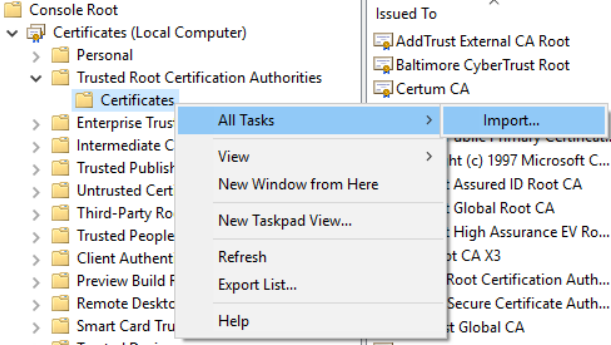
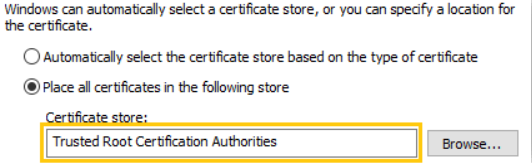
Navigate to Certificates – Local computer > Trusted Root Certification Authorities and right-click on Certificates. Choose All Tasks > Import…
-
Select the Axis_Device_Management_Root_Certificate.crt saved on your computer or your own CA certificate and place it in the Trusted Root Certification Authorities store.
-
Click Next and Finish. The certificate is now added to the store:

-
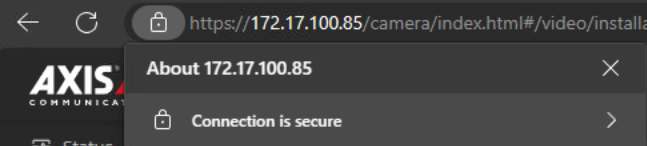
After this, you can open a browser and type the device’s IP address and check that communication is secured.
-
If you have kept the browser open, please close that before making a connection after certificate installation.
-
Troubleshooting
Axis Device Manager Support page
Axis Device Manager Documentation
Axis Device Manager How to videos