
Available from VMS V9.9.2
Overview
This document provides a summary of the SMServer HTTP API, which is designed to retrieve information from the VMS system and connected devices, get, add, and delete camera device location information, search for Watchdog events, and register to listen to them. The API is hosted on port 8082.
The API uses Digest authentication to authenticate incoming calls. Requests must provide proper user credentials on each API call.
Getting Started
To start using the SMServer API, you need the following:
-
Install the latest Mirasys VMS or upgrade the existing system to the latest Mirasys VMS version.
-
You need a valid VMS user account and use the user credentials on each API request. VMS users can be managed in the System Manager users tab. Please see the Mirasys VMS settings documentation on how to manage users in the VMS system.
-
Ensure network settings and firewall allow communication with the SMServer via the specified API endpoints in port 8082.
Authentication
Authentication is crucial to securing the API’s data for developers and end users. The SMServer API uses Digest authentication. All API methods require "Digest" HTTP authorization with a valid VMS username and password. In case of user authentication failure, an Unauthorized HTTP response is returned.
Each API request should contain a digest HTTP authorization header. Digest authentication is enabled by providing the user credentials to .Net HttpClient as follows:
[C# .Net 8]
var client = new HttpClient(new HttpClientHandler { Credentials = new NetworkCredential(username, password) }, true);
The SMServer validates each request by checking that the user credentials are correct.
Camera information
The SMServer stores camera information that can be added, requested, updated, and deleted by using the API.
Get camera information
-
Method: GET
-
URI: /smserver/CameraInfo
-
Content: empty
-
Response: JSON (list of camera information):
Set camera information
-
Method: PUT
-
URI: /smserver/CameraInfo
-
Content: JSON (list of camera information)
-
Response: HTTP response status
Add camera information
-
Method: POST
-
URI: /smserver/CameraInfo
-
Content: JSON (camera information to add)
-
Response: HTTP response status
Delete camera information
-
Method: DELETE
-
URI: /smserver/CameraInfo
-
Content: JSON (to delete camera information, only RecordereGuid and ID are required)
-
Response: HTTP response status
Camera information data
Camera information data is JSON serialized. Sample JSON camera information list is as follows:
[
  {
    "Id": 1,
    "RecorderGuid": 637485565744993742,
    "RecorderAddressAndPort": "localhost:5009",
    "RecorderName": "VMS",
    "CameraNumber": 1,
    "CameraName": "Camera 1",
    "CameraDescription": "",
    "CameraPrivilegedDescription": "",
    "Address": "192.168.100.1",
    "EntryTimeUTC": "2024-08-09T13:06:07.4533594Z",
    "Longitude": 1.0,
    "Latitude": 2.0,
    "Altitude": 2.0,
    "Azimuth": 3.0,
    "Height": 4.0,
    "Direction": 5.0,
    "TiltAngle": 6.0,
    "FieldOfView": 7.0,
    "InstallTimeUTC": "2022-12-23T09:31:53Z",
    "InstallerName": "",
    "Manufacturer": "AXIS",
    "Model": "AXIS P5655-E",
    "CameraType": "IP",
    "FirmwareVersion": ""
  },
  ...
]
Only the following fields can be modified by the camera info API:
{
  "EntryTimeUTC": "2025-01-07T12:03:22.4220072Z",
  "Longitude": null,
  "Latitude": null,
  "Altitude": null,
  "Azimuth": null,
  "Height": null,
  "Direction": null,
  "TiltAngle": null,
  "FieldOfView": null,
  "InstallTimeUTC": "2025-01-07T12:03:22.4220072Z",
  "InstallerName": "",
  "Manufacturer": "Hanwha",
  "Model": "Hanwha Techwin XNB-6002",
  "CameraType": "IP",
  "FirmwareVersion": "2"
}
Other fields can be modified only with the System Manager.
System information
The Mirasys VMS information can be requested from the API containing information of the main server, connected VMS servers, and the devices connected to each VMS server.
Get the SMServer information
-
Description: Get the SMServer information with the list of VMS server IDs
-
Method: GET
-
URI: /smserver/smserverinfo
-
Parameters: -
-
Content: -
-
HTTP response:
-
200 OK: SMServer information is returned in response content.
-
401 Unauthorized: User authentication has failed.
-
-
Response content: SMServer information in JSON format
-
Machine name: Computer name of SMServer
-
Version: The VMS software version number
-
RemotingPort: Remoting communication port number
-
HttpPort: HTTP port number
-
IpAddresses: List of active IP addresses and their MAC addresses
-
LicenseInfo
-
ProductDescription: Product description from the license
-
SerialNumber: License serial number
-
CustomerInfo: List of customer info descriptions
-
-
VmsServers: List of VMS Server GUIDs that are connected to this setup
-
FailoverVmsServers: List of failover VMS GUIDs that are connected to this setup.
-
Example:
{
  "MachineName": "SOME-DEVX",
  "IpAddresses": [
    {
      "Ipv4": "123.456.78.901",
      "Ipv6": "fe80::b529:c221:383c:2067%15",
      "Mac": "083ABBBCE7EF"
    }
  ],
  "RemotingPort": "5008",
  "HttpPort": "8082",
  "LicenseInfo": {
    "ProductDescription": "V9 Enterprise Demo",
    "CustomerInfo": [ "SomeCompany - Somebody Dev" ],
    "SerialNumber": "GWKJ4ZM99XXX"
  },
  "Version": "9.10.0.0 DEVELOPMENT",
  "VmsServers": [ 638624146050861303, 638357985167938493 ],
  "FailoverVmsServers": []
}
Get VMS Server information
-
Description: Get VMS Server information
-
Method: GET
-
URI: /smserver/vmsserverinfo?id=<VMS server GUID>
-
Parameters:
-
VMS server GUID: The ID of the existing VMS Server
-
-
Content: -
-
HTTP response:
-
200 OK: VMS Server information is returned in the response content
-
401 Unauthorized: User authentication has failed
-
400 Bad request: Invalid VMS Server GUID parameter
-
404 Not found: No VMS Server found with the given VMS Server GUID
-
500 Internal Server Error: An unexpected error has occurred on the server side. The response message contains more information about the error.
-
-
Response content: VMS Server information in JSON format
-
Name: VMS Server name
-
Description: VMS Server description
-
GroupID: VMS Server group ID
-
IpAddresses: List of VMS Server IP Addresses
-
Macs: List of VMS Server MAC addresses
-
RemotingPort: Remoting connection port number
-
HttpPort: HTTP connection port number, nullable
-
Version: VMS software version number
-
VideoChannels: List of VMS Server video channels
-
RTSP streams. User name, password, and certificate information are available only for administrative API users.
-
-
AudioChannels: List of VMS Server audio channels
-
TextDataChannels: List of VMS Server text data channels
-
Inputs: List of VMS Server input channels
-
Outputs: List of VMS Server output channels
-
For each channel data format, the following information is returned. Note that each channel publishes the information that is relevant to it
-
Name: Name of channel
-
Description: Channel description, nullable
-
AdminDescription: Administrative description of the channel, nullable
-
ModelInfo: Model info, nullable
-
IpAddress: IP address, nullable
-
Mac: Mac address, nullable
-
Port: Port number, nullable
-
Username: Channel connection user name, nullable
-
Password: Channel connection password, nullable
-
FirmwareVersion: Firmware version number, nullable
-
DriverName: Channel driver name, nullable
-
DeviceChannelNumber: Driver device channel number, nullable
-
DvrChannelNumber: Channel number in VMS channel list
-
Status: Channel status, nullable
-
True: channel active
-
False: channel not in use
-
-
Direction: Channel direction for audio, nullable
-
True: Output
-
False: input
-
-
-
VMS server information example:
{
  "Name":"VMS_1",
  "Description":null,
  "GroupID":1,
  "IpAddresses":["123.45.678.91","123.45.678.92"],
  "Macs":["001b21e16300","001b21e16367","10e7c62f3855"],
  "RemotingPort":5009,
  "HttpPort":8083,
  "Version":"9.9.0.0",
  "VideoChannels":[...],
  "AudioChannels":[...],
  "TextDataChannels":[...],
  "Inputs":[...],
  "Outputs":[...]
}
Example of VideoChannel information:
{
	"DriverVersion": "1.1.2.3",
	"Rtsp": [
		{
			"Address": "rtsp://KIMMOT-DEV1:7001/stream0",
			"IsTcp": false,
			"HTTPPort": 10001,
			"RTSPPort": 7001,
			"UserName": "",
			"Password": "",
			"IsSecured": false,
			"Certificate": ""
		}
	],
	"Status": true,
	"IpAddress": "VCA_walkers_at_gate.wmv",
	"Port": "80",
	"UserName": "<default>",
	"Password": "<default>",
	"Name": "Camera 1",
	"Description": "Walkers at gate",
	"AdminDescription": null,
	"DriverName": "asfsynccapture",
	"DeviceName": "VCA_walkers_at_gate.wmv",
	"VmsChannelNumber": 1,
	"DeviceChannelNumber": 0
}
Watchdog events
The API can be used to get a list of supported Watchdog event types, search for occurred Watchdog events, and register and unregister to listen to the occurring Watchdog events.
Get supported Watchdog event types
-
Description: Get supported Watchdog event types in the string list
-
Method: GET
-
URI: /smserver/watchdogeventtypes
-
Parameters: -
-
Content: -
-
HTTP response:
-
200 OK: The supported Watchdog events are returned in the response content.
-
401 Unauthorized: User authentication has failed.
-
-
Response content: String list of supported Watchdog event type names in JSON format.
Example:
[
  "SmServerDown",
  "SmServerUp",
  ...
]
Search for Watchdog events
-
Description: Search for Watchdog events from the specified period
-
Method: GET
-
URI: /smserver/watchdogevent?starttime=<start time>&endtime=<end time>&events=<event type list>&dvrids=<VMS GUID list>&includesystemevents=<include system events>
-
Parameters:
-
starttime: Start time of event query in UTC, DateTime format, mandatory parameter
-
endtime: End time of event query in UTC, DateTime format, mandatory parameter
-
events: String list of event type names to query, optional. If missing, the query will include all event types
-
vmsids: List of VMS Server IDs which are included in the query, optional. If missing, all VMS servers are included
-
includeSystemEvents: Include or not system type events in query, optional. If missing, the system events are included
-
includeVmsEvents: Include or not VMS type events in query, optional. If missing, the VMS events are included.
-
-
Examples of optional parameters to get different occurred events combinations:
-
Selected event types: Events have one or more event types listed. If vmsids have values, event types from the listed VMS servers are included. If no values in vmsids, event types from all VMS servers are included. Example:
/smserver/WatchdogEvent?StartTime=23/10/2024 21.00.00&Endtime=25/10/2024 7.00.00&events=SmServerUp&events=SmServerDown&vmsids=638624146050861234 -
All VMS server events and all system events. Example:
/smserver/WatchdogEvent?StartTime=22/10/2024 21.00.00&Endtime=24/10/2024 4.00.00 -
Only system events. Example:
/smserver/WatchdogEvent?StartTime=22/10/2024 21.00.00&Endtime=24/10/2024 4.00.00&includeVmsEvents=false -
All VMS server events from all VMS servers, no system events. Example:
/smserver/WatchdogEvent?StartTime=22/10/2024 21.00.00&Endtime=24/10/2024 4.00.00&includeSystemEvents=false -
Selected VMS Server(s), all system events: vmsids has VMS GUID(s). Example:
/smserver/WatchdogEvent?StartTime=22/10/2024 21.00.00&Endtime=24/10/2024 5.00.00&vmsids=638624146050861305&vmsids=638690034265729387 -
Selected VMS Server(s), no system events: vmsids has VMS GUID(s). Example:
/smserver/WatchdogEvent?StartTime=22/10/2024 21.00.00&Endtime=24/10/2024 5.00.00&vmsids=638624146050861366&includeSystemEvents=false
-
-
Content: -
-
HTTP response:
-
200 OK: SMServer information is returned in response content
-
401 Unauthorized: User authentication has failed
-
400 Bad request: One or more query parameters are incorrect. The response message contains more error information.
-
500 Internal Server Error: An unexpected error has occurred on the server side. The response message contains more information about the error
-
-
Response content: Watchdog event information in JSON format
-
EventType: Event type enumeration in string format
-
EventDescription: Event type description
-
Time: Event UTC
-
ServerId: VMS server GUID id, zero if system event
-
ServerAddress: VMS server address, null if system event
-
Port: VMS server port, null if system event
-
Channel: VMS server channel number of event source, null if system event
-
Example:
[
  {
    "EventType": "SMServerDBConnectionRestored",
    "EventDescription": "System Management Server restored connection to XMC database",
    "Time": "23/10/2024 3.41.28",
    "ServerId": 0,
    "ServerAddress": null,
    "Port": null,
    "Channel": null
  },
  ...
]
Get Watchdog events
A client can register to listen to the Watchdog events from the SMServer by using WebHooks.
If the connection to the client is broken, event sending is repeated six more times in 10 seconds before the WebHook is unregistered. Repeat times and period time can be changed in the SMServer configuration file (SMServer.exe.config):
<!-- WebHooks sending retry intervall when sending failed, in seconds -->
<add key="WebHookRetryInterval" value="10" />
<!-- WebHook registration keeping time when WebHook sending fails, in minutes -->
<add key="WebHookKeepAliveTime" value="1" />
A maximum of ten (10) simultaneous WebHooks/user is accepted. This can be changed in the SMServer configuration file (SMServer.exe.config):
<!-- Maximum number of WebHooks for one user at same time -->
<add key="MaxWebHookCount" value="10" />
WebHook data content in JSON format:
-
Id: WebHook ID number (mandatory)
-
WebHookUri: URI path of WebHook (mandatory)
-
Secret: Secret number keeps WebHook connection safe (mandatory)
-
Description: Free description for current WebHook (optional)
-
IsPaused: Is WebHook sending set active, optional, false if not defined (False = active, True = passive)
-
Filters: Event name (optional). If used, it must include WatchdogEvent, and if missing, all events are included.
-
Headers: Not in use (optional)
-
Properties: Not in use (optional)
Example:
{
    "Id": "b61b86fcded74e9ab5a52f0cc870c41d",
    "WebHookUri": "http://localhost:59927/api/webhooks/incoming/custom",
    "Secret": "12345678901234567890123456781012",
    "Description": "Watchdog event webhook",
    "IsPaused": false,
    "Filters": [
        "WatchdogEvent"
    ],
    "Headers": {},
    "Properties": {}
}
Get Watchdog event registrations
-
Description: Get WebHook(s) that are (is) registered for the current user
-
Method: GET
-
URI: /api/webhooks/registrations/xxxxx
-
xxxx is optional, if missing, get all WebHooks, when used, give WebHook with the given ID number
-
-
Parameters: -
-
Content: -
-
HTTP response:
-
200 OK: WebHook(s) are returned in response content.
-
401 Unauthorized: User authentication has failed.
-
404 NotFound: WebHook with the given ID number does not exist
-
-
Response content: String list of registered WebHooks in JSON format
Register to listen Watchdog events
-
Description: Registration to listen to WebHook
-
URI: /api/webhooks/registrations
-
Content: WebHook JSON data including at least mandatory parameters
-
WebHookUri: WebHook receiver controller uri, address, and port must match the client address and port; the rest depends on the client implementation. Example URI when Microsoft libraries are in use:
http://localhost:12345/api/webhooks/incoming/custom -
Secret: The WebHook secret key parameter must be between 32 and 64 characters long. With Microsoft libraries, a secret key parameter is located in the client application configuration file (App.config):
XML<appSettings> <add key="MS_WebHookReceiverSecret_Custom" value="12345678901234567890123456781012"/> </appSettings> -
Filters: Optional list of events to listen to. If used, must include ["WatchdogEvent"] with SMServer watchdog events
-
Description: Optional free description for this WebHook
-
IsPaused: Optional activity state flag. If missing, WebHook is active.
-
-
HTTP response:
-
201 Created: WebHook information is returned in response content, including identification code and ID, for this WebHook session.
-
401 Unauthorized: User authentication has failed.
-
404 NotFound: The URI path is not correct.
-
400 BadRequest: Request content is not correct; more information about the reason is in the response content.
-
Update the Watchdog event registration
-
Description: Update existing WebHook. It can be used, for example, to set WebHook sending in pause and then activate it again using the IsPaused parameter.
-
URI: /api/webhooks/registrations/xxxxx
-
xxxxx is the Webhook Id
-
-
Parameters: -
-
Content: WebHook JSON data including at least ID, WebHookUri, and parameter to change
-
HTTP response:
-
200 OK:
-
401 Unauthorized: User authentication has failed.
-
400 BadRequest: Request content is not correct; more information about the reason is in the response content.
-
Watchdog event receiver
-
Description: Basic information about receiver implementation can be found at ASP.NET WebHooks receivers. A sample example is implemented on Microsoft WebHook libraries, and code examples are based on that.
-
WebHook URI: Webhook URI address and port must match web app URI:
C#public static string Address => "localhost"; public static string Port => ConfigurationManager.AppSettings["webhook_port"];C#private void Window_Loaded(object sender, RoutedEventArgs e) { if (_webHookApp == null) { _webHookApp = new WebHookApp(); _webHookApp.Start($"<http://{HttpApiHelper.Address}:{HttpApiHelper.Port}/>"); } }C#public class Registration { public string WebHookUri => $"<http://{HttpApiHelper.Address}:{HttpApiHelper.Port}/api/webhooks/incoming/custom>"; } -
WebHook registration: In most simple cases, registration POST command body content can be like this:
JSON{ "WebHookUri": "http://localhost:59927/api/webhooks/incoming/custom", "Secret": "12345678901234567890123456781012" }-
Where the secret code matches the App.config file setting (SMServerApiSample.exe.config):
XML<add key="MS_WebHookReceiverSecret_Custom" value="12345678901234567890123456781012"/> <add key="webhook_port" value="59927"/> -
Created WebHook looks like this:
JSON{ "Id": "e2d6bf1b783e4d5e98ae187befda4ca7", "WebHookUri": "http://localhost:59927/api/webhooks/incoming/custom", "Secret": "12345678901234567890123456781012", "Description": null, "IsPaused": false, "Filters": [ "*" ], "Headers": {}, "Properties": {} } -
Listening to all events:
JSON"Filters": [ "*" ], -
Listening is active:
JSON"IsPaused": false
-
-
WebHook configuration:
C#public class WebAppStartup { public void Configuration(IAppBuilder appBuilder) { var config = new HttpConfiguration(); // Set the assembly resolver so that WebHooks receiver controller is loaded. WebHookAssemblyResolver assemblyResolver = new WebHookAssemblyResolver(); config.Services.Replace(typeof(IAssembliesResolver), assemblyResolver); config.MapHttpAttributeRoutes(); config.Routes.MapHttpRoute( "DefaultApi", "api/{controller}/{id}", new { id = RouteParameter.Optional } ); appBuilder.UseWebApi(config); config.InitializeReceiveCustomWebHooks(); } } -
WebHook handler:
C#public class CustomWebHookHandler : WebHookHandler { public CustomWebHookHandler() { this.Receiver = CustomWebHookReceiver.ReceiverName; } public override Task ExecuteAsync(string generator, WebHookHandlerContext context) { // Get JSON from WebHook JObject data = context.GetDataOrDefault<JObject>(); if (data != null) { GlobalWdEvent.OnWebhookReceived(data); } return Task.FromResult(true); } } -
Example of WebHook event:
JSON{ "Id": "eb892f468ab949f3866e9f7e8805a6eb", "Attempt": 1, "Properties": {}, "Notifications": [ { "Action": "WatchdogEvent", "Item": { "EventType": "DvrRefreshing", "EventDescription": "VMS server settings changed", "Time": "10/12/2024 9.36.56", "ServerId": 638693328509209235, "ServerAddress": "172.16.102.227", "Port": 5009, "Channel": 0 } } ] }
Examples
Below are examples of API calls and their expected responses.
Example 1: Get Camera Info
Request
GET http://localhost:8082/smserver/camerainfo
Response
HTTP/1.1 200 OK
[
{
"Id": 62,
"RecorderGuid": 38357985167938493,
"RecorderAddressAndPort": "172.16.103.124:5009",
"RecorderName": "Local recorder",
"CameraNumber": 8,
"CameraName": "axis",
"CameraDescription": "",
"CameraPrivilegedDescription": "",
"Address": "172.17.100.85",
"EntryTimeUTC": "2024-11-27T05:26:19.4948792Z",
"Longitude": null,
"Latitude": null,
"Altitude": null,
"Azimuth": null,
"Height": null,
"Direction": null,
"TiltAngle": null,
"FieldOfView": null,
"InstallTimeUTC": "2024-11-27T05:26:19.4948792Z",
"InstallerName": "",
"Manufacturer": "AXIS",
"Model": "AXIS P1375 Network Camera",
"CameraType": "IP",
"FirmwareVersion": ""
},
"..."
]
Example 2: Add Camera Info
Request
POST http://localhost:8082/smserver/camerainfo
{
"RecorderGuid": 638624146050861303,
"RecorderAddressAndPort": "1:5009",
"RecorderName": "Local recorder",
"CameraNumber": 3,
"CameraName": "Test",
"CameraDescription": "",
"CameraPrivilegedDescription": "",
"Address": "TestCam.wmv",
"EntryTimeUTC": "2024-12-09T08:31:44.5621957Z",
"Longitude": 69.0,
"Latitude": 49.0,
"Altitude": 29,
"Azimuth": 39.0,
"Height": null,
"Direction": null,
"TiltAngle": null,
"FieldOfView": null,
"InstallTimeUTC": "0001-01-01T00:00:00Z",
"InstallerName": "",
"Manufacturer": "",
"Model": "",
"CameraType": "",
"FirmwareVersion": ""
}
Response
HTTP/1.1 201 Created
{
"Id": 69,
"RecorderGuid": 638624146050861303,
"RecorderAddressAndPort": "192.168.39.105:5009",
"RecorderName": "Local recorder",
"CameraNumber": 3,
"CameraName": "Test",
"CameraDescription": "",
"CameraPrivilegedDescription": "",
"Address": "TestCam.wmv",
"EntryTimeUTC": "2024-12-09T08:31:44.5621957Z",
"Longitude": 69.0,
"Latitude": 49.0,
"Altitude": 29.0,
"Azimuth": 39.0,
"Height": null,
"Direction": null,
"TiltAngle": null,
"FieldOfView": null,
"InstallTimeUTC": "0001-01-01T00:00:00Z",
"InstallerName": "",
"Manufacturer": "",
"Model": "",
"CameraType": "",
"FirmwareVersion": ""
}
Example 3: Update Camera Info
Request
PUT http://localhost:8082/smserver/camerainfo
[
{
"Id": 69,
"RecorderGuid": 638624146050861303,
"RecorderAddressAndPort": "192.168.39.105:5009",
"RecorderName": "Local recorder",
"CameraNumber": 3,
"CameraName": "Test",
"CameraDescription": "",
"CameraPrivilegedDescription": "",
"Address": "TestCam.wmv",
"EntryTimeUTC": "2024-12-09T08:31:44.5621957Z",
"Longitude": 69.0,
"Latitude": 44.0,
"Altitude": 29,
"Azimuth": 39.0,
"Height": null,
"Direction": null,
"TiltAngle": null,
"FieldOfView": null,
"InstallTimeUTC": "0001-01-01T00:00:00Z",
"InstallerName": "",
"Manufacturer": "",
"Model": "",
"CameraType": "",
"FirmwareVersion": ""
}
]
Response
HTTP/1.1 200 OK
Example 4: Delete Camera Info
Request
DELETE http://localhost:8082/smserver/camerainfo
{
"Id": 69,
"RecorderGuid": 638624146050861303
}
Response
HTTP/1.1 200 OK
Example 5: Get SMServer information
Request
GET http://localhost:8082/smserver/SMServerInfo
Response
HTTP/1.1 200 OK
{
"MachineName": "PYL-DEV2",
"IpAddresses": [
{
"Ipv4": "192.168.39.105",
"Ipv6": null,
"Mac": "083A88BCE7E4"
}
],
"RemotingPort": "5008",
"HttpPort": "8082",
"LicenseInfo": {
"ProductDescription": "V9 Enterprise Demo",
"CustomerInfo": [
"Mirasys - Pertti Dev"
],
"SerialNumber": "GWKJ4ZM98JB5"
},
"Version": "9.10.0.0 DEVELOPMENT",
"VmsServers": [
638624146050861303,
38357985167938493
],
"FailoverVmsServers": []
}
Example 6: Get VMS Server information
Request
GET http://localhost:8082/smserver/VmsServerInfo?id=38357985167938493
Response
HTTP/1.1 200 OK
{
"MachineName": null,
"Name": "My own recorder",
"Description": null,
"GroupID": 1,
"IpAddresses": [
"172.26.240.1",
"172.17.102.167",
"172.16.103.65",
"172.30.112.1"
],
"Macs": [
"00155d35b6af",
"001b21e97d58",
"d8bbc183b223",
"00155d169dff"
],
"RemotingPort": 5009,
"HttpPort": 8083,
"StreamingPort": 5011,
"Version": "9.10.0.0",
"VideoChannels": [
{
"IpAddress": "VCA_walkers_at_gate.wmv",
"Port": 80,
"Username": "<default>",
"Password": "<default>",
"FirmwareVersion": "1.1.2.3",
"Rtsp": [
{
"Address": "rtsp://KIMMOT-DEV1:7001/stream0",
"IsTcp": false,
"HTTPPort": 10001,
"RTSPPort": 7001,
"UserName": "my-user",
"Password": "my-pass",
"IsSecured": false,
"Certificate": ""
}
],
"Name": "Camera 1",
"Description": "Walkers at gate",
"AdminDescription": null,
"DriverName": "asfsynccapture",
"DeviceName": "VCA_walkers_at_gate.wmv",
"VmsChannelNumber": 1,
"DeviceChannelNumber": 0,
"Status": true
},
{
"IpAddress": "camera2.wmv",
"Port": 80,
"Username": "<default>",
"Password": "<default>",
"FirmwareVersion": "1.1.2.3",
"Rtsp": [],
"Name": "Camera 2",
"Description": null,
"AdminDescription": null,
"DriverName": "asfsynccapture",
"DeviceName": "camera2.wmv",
"VmsChannelNumber": 2,
"DeviceChannelNumber": 0,
"Status": true
},
{
"IpAddress": "172.17.100.164",
"Port": 80,
"Username": "admin",
"Password": "Password1!",
"FirmwareVersion": "1.2.14.0",
"Name": "Camera 3",
"Description": null,
"AdminDescription": null,
"DriverName": "wisenetipcapture",
"DeviceName": "Hanwha Vision XNP-C9310R",
"VmsChannelNumber": 3,
"DeviceChannelNumber": 0,
"Status": true
},
{
"IpAddress": "FR2_1920x1080_H264.xml",
"Port": 80,
"Username": "<default>",
"Password": "<default>",
"FirmwareVersion": "1.3.2.0",
"Rtsp": [],
"Name": "Camera 4",
"Description": null,
"AdminDescription": null,
"DriverName": "virtualipcapture",
"DeviceName": "Mirasys Virtual Device",
"VmsChannelNumber": 4,
"DeviceChannelNumber": 0,
"Status": true
},
{
"IpAddress": "Pitsku.wmv",
"Port": 80,
"Username": "<default>",
"Password": "<default>",
"FirmwareVersion": "1.1.2.3",
"Rtsp": [],
"Name": "Camera 5",
"Description": null,
"AdminDescription": null,
"DriverName": "asfsynccapture",
"DeviceName": "Pitsku.wmv",
"VmsChannelNumber": 5,
"DeviceChannelNumber": 0,
"Status": true
}
],
"AudioChannels": [
{
"Direction": false,
"Name": "Audio 1",
"Description": null,
"AdminDescription": null,
"DriverName": "dxaudiocapture",
"DeviceName": "Microphone (2- Sennheiser USB headset)",
"VmsChannelNumber": 1,
"DeviceChannelNumber": 1,
"Status": true
},
{
"Direction": false,
"Name": "Audio 2",
"Description": null,
"AdminDescription": null,
"DriverName": "dxaudiocapture",
"DeviceName": "Microphone (2- Sennheiser USB headset)",
"VmsChannelNumber": 2,
"DeviceChannelNumber": 1,
"Status": true
}
],
"TextDataChannels": [
{
"Parameters": {
"TCP Port number": "111",
"Linefeed": "0x0A",
"Clearscreen": "-----",
"Ignored": "10"
},
"Name": "Text channel 1",
"Description": "",
"AdminDescription": "",
"DriverName": "genericdatadriver",
"DeviceName": "GenericDataTcpModel",
"VmsChannelNumber": 1,
"DeviceChannelNumber": 1,
"Status": true
},
{
"Parameters": {
"TCP Port number": "40000",
"Validation": "XSD",
"Configuration file": "",
"Custom validator": "",
"Send the \"End\" event after N seconds": "0",
"Forward incoming message to (address:port):": ""
},
"Name": "Text channel 2",
"Description": "",
"AdminDescription": "",
"DriverName": "universaldatadriver",
"DeviceName": "UniversalDataTcpModel",
"VmsChannelNumber": 2,
"DeviceChannelNumber": 1,
"Status": true
}
],
"Inputs": [
{
"Name": "Digital input 1",
"Description": null,
"AdminDescription": null,
"DriverName": "loopbackio",
"DeviceName": "driver 1",
"VmsChannelNumber": 1,
"DeviceChannelNumber": 0,
"Status": null
},
{
"Name": "Digital input 2",
"Description": null,
"AdminDescription": null,
"DriverName": "loopbackio",
"DeviceName": "driver 1",
"VmsChannelNumber": 2,
"DeviceChannelNumber": 1,
"Status": null
}
],
"Outputs": [
{
"Name": "Digital output 1",
"Description": null,
"AdminDescription": null,
"DriverName": "loopbackio",
"DeviceName": "driver 1",
"VmsChannelNumber": 1,
"DeviceChannelNumber": 0,
"Status": null
},
{
"Name": "Digital output 2",
"Description": null,
"AdminDescription": null,
"DriverName": "loopbackio",
"DeviceName": "driver 1",
"VmsChannelNumber": 2,
"DeviceChannelNumber": 1,
"Status": null
}
]
}
Example 7: Get supported Watchdog event types
Request
GET http://localhost:8082/smserver/watchdogeventtypes
Response
HTTP/1.1 200 OK
[
"AutomaticBackupFailed",
"DvrBrokenAndChangedWithFailoverDvr",
"DvrBrokenAtMaintenance",
"DvrBrokenWithoutPossibilityToChangeWithFailoverDvr",
"DvrFailoverDoneToLastServer",
"LicenseHasExpired",
"LicenseIsAboutToExpire",
"SMServerAuditTrailCacheFull",
"SMServerDBConnectionLost",
"SMServerDBConnectionRestored",
"DvrFailbackDone",
"DvrFailbackFailed",
"DvrFailbackOnMaintenance",
"DvrArchiveFailed",
"DvrAudioCaptureLoadFailure",
"DvrDataCaptureLoadFailure",
"DvrDiskFailure",
"DvrFatalRuntimeError",
"DvrInsufficientDiskSpace",
"DvrMapNetworkDriveFailed",
"DvrMetadataDatabaseConnectionError",
"DvrNASDiskConnectionLostFailure",
"DvrNASDiskInitializationFailure",
"DvrNoFileSystem",
"DvrOtherInitFailure",
"DvrRefreshing",
"DvrSecurityFailure",
"DvrServerDown",
"DvrServerUp",
"DvrStatusOK",
"DvrTemperatureHddFailure",
"DvrTemperatureHddOk",
"DvrTemperatureHddWarning",
"DvrVideoCaptureLoadFailure",
"NetworkDown",
"NetworkUp",
"WDConnectionDown",
"WDConnectionUp",
"SmServerDown",
"SmServerUp",
"GatewayDown",
"GatewayUp",
"SMSServerDown",
"SMSServerUp",
"StorageLockerServerUp",
"StorageLockerServerDown",
"IncidentReportingServerDown",
"IncidentReportingServerUp",
"ExportServerUp",
"ExportServerDown",
"VideoChannelNoCapture",
"VideoChannelNoSignal",
"VideoChannelNotStarted",
"VideoChannelOK",
"AudioChannelNoCapture",
"AudioChannelNoSignal",
"AudioChannelNotStarted",
"AudioChannelOK",
"DataChannelNoCapture",
"DataChannelNoSignal",
"DataChannelNotStarted",
"DataChannelOK"
]
Example 8: Search for Watchdog events
Request
GET http://localhost:8082/smserver/WatchdogEvent?StartTime=08/12/2024 22.00.00&Endtime=10/12/2024 4.00.00&vmsids=38357985167938493
Response
HTTP/1.1 200 OK
[
{
"EventType": "SMServerDBConnectionRestored",
"EventDescription": "System Management Server restored connection to XMC database",
"Time": "09/12/2024 3.45.27",
"ServerId": 0,
"ServerAddress": null,
"Port": null,
"Channel": null
},
{
"EventType": "WDConnectionUp",
"EventDescription": "Connection to the watchdog service restored",
"Time": "09/12/2024 7.46.02",
"ServerId": 38357985167938493,
"ServerAddress": null,
"Port": null,
"Channel": null
}
]
Example 9: Get Webhooks
Request
GET http://localhost:8082/api/webhooks/registrations
Response
HTTP/1.1 200 OK
[
{
"Id": "84a67e16f65d4513b5e99e3c8a95b320",
"WebHookUri": "http://localhost:59927/api/webhooks/incoming/custom",
"Secret": "12345678901234567890123456781012",
"Description": "Watchdog event webhook",
"IsPaused": false,
"Filters": [
"WatchdogEvent"
],
"Headers": {},
"Properties": {}
},
{
"Id": "33dd31bfa8c243a4bdc8b63e9f476cdb",
"WebHookUri": "http://localhost:59927/api/webhooks/incoming/custom",
"Secret": "12345678901234567890123456781012",
"Description": null,
"IsPaused": false,
"Filters": [
"*"
],
"Headers": {},
"Properties": {}
}
]
Example 10: Register Webhook
Request
POST http://localhost:8082/api/webhooks/registrations
{
    "WebHookUri": "http://localhost:59927/api/webhooks/incoming/custom",
    "Secret": "12345678901234567890123456781012"
}
Response
HTTP/1.1 201 Created
{
"Id": "33dd31bfa8c243a4bdc8b63e9f476cdb",
"WebHookUri": "http://localhost:59927/api/webhooks/incoming/custom",
"Secret": "12345678901234567890123456781012",
"Description": null,
"IsPaused": false,
"Filters": [
    "*"
 ],
"Headers": {},
"Properties": {}
}
Example 11: Pause Webhook
Request
PUT http://localhost:8082/api/webhooks/registrations/33dd31bfa8c243a4bdc8b63e9f476cdb
{
  "Id": "33dd31bfa8c243a4bdc8b63e9f476cdb",
  "WebHookUri": "http://localhost:59927/api/webhooks/incoming/custom",
  "IsPaused": true
}
Response
HTTP/1.1 200 OK
Example 12: Delete Webhook
Request
DELETE http://localhost:8082/api/webhooks/registrations/33dd31bfa8c243a4bdc8b63e9f476cdb
Response
HTTP/1.1 200 OK
Troubleshooting
When calling the SMServer API HTTP endpoints, a failed response can be returned by the API. In this case, please follow the following guidelines to troubleshoot the reason:
-
Please check the error details in the HTTP response. The response can contain useful information about why the HTTP call failed.
-
Check the SMServer log.
-
Change the SMServer logging to the debug level first. This can be done as follows.
-
Stop the WDServer and SMServer in this order by using the Windows Services tool.
-
Navigate to the SMServer installation folder ‘C:\Program Files\DVMS\SystemManagement’
-
Edit the file ‘SMServer.exe.config’
-
Change the logging level from INFO to DEBUG for the RollingFileAppender as follows.
XML<root> <level value="DEBUG" /> <!--<appender-ref ref="ConsoleAppender" />--> <appender-ref ref="RollingFileAppender" /> </root> -
Save the file
-
Start WDServer and SMServer by using the Windows Services tool
-
-
Examine the logs found in the folder 'C:\Program Files\DVMS\SystemManagement\logs' about the user credentials validations to see what causes the API call request to fail.
-
If authentication validation fails, the API returns an unauthorized error (HTTP 401 Unauthorized). To identify the problem of an unauthorized error, check that the given user credentials are correct. You can check the credentials from the System Manager user settings and try to use the same credentials to log in to System Manager. If incorrect credentials are being used in the API call, use the correct credentials and try again.
Sample application
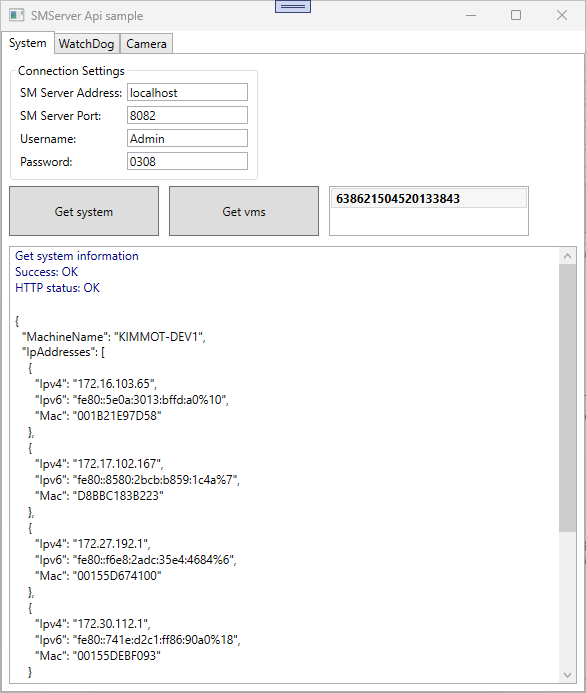
The SMServerApiSample application is a simple WPF application implemented using .Net framework 4.8 that contains examples of how to use the API.