
This page contains information about the ONVIF tool and how to use it.
ONVIF Tool Installation
To install the ONVIF tool, you must first request the installation package from Mirasys Support, which will share the installation package. When you have acquired the installation package, you can start the installation and follow the instructions below.
-
Double-click the installer package file to start the installation
-
Click Next
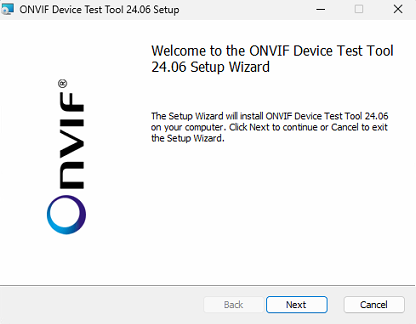
-
Tick the checkbox for “I accept the terms in the License Agreement” and click Next
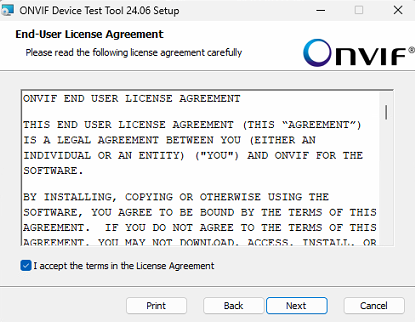
-
Select the installation location and who the tool is installed for, and click Next
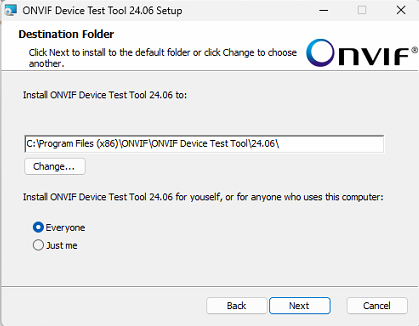
-
Click Install
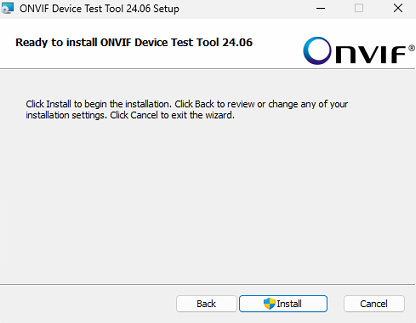
-
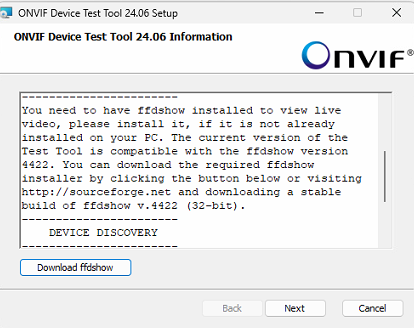
Click Next (Note: you don’t need to download ffdshow even though the installer asks to do so)
-
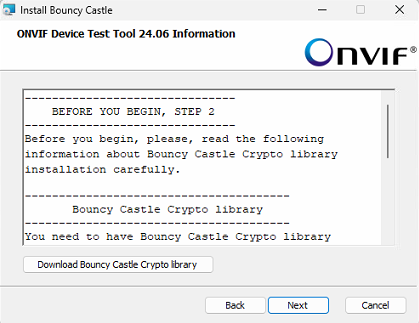
Click Next (Note: you don’t need to download the Bouncy Castle Crypto library even though the installer asks to do so)
-
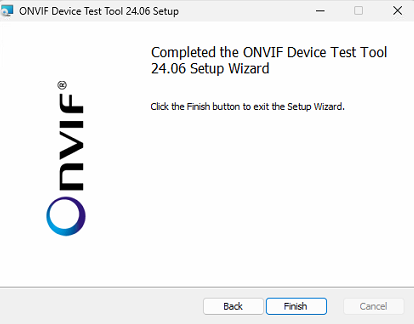
Click Finish to finalize the installation
Adding a camera to the ONVIF tool
-
Select the correct NIC from the dropdown menu on the Discovery tab.
-
On the Discovery tab under “Device Under Test Information”, enter the device IP, username, and password of the camera. After entering the needed information, click Probe.
-
The device information appears on the screen. You can obtain information for the missing fields by clicking Check.
-
On the Debug tab, you can select the authentication method (None, WS-Username token, Digest) and enable HTTPS.
Subscribing to the event stream and searching for camera metadata information
-
Go to the Debug tab
-
Open Events
-
Click Subscribe and Receive Events
-
Click Unsubscribe to stop receiving events
You will see the received events in the right panel on the debug tab and in the “Received events” window. You can copy the text to a text editor (e.g., Notepad) and search for specific events by pressing Ctrl + F and typing the event name.
Example event messages
Example of an event message from an AXIS camera:
Topic: tns1:LightControl/tnsaxis:LightStatusChanged/Status
Property Operation: Initialized
UTC Time: 2026-05-26T07:16:31Z
Data:
    state = "OFF"
Example of an event message from a Hanwha camera:
Topic: tns1:VideoAnalytics/tnssamsung:MotionDetection
Property Operation: Initialized
UTC Time: 2026-05-26T09:30:59Z
Source:
    Channel = "0"
    Window = "2"
Data:
    Motion = "0"
If you need in-depth instructions for the ONVIF tool, you can access them inside the tool through Help > How Do I…